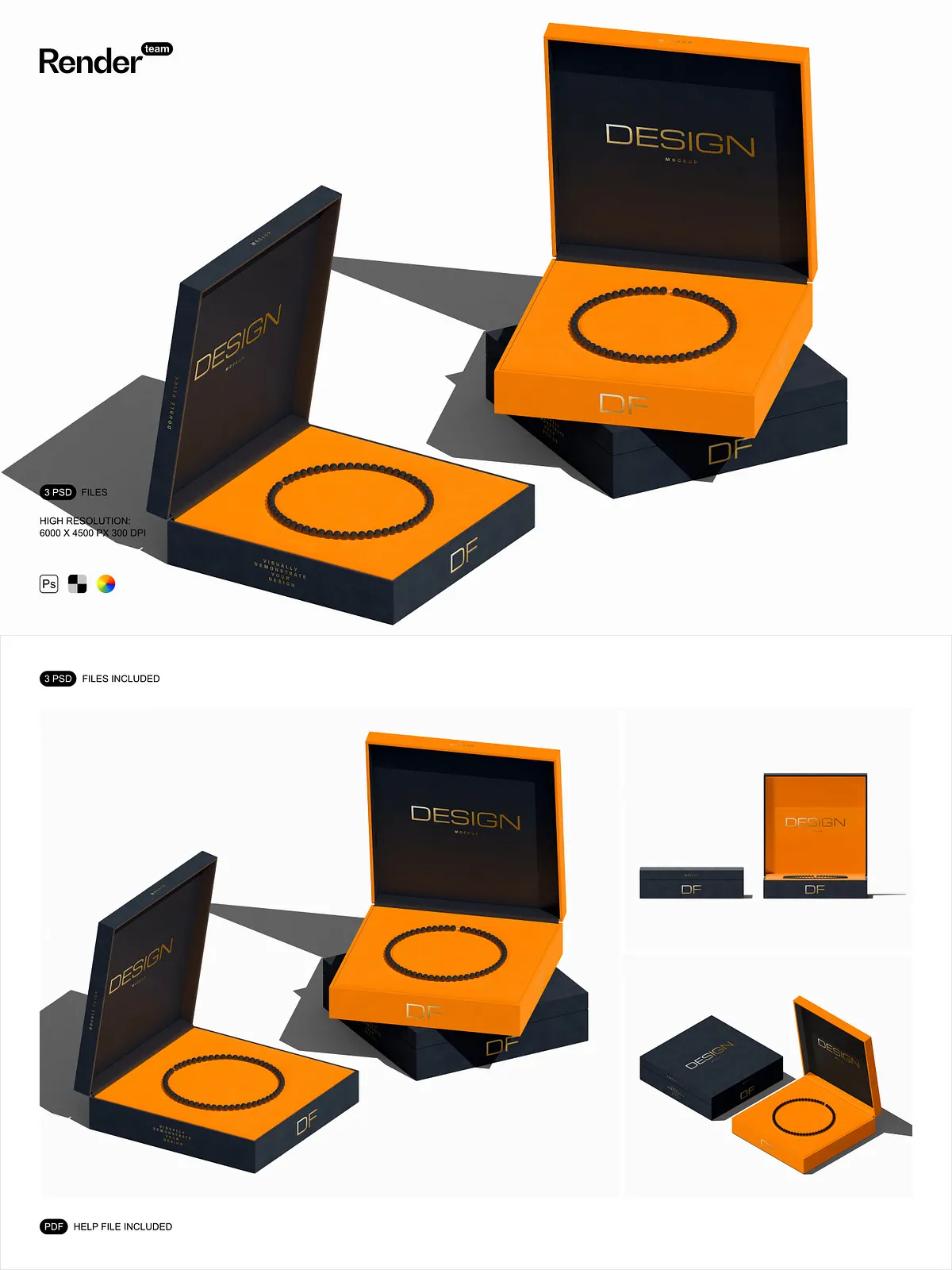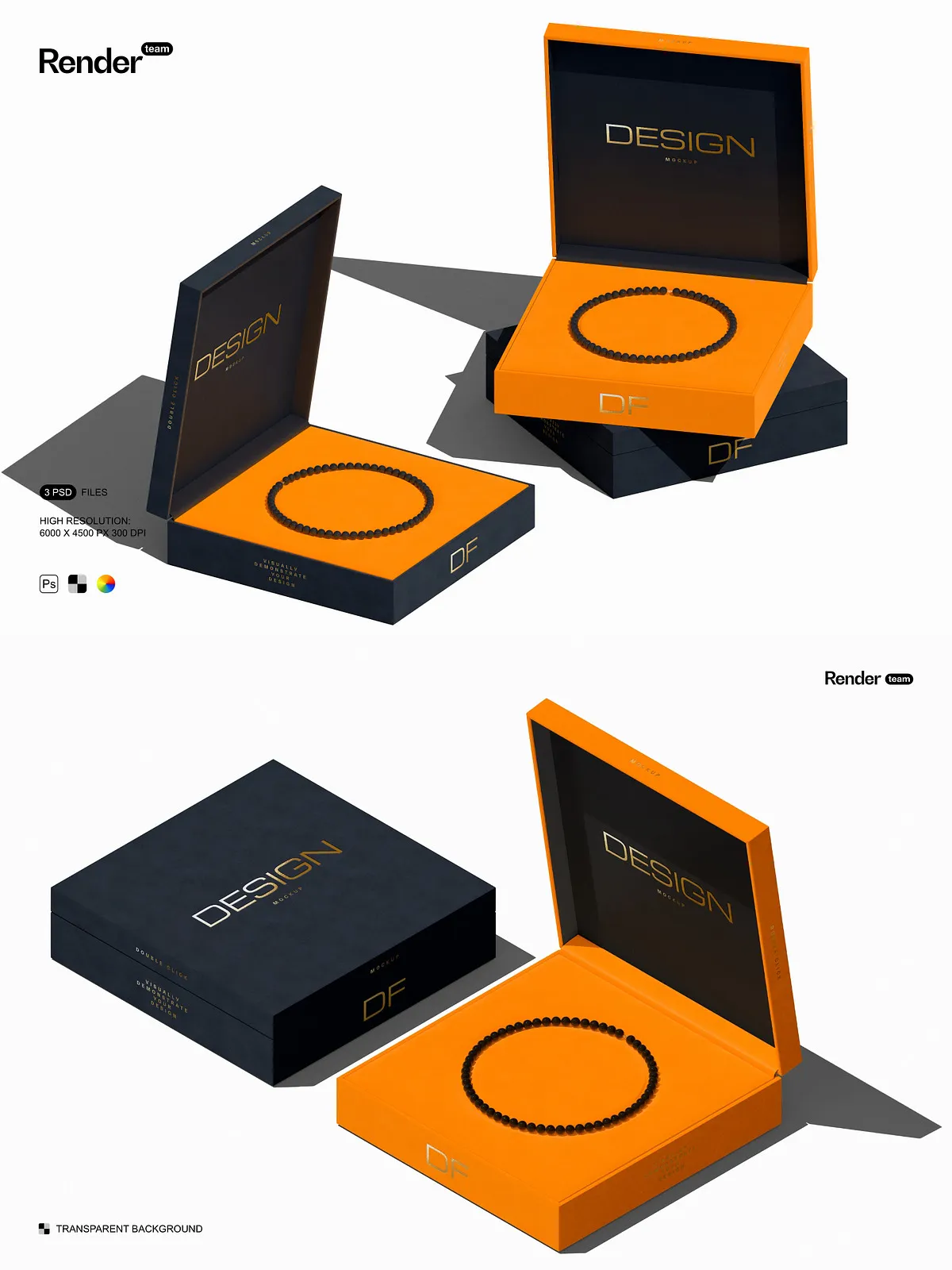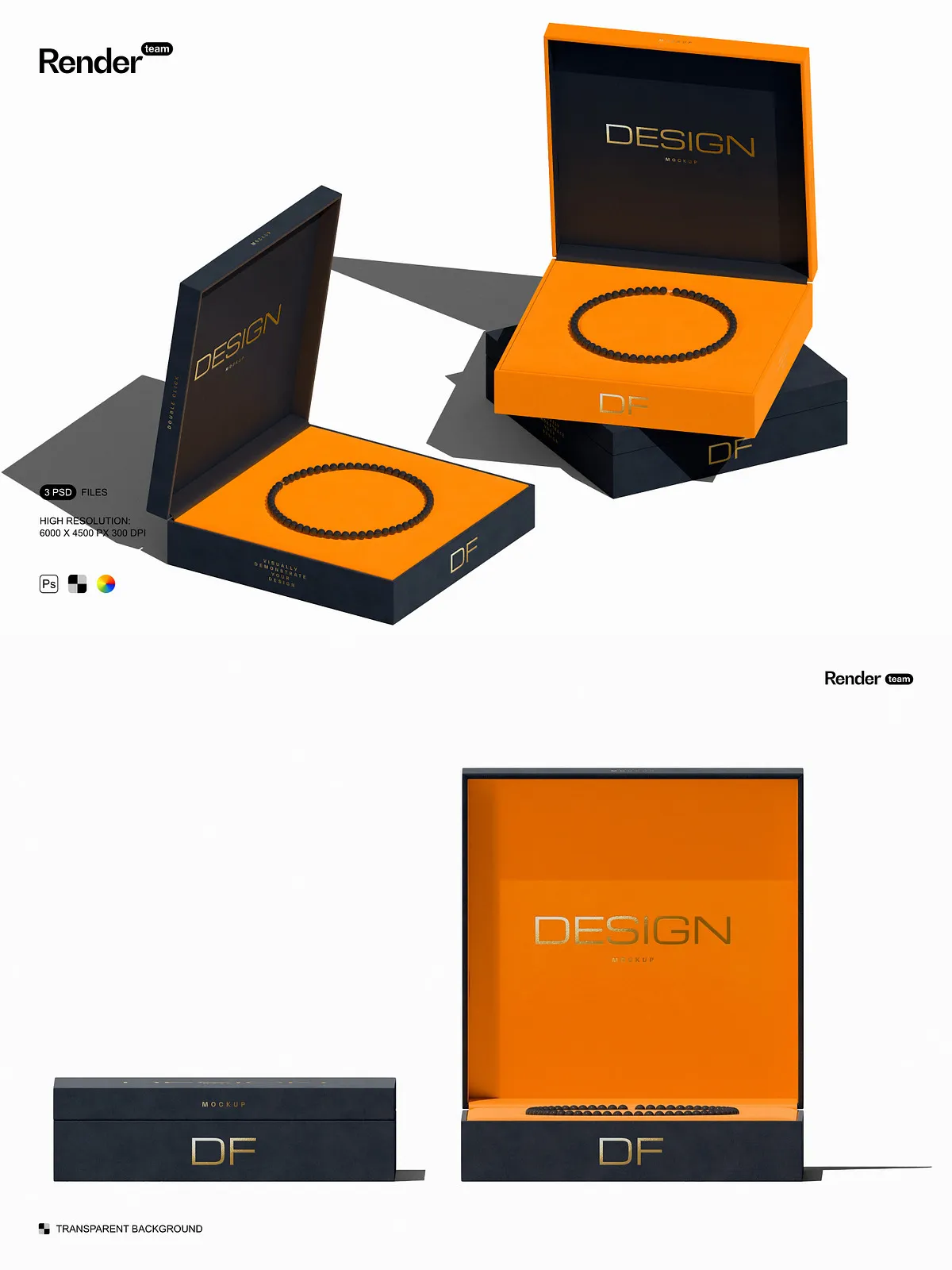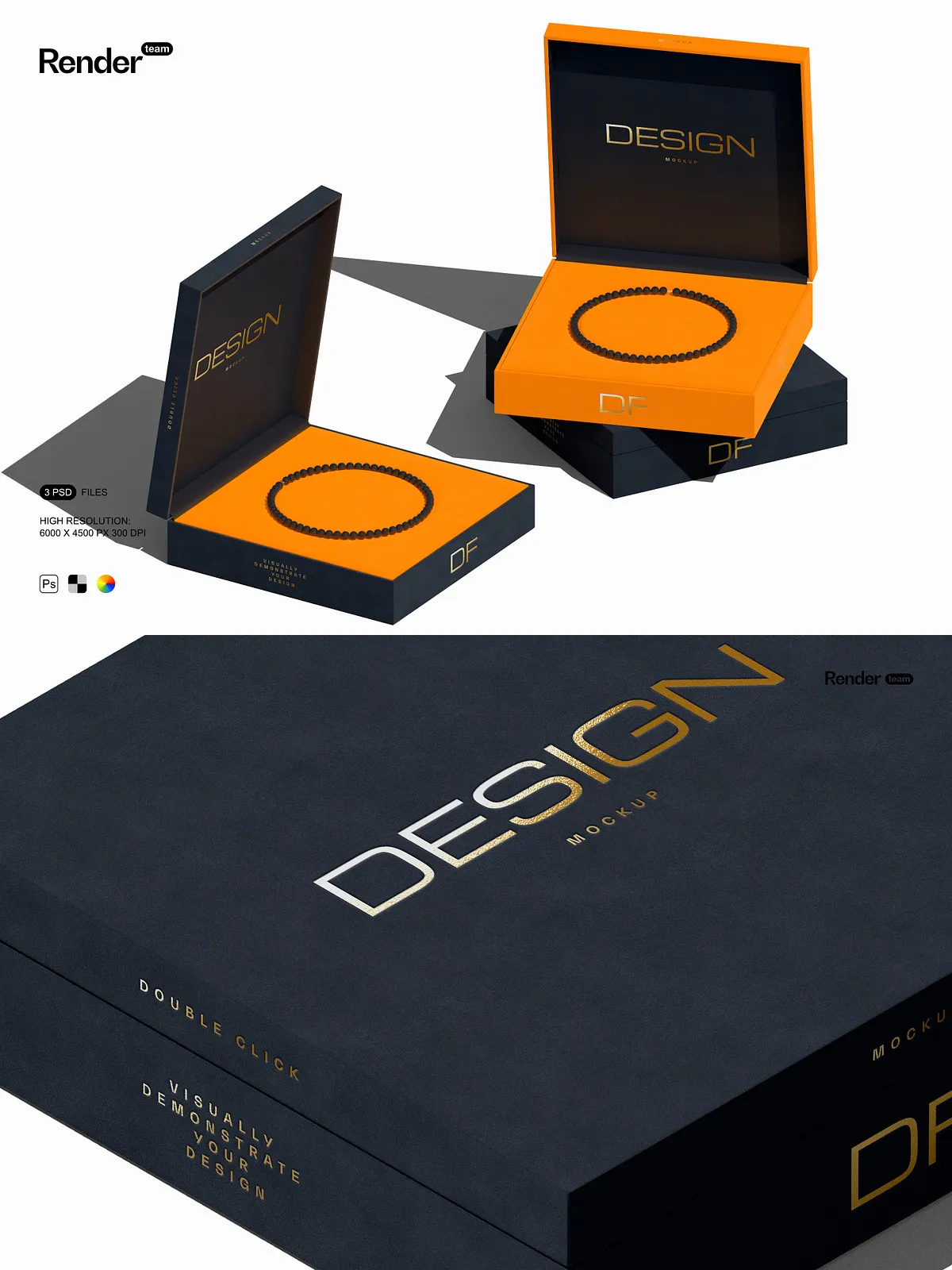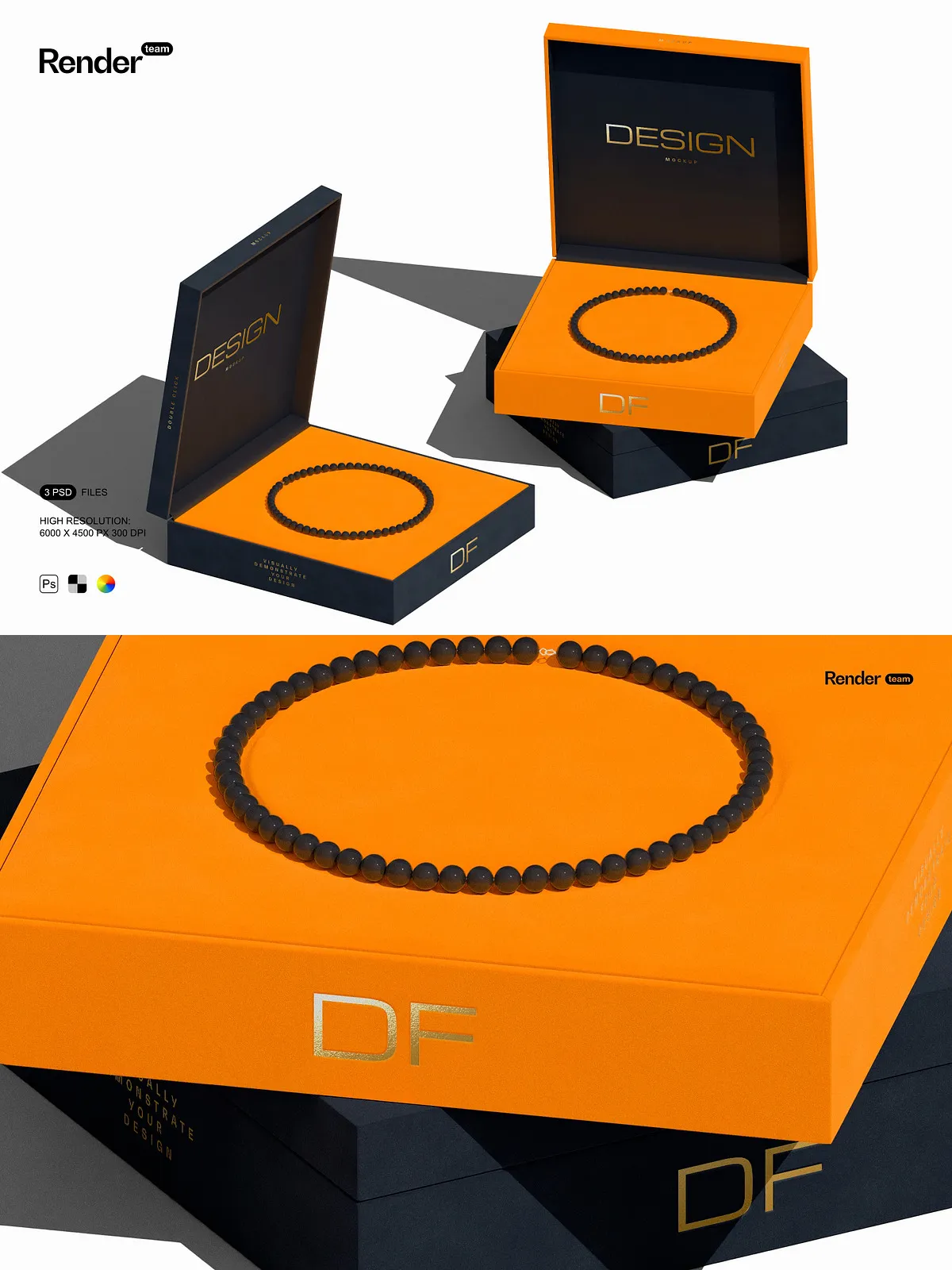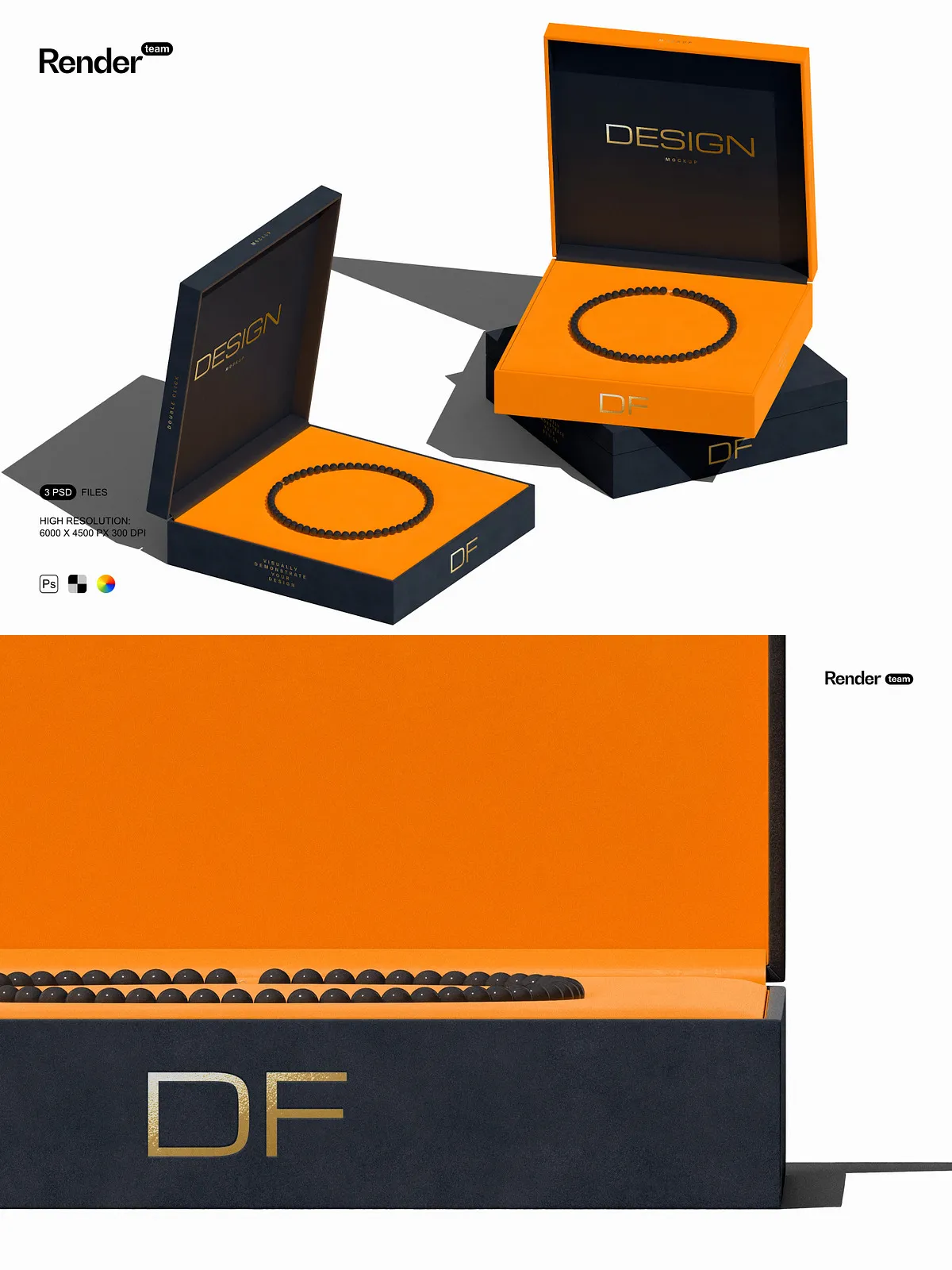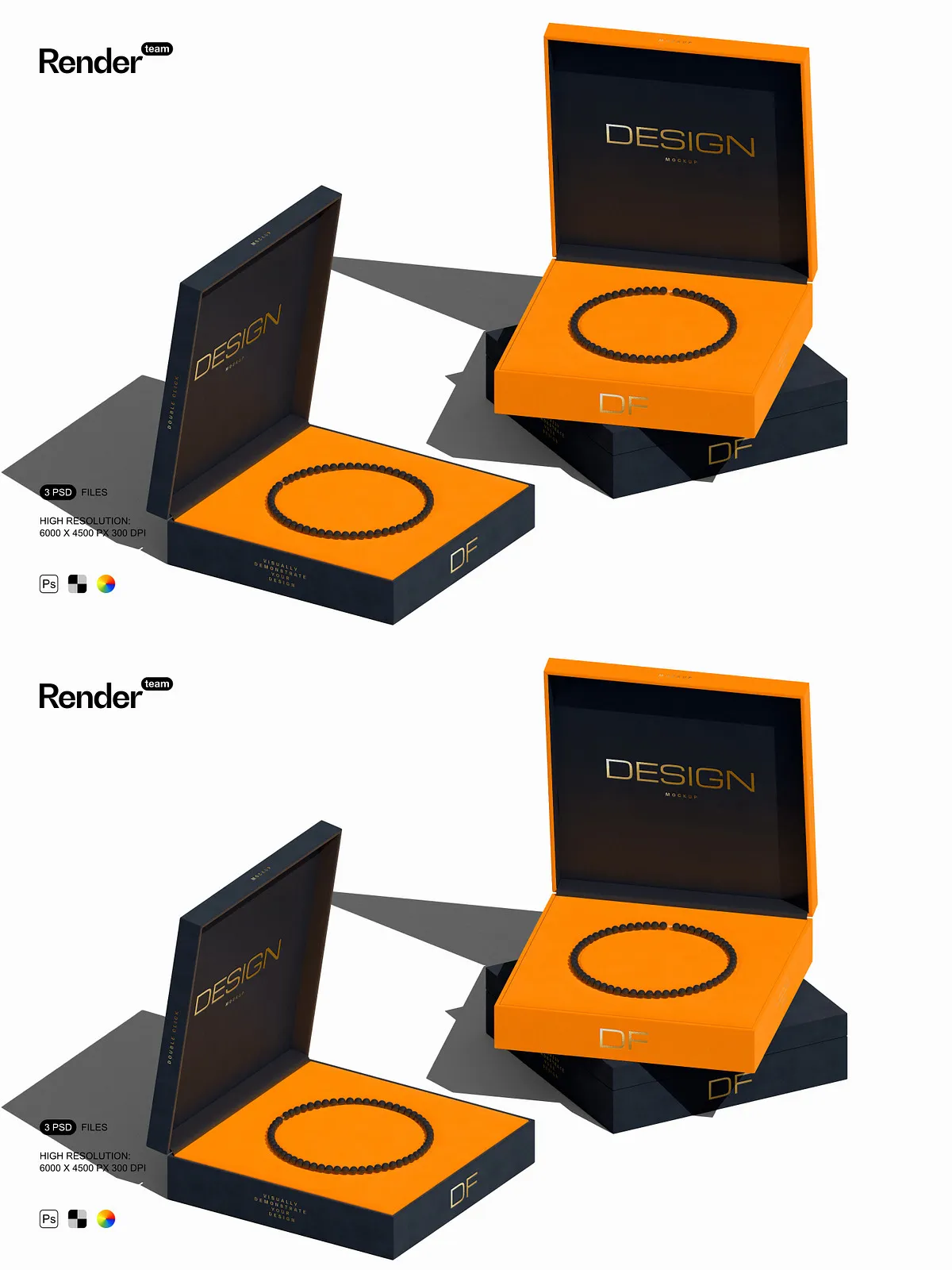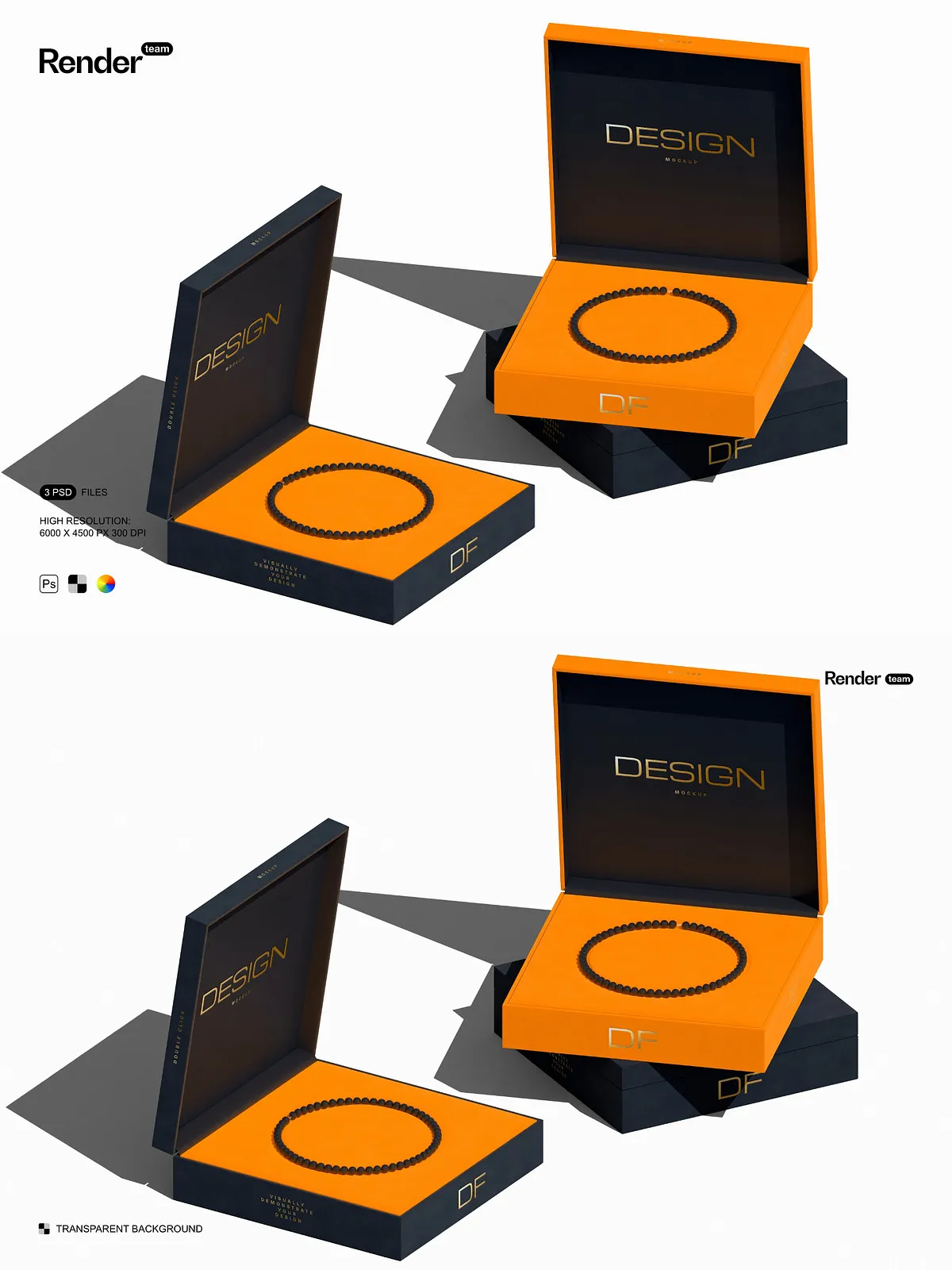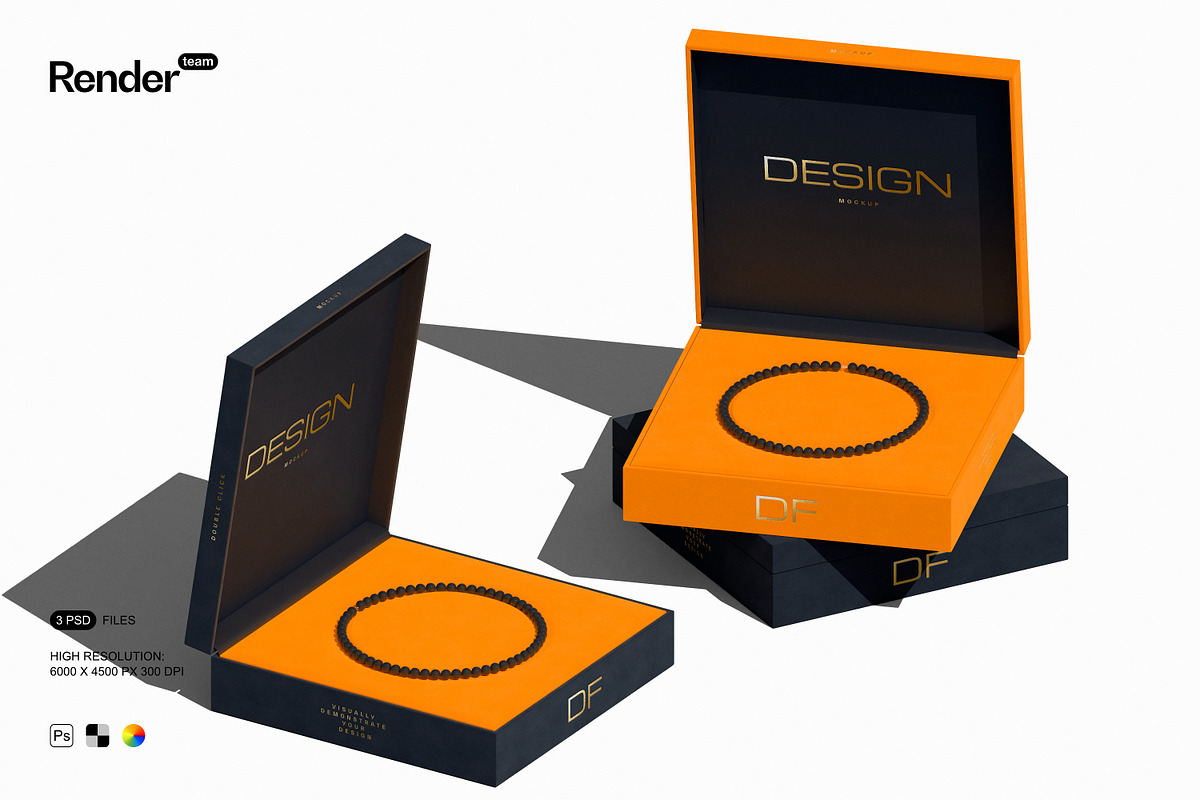
The Jewelry Box Mockup Set delivers three meticulously prepared, layered PSD files designed to showcase rings, necklaces, bracelets, and packaging in realistic scenes. Each mockup uses smart objects and isolated layers so you can quickly place your artwork, adjust materials, and fine-tune lighting to produce polished presentation images that communicate quality and craftsmanship. Designers, brand owners, and e-commerce managers can use these mockups to create product listings, advertising banners, portfolio pieces, and client proposals without staging photo shoots.
Key Features
Fully Editable PSD Files with Organized Layers
All files include clearly labeled folders and groups so you can edit components independently. Toggle backgrounds, change box color, swap textures, and manage reflections and shadows without affecting other elements. The organized structure speeds workflow and prevents accidental edits.
Smart Object Workflow for Instant Updates
Replace designs instantly by editing smart object layers: double-click the smart object, paste your artwork, save, and return to the mockup — your design appears in place with correct perspective and effects. For detailed guidance on smart object usage, refer to Adobe’s official documentation: [Create embedded Smart Objects – Adobe Support](https://helpx.adobe.com/photoshop/desktop/create-manage-layers/smart-objects/create-embedded-smart-objects.html). You can also open the smart object directly within Photoshop to fine-tune placement and export variations rapidly.
High Resolution and Print-Ready Quality
Each mockup renders at 6000 x 4500 pixels at 300 dpi, delivering crisp detail for both digital and print outputs. Produce zoomed-in product shots, large-format banners, and print-ready proofs without loss of clarity. The high resolution ensures gem facets, metallic finishes, and texture details remain sharp and convincing.
Isolated Objects and Shadows for Flexible Composition
All objects and shadows appear on separate layers so you can move elements, change shadow depth, or remove shadows entirely for composite layouts. This isolation supports non-destructive editing and allows you to compose scenes that match brand aesthetics or marketplace requirements.
Included Files and Support
What You Receive
- 3 fully layered PSD mockup files optimized for fast editing
- Isolated object and shadow layers for precise control
- Pre-configured smart objects for instant design replacement
- Comprehensive PDF help file with step-by-step instructions
PDF Help File — Learn the System Quickly
The included PDF guide walks you through opening files, using smart objects, adjusting color and texture layers, exporting final images, and troubleshooting common issues. The guide uses annotated screenshots and clear steps so both beginners and experienced designers can adopt the set immediately and produce consistent results.
Practical Uses and Benefits
Accelerate Production and Reduce Costs
Replace expensive photo shoots and complex retouching by creating realistic product visuals directly from your design files. The mockups let you generate multiple variations for A/B testing, seasonal promotions, or marketplace listings in minutes, cutting production time and costs while maintaining high visual standards.
Enhance Sales and Brand Perception
Use these mockups to craft lifestyle images and product close-ups that highlight materials, finishes, and packaging details. High-quality visuals increase buyer confidence and improve conversion rates on e-commerce platforms, social media, and advertising campaigns.
How to Use the Mockup Set — Best Practices
Step-by-Step Editing Workflow
- Open the chosen PSD file in Photoshop.
- Locate the smart object layer and double-click to open it.
- Paste your design or artwork inside the smart object, save, and close the smart object window.
- Adjust visible layers — color, texture, background, and shadow intensity — to match your desired look.
- Export final images at required sizes and formats for web or print.
For advanced control of embedded smart objects, visit Adobe’s official guide: [Create embedded Smart Objects – Adobe Support](https://helpx.adobe.com/photoshop/desktop/create-manage-layers/smart-objects/create-embedded-smart-objects.html). This resource helps you maintain non-destructive edits and reuse assets efficiently.