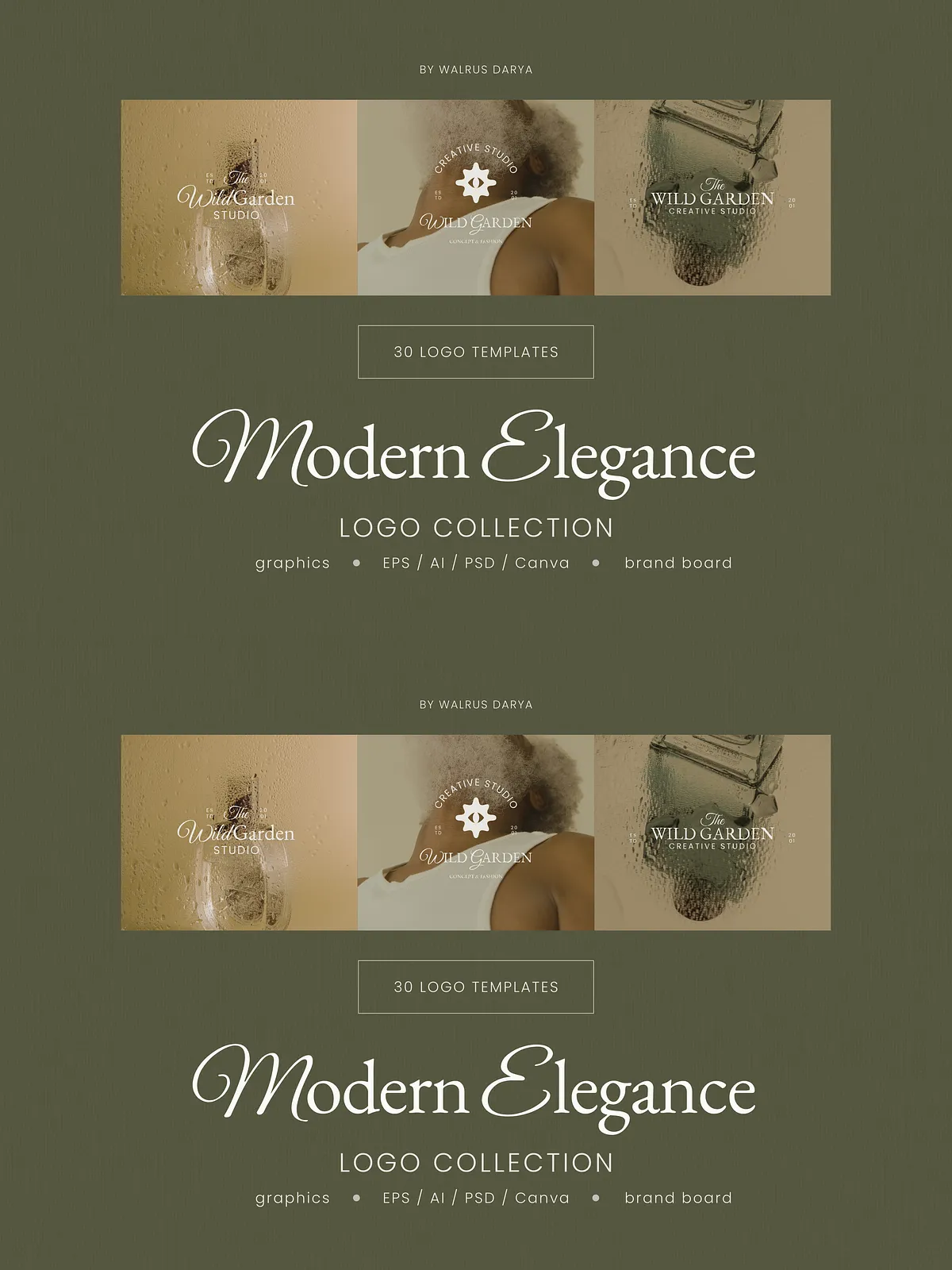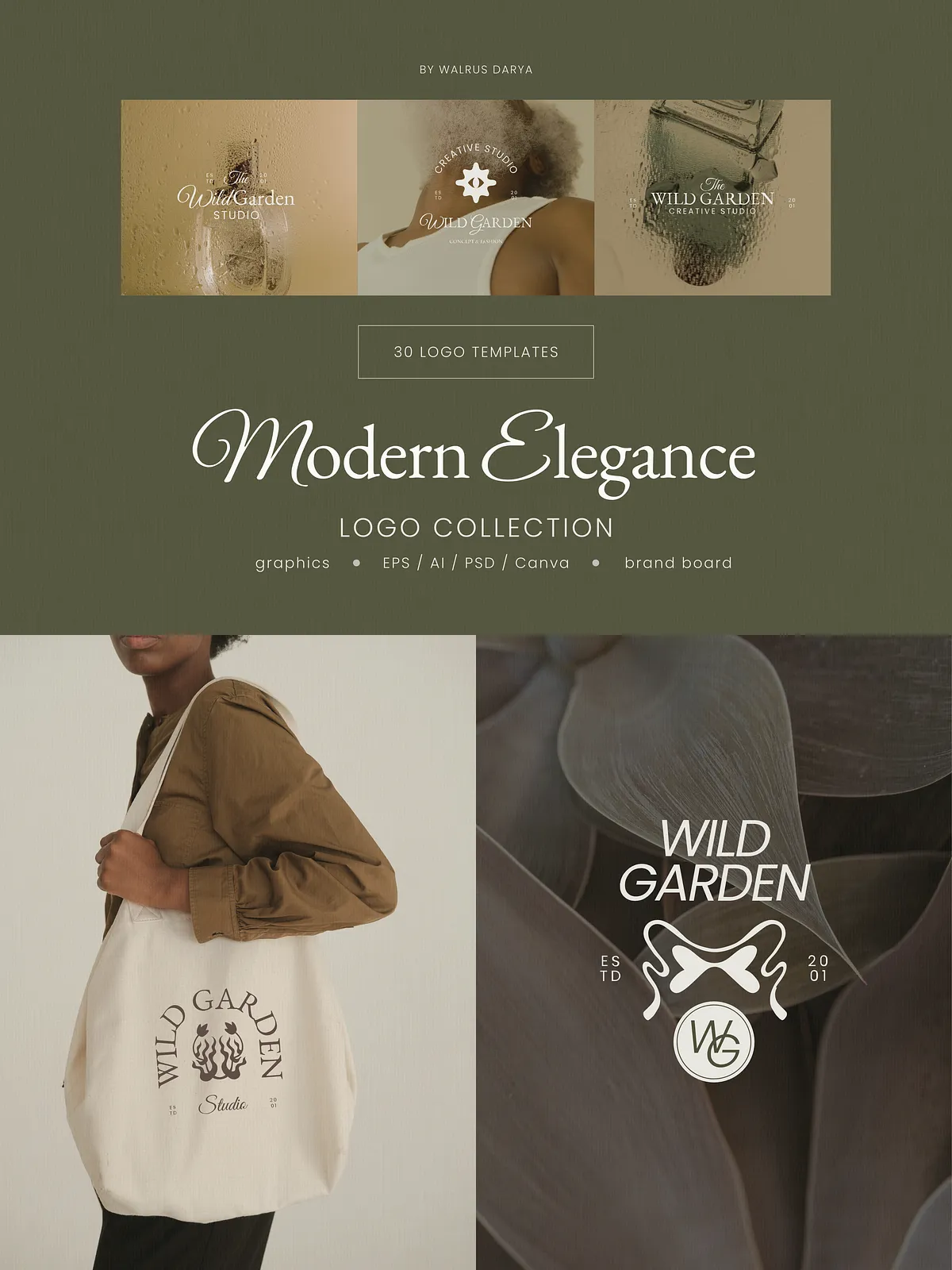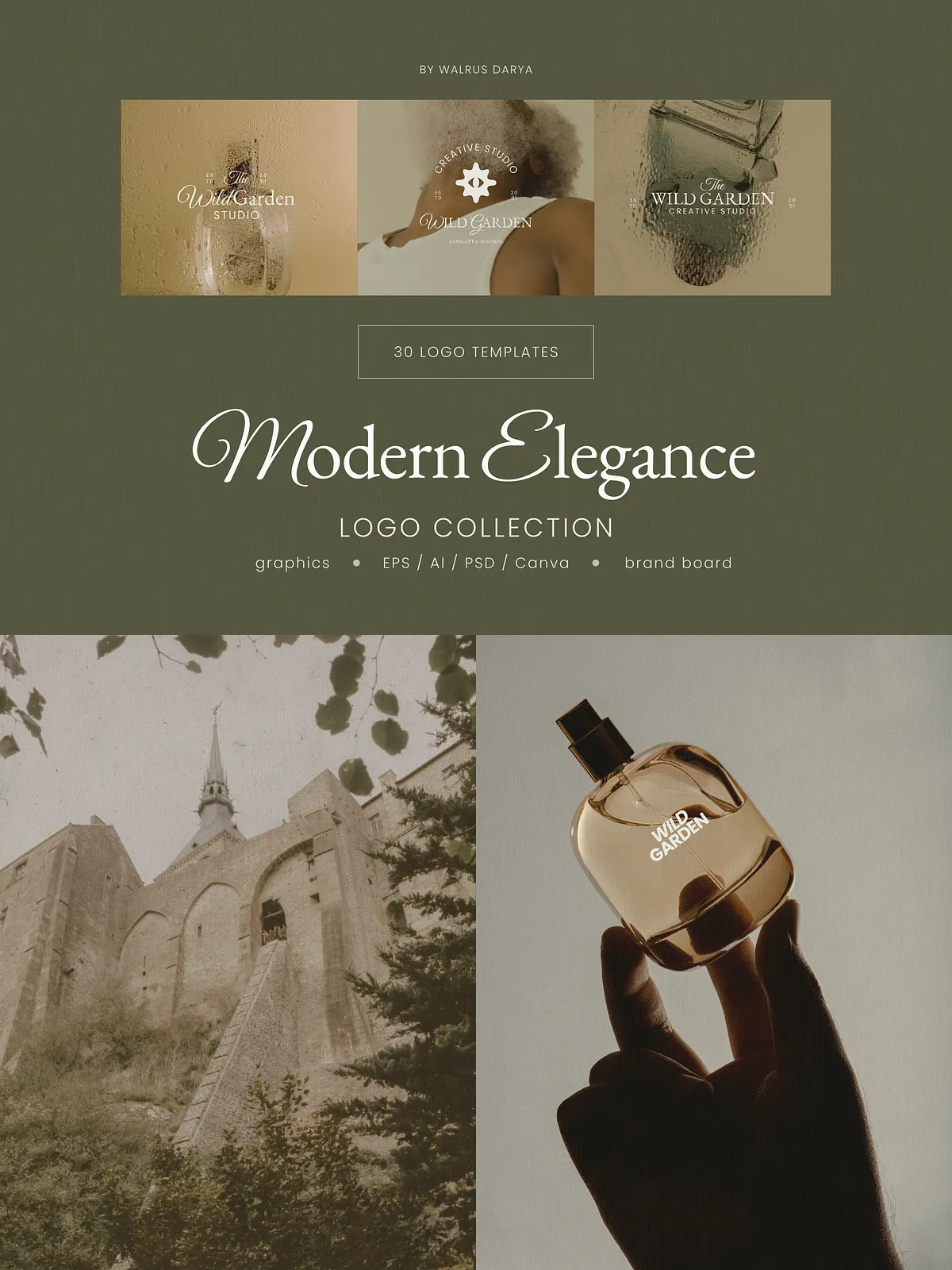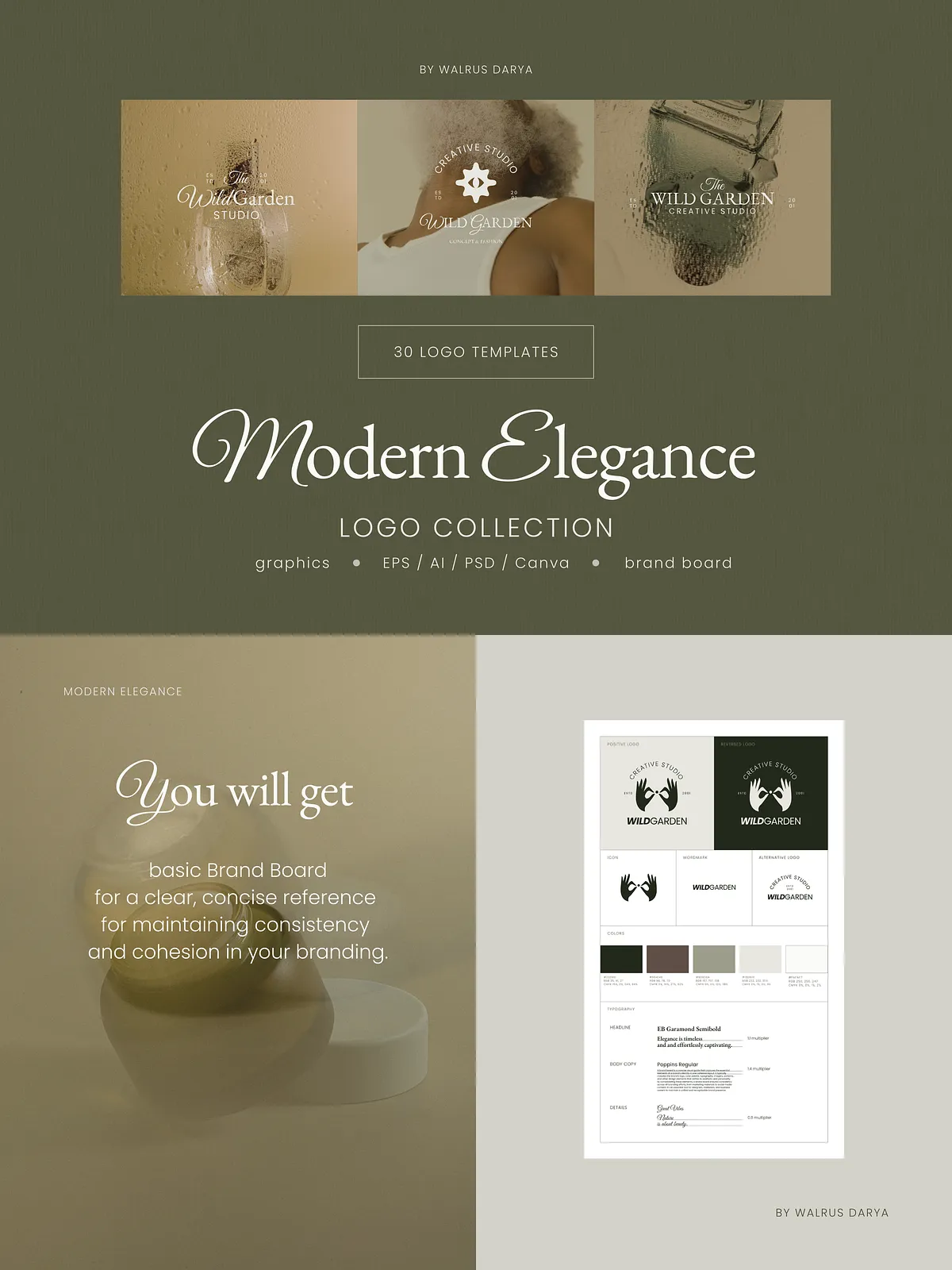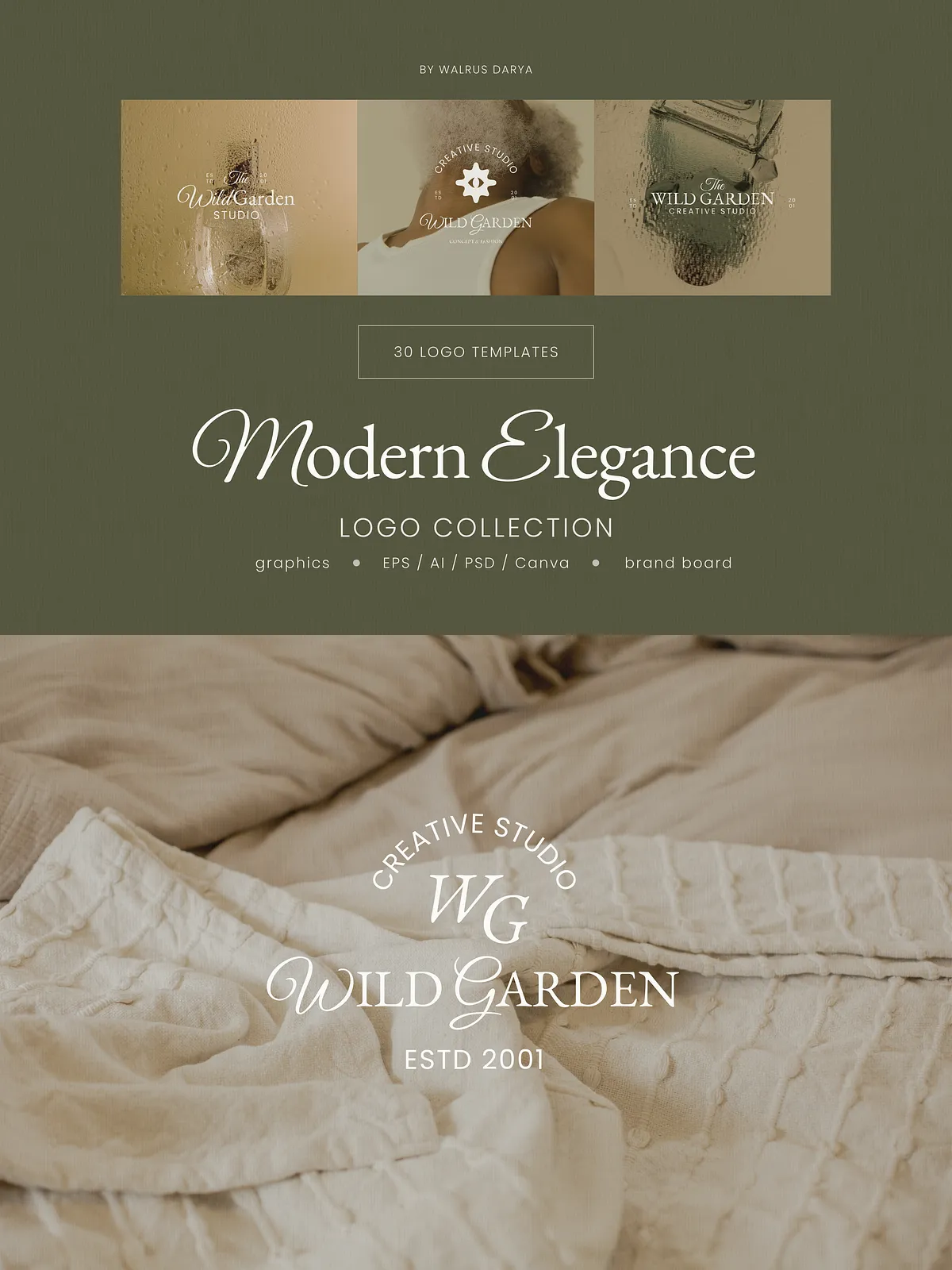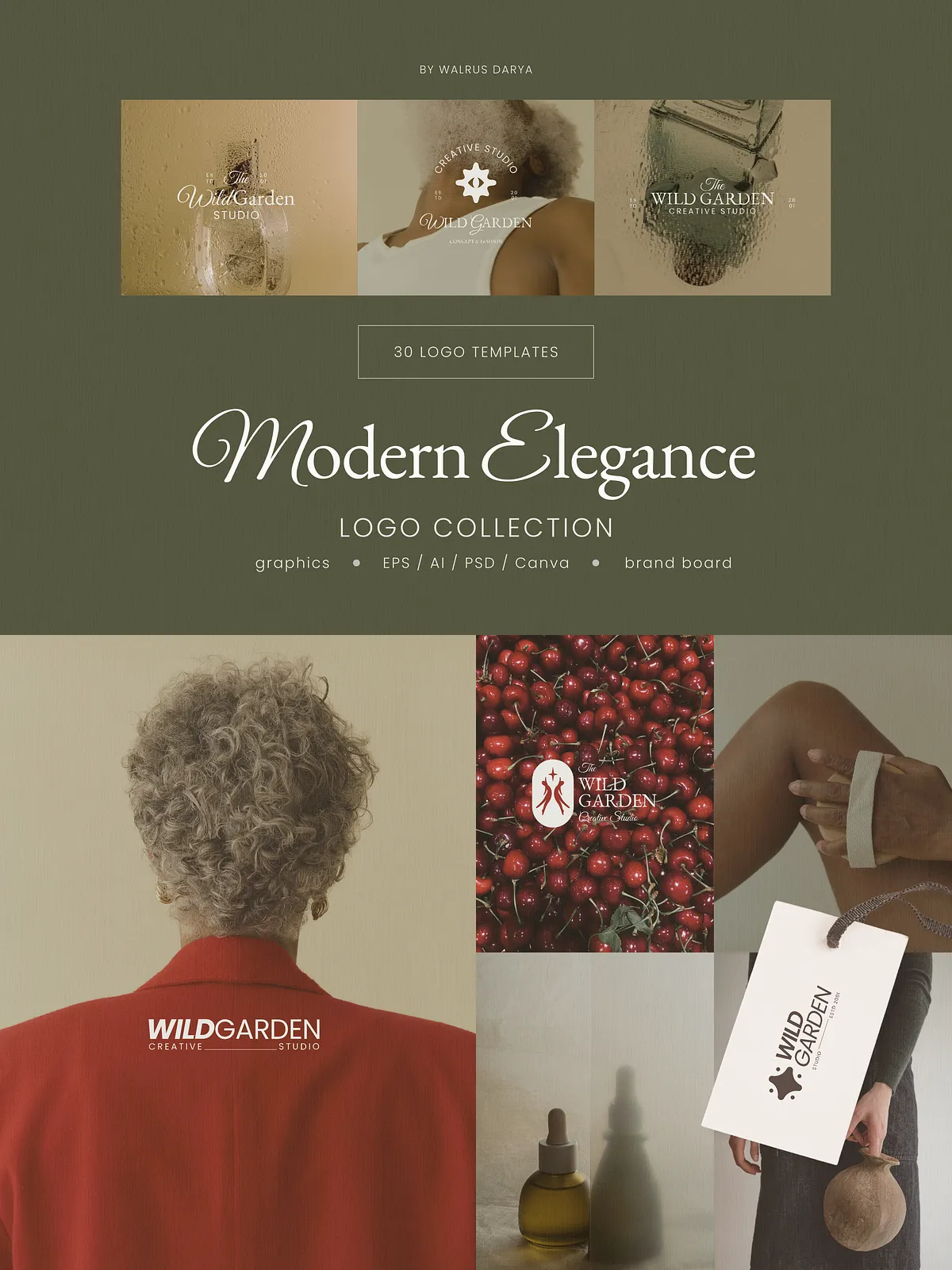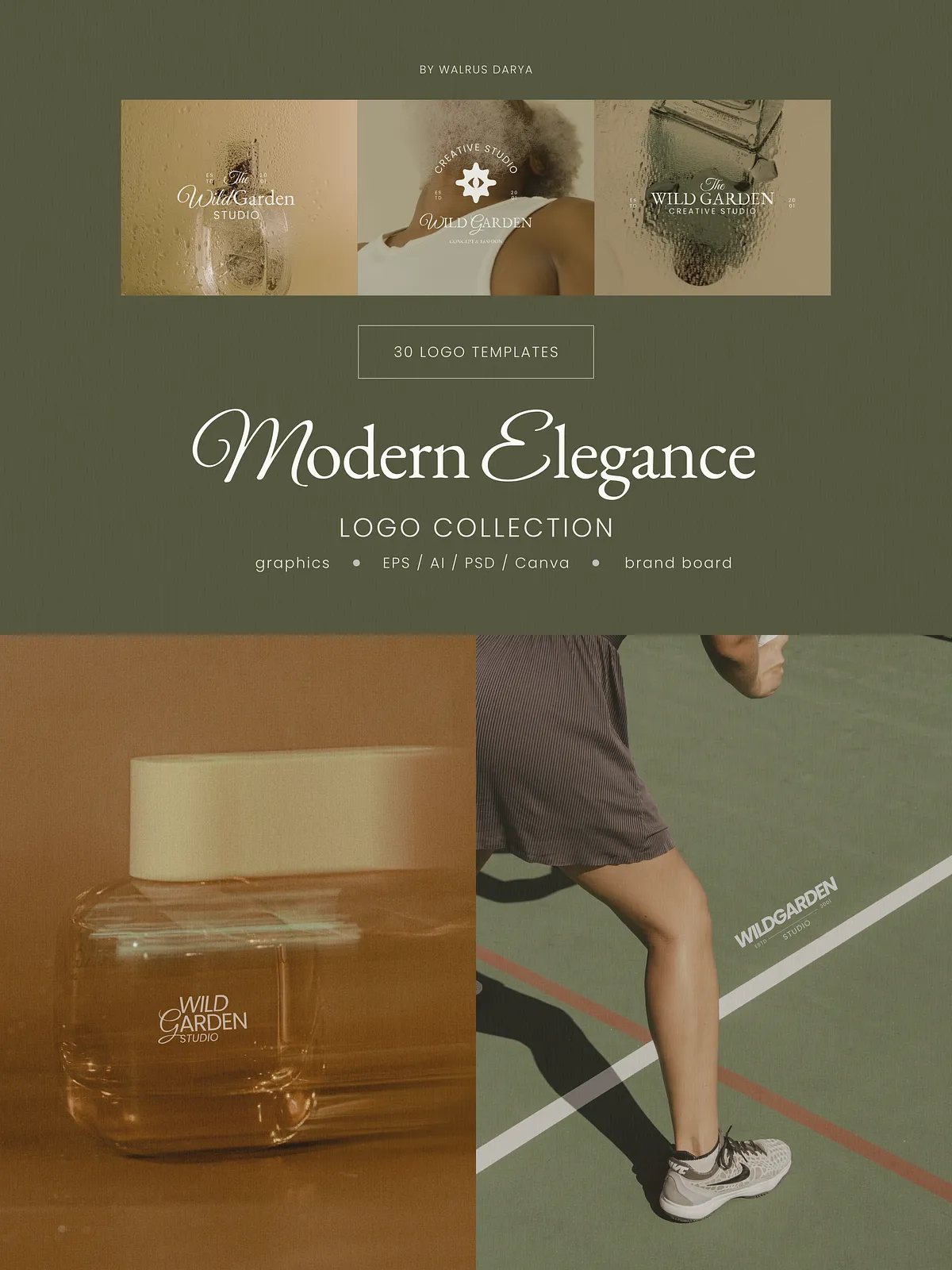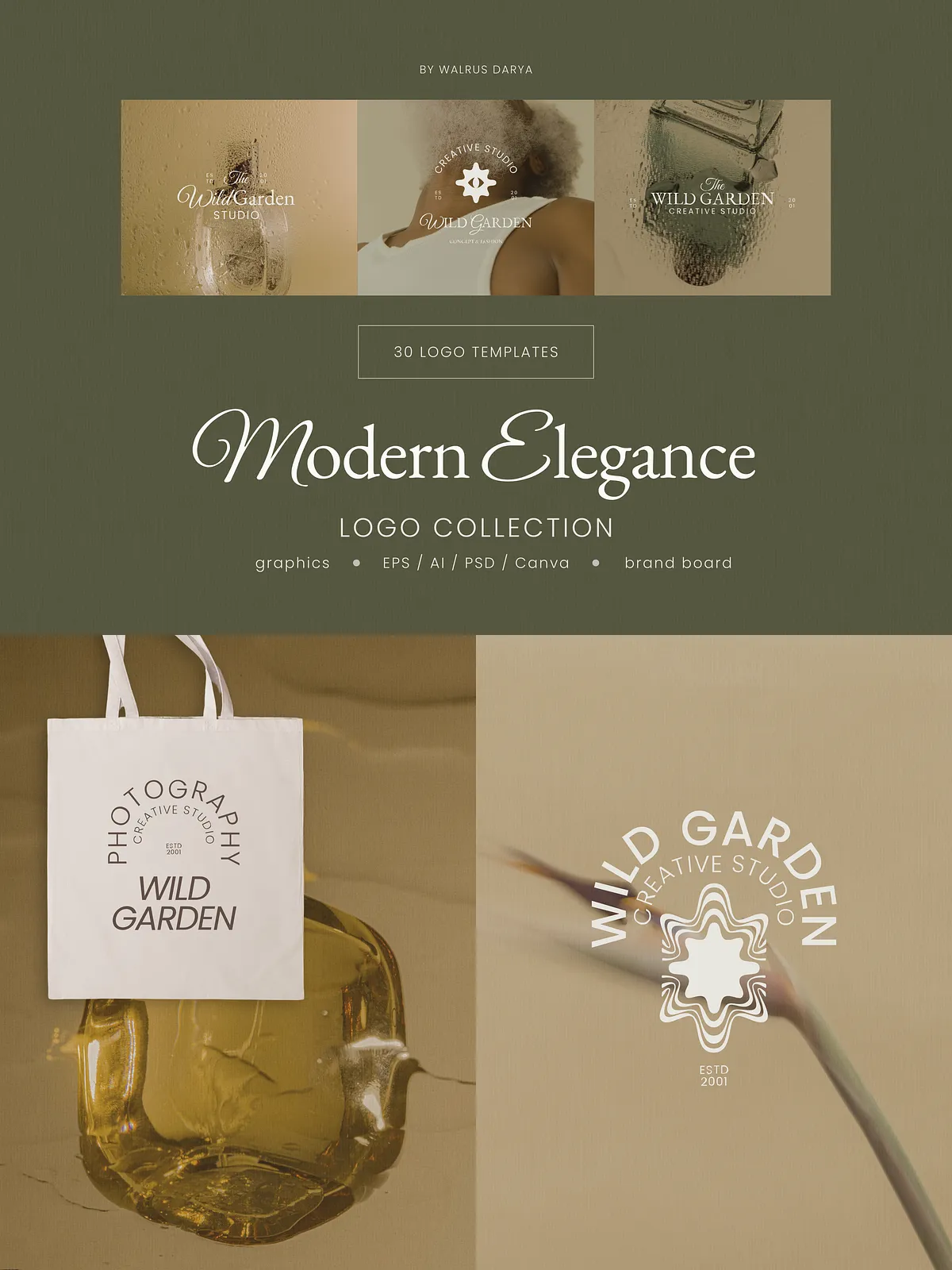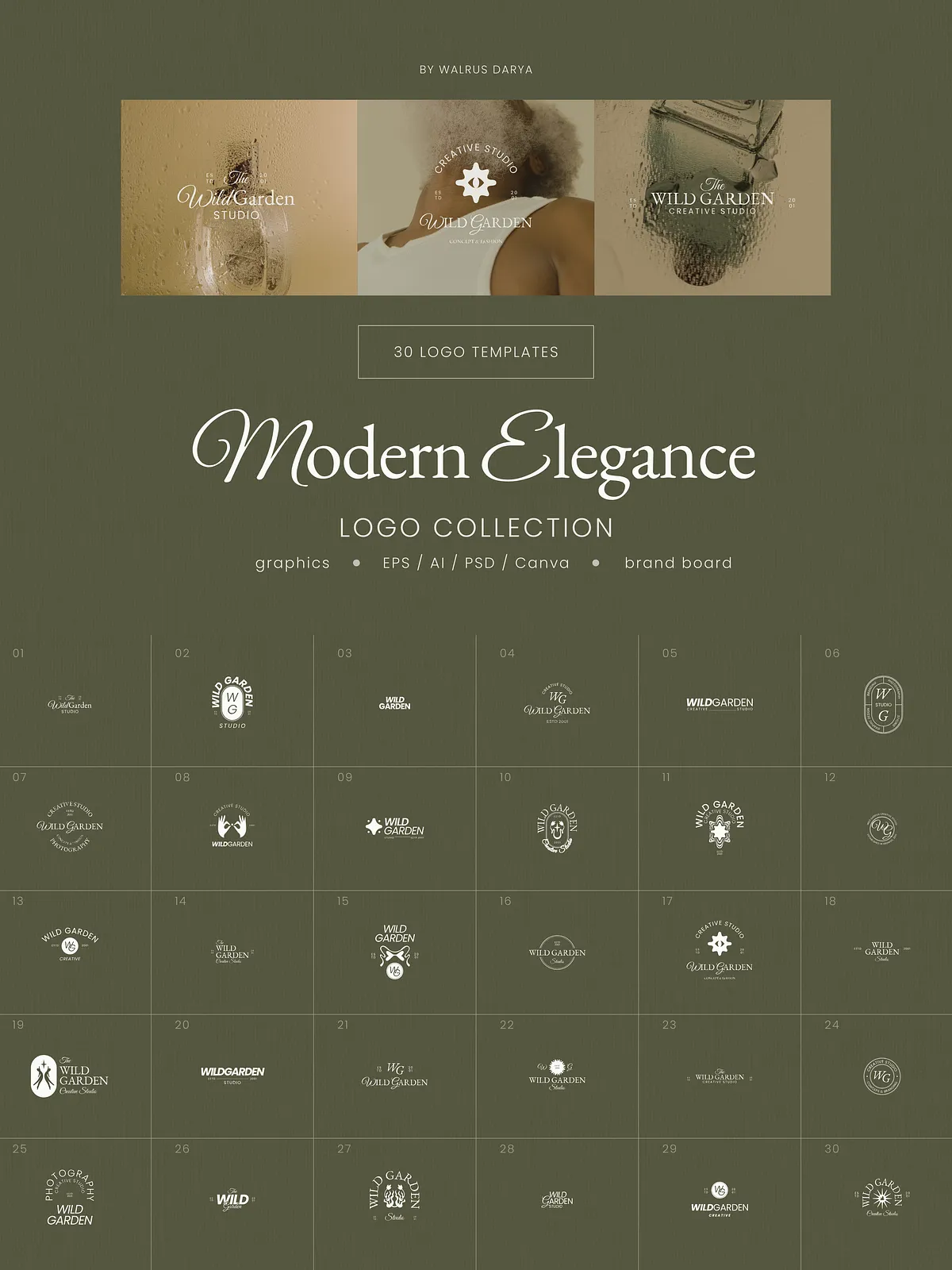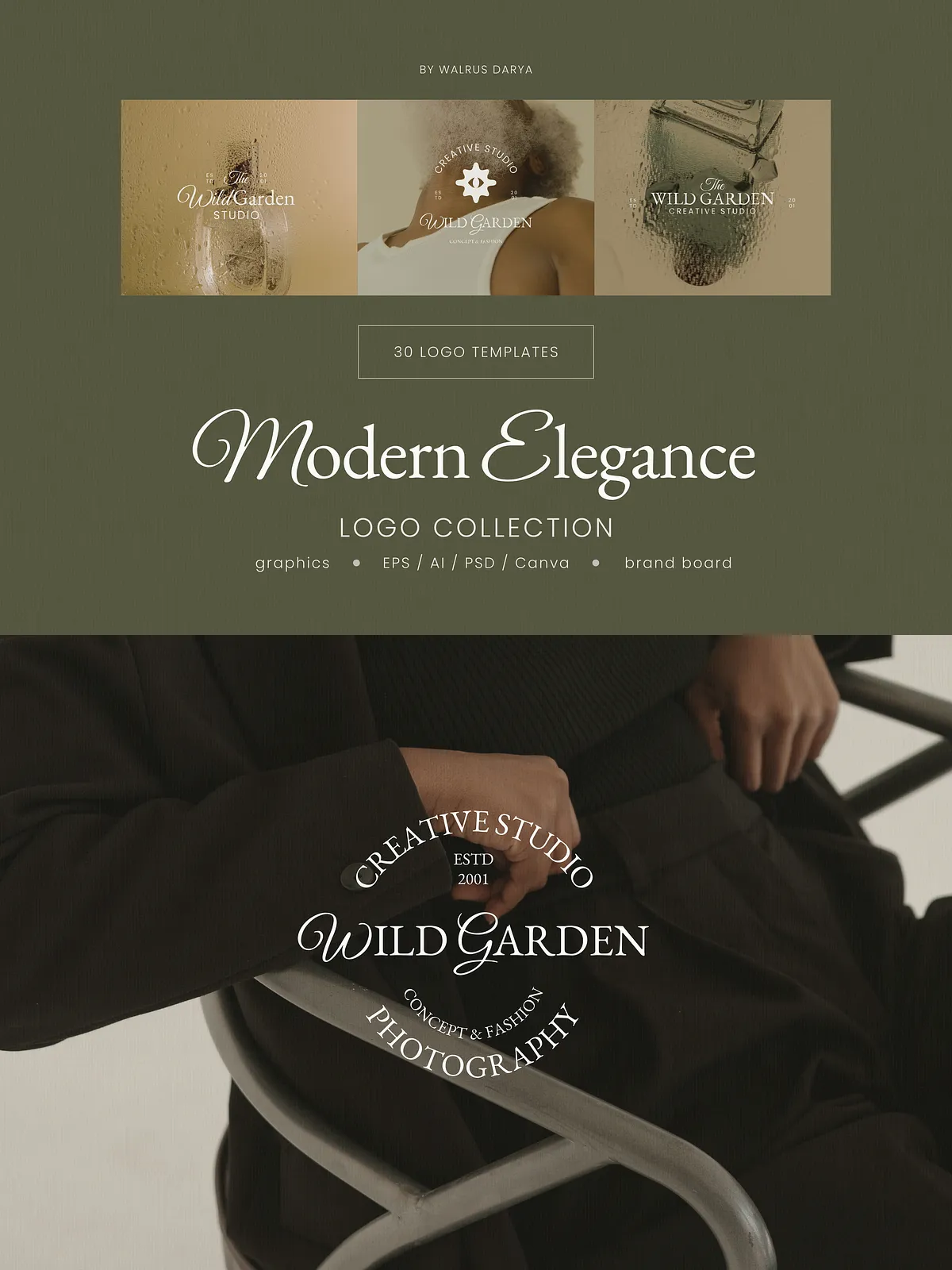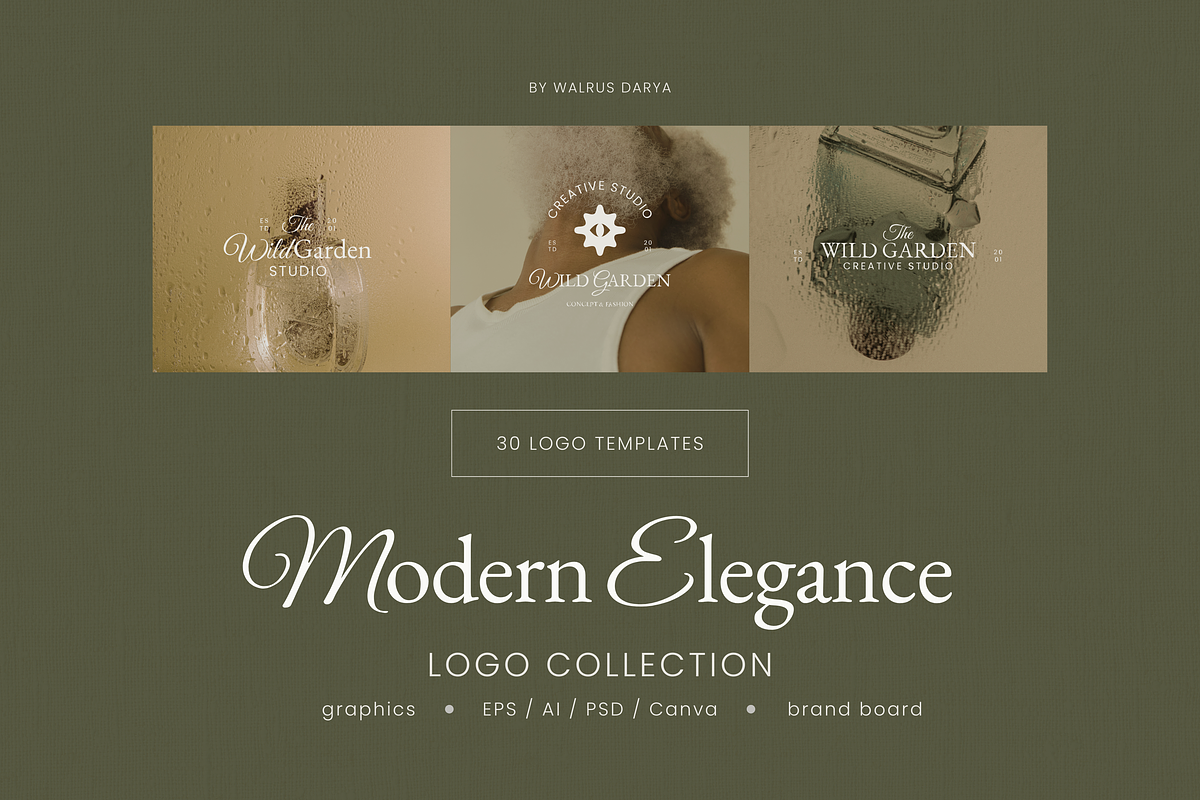
Modern Elegance is a thoughtfully curated collection of logo templates that blends timeless typography with contemporary design sensibilities. This package empowers designers, agencies, and small business owners to create polished brand identities quickly. Each logo template and graphic element is fully editable so you can adapt colors, type, and layout to reflect your client’s or your own brand persona with precision.
What’s Included
Logo Templates
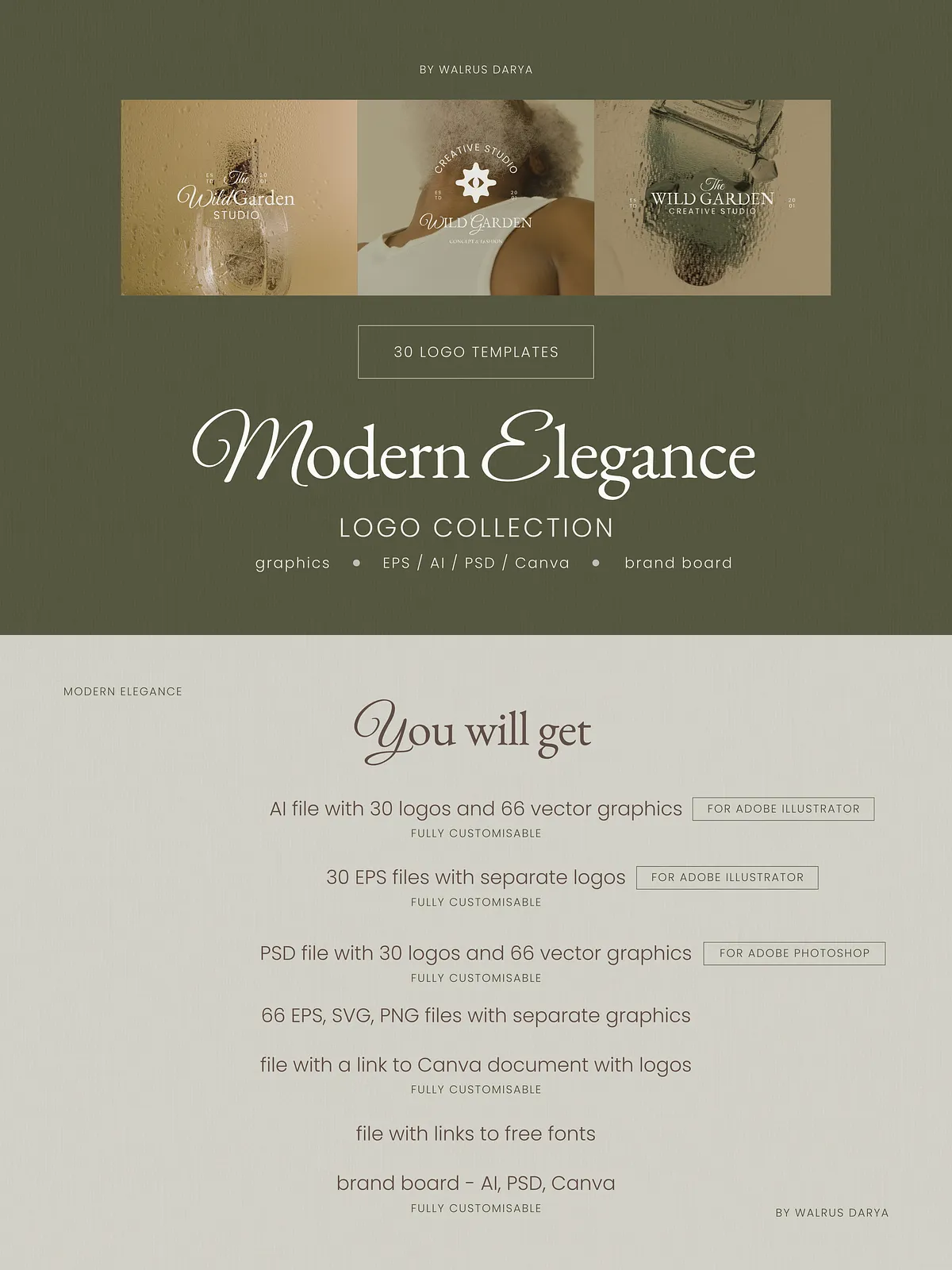
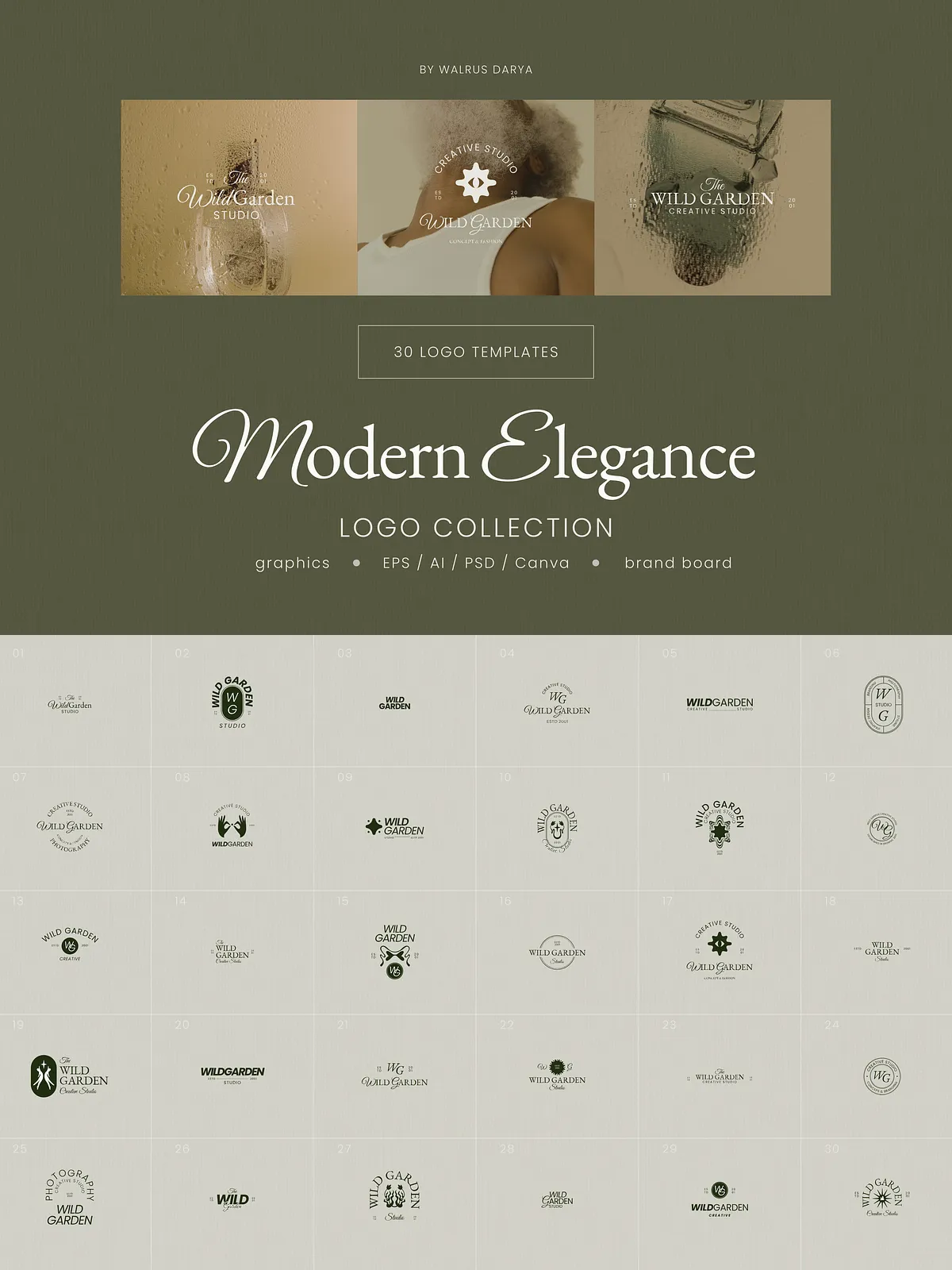
You receive 30 vector logo templates provided in industry-standard formats (AI, EPS, PSD, and Canva). Each logo uses scalable vector shapes so you can resize without losing quality. The layouts range from minimal wordmarks to more decorative lockups, enabling flexible use across print and digital touchpoints.
Graphic Elements and Brand Board
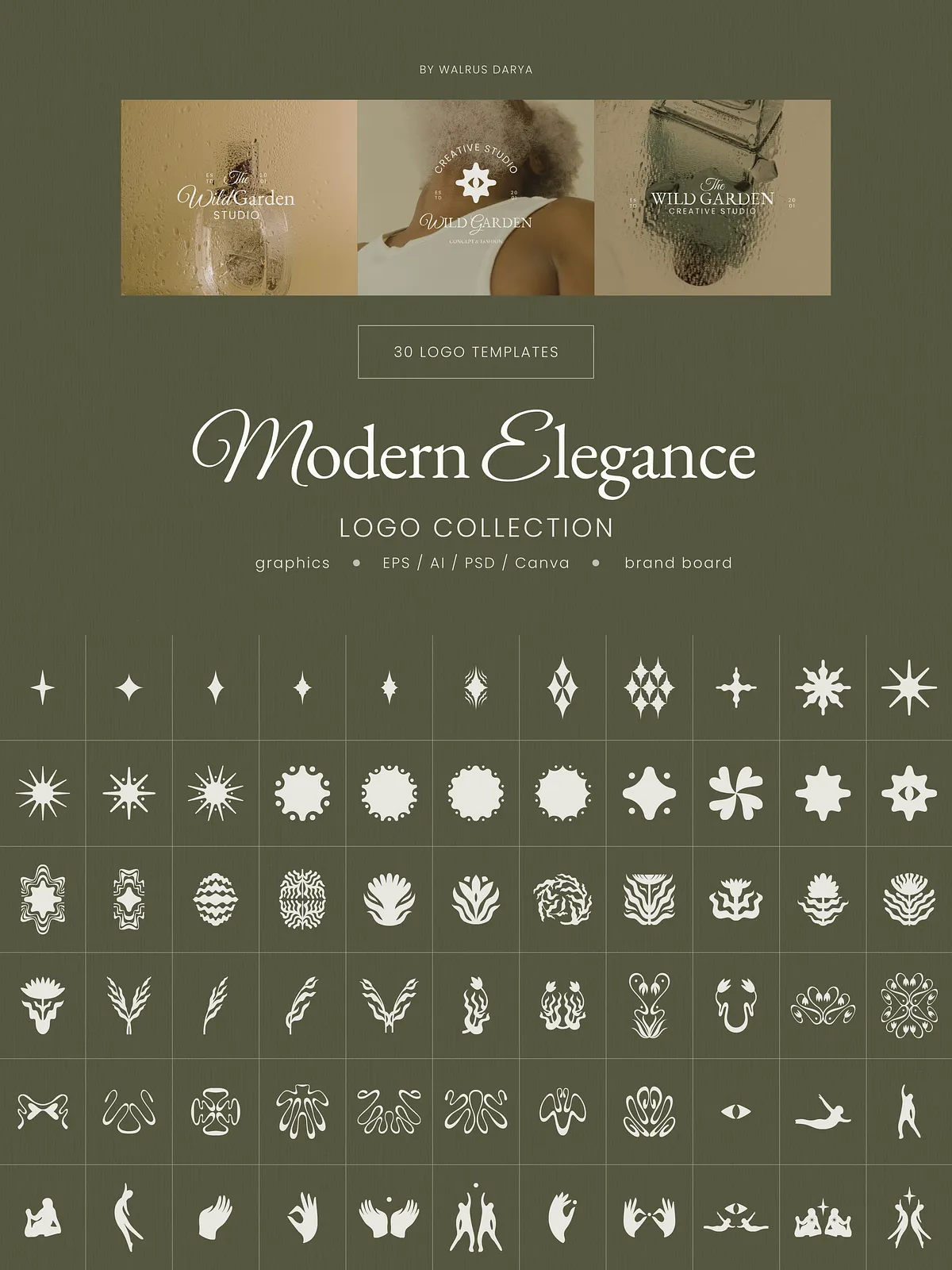
The collection also includes 66 graphic elements supplied as EPS, SVG, and PNG files. These elements let you build supporting brand visuals — patterns, badges, icons, and ornamental frames — that extend the logo language across collateral. A brand board is included in AI, PSD, and Canva formats to help you present identity systems clearly: logo versions, color palette, typography, and element usage all assemble into a professional presentation-ready file.
File Formats and Compatibility
Files come in the following formats to support common workflows: Adobe Illustrator (AI), Encapsulated PostScript (EPS), Adobe Photoshop (PSD), and editable Canva files. The vector files (AI, EPS) ensure crisp output for large-format printing, signage, and packaging. PSD files support raster-based mockups and presentation visuals, while the Canva versions enable fast, non-designer-friendly customization and export for web and social assets.
How to Edit and Use
Required Software
Edit vector templates in Adobe Illustrator or compatible vector editors. Use Adobe Photoshop to adjust PSD mockups and raster layers. Open the Canva files to edit layouts, swap fonts, and export web-ready assets without specialized software.
Step-by-Step Editing Workflow
- Open your chosen logo template in Illustrator (AI) or Canva.
- Replace placeholder text with the brand name. Adjust letter spacing, weight, and scale to balance the mark.
- Swap color swatches to reflect the chosen palette. Ensure contrast for both print and digital accessibility.
- Customize or remove graphic elements to refine the composition for your identity system.
- Export final logo files in required formats: SVG/PNG for web, EPS/PDF for print, and high-resolution PNG/JPG for general use.
Customization Tips and Best Practices
Typography
Maintain typographic hierarchy across applications. Use the brand board’s type suggestions as a starting point but test alternative fonts for readability and tone. Adjust kerning and tracking to achieve a professional finish.
Color and Contrast
Apply the provided color palette to ensure cohesive identity. Test logos in monochrome and on dark backgrounds to confirm legibility. When exporting for print, convert colors to CMYK and preview at 300 DPI.
Scale and Proportion
Use vector versions for large-format work. Create clear-space rules to preserve brand integrity and ensure that the logo remains recognizable at small sizes for favicons and mobile use.
Licensing, Support, and Assets
Logos are fully editable and provided for professional use. Preview images and photos shown in presentation mockups are not included; they serve demonstration purposes only. If you require custom edits, alternate file formats, or assistance, contact the author for support. Always confirm licensing terms before using third-party fonts or assets beyond the bundled files.