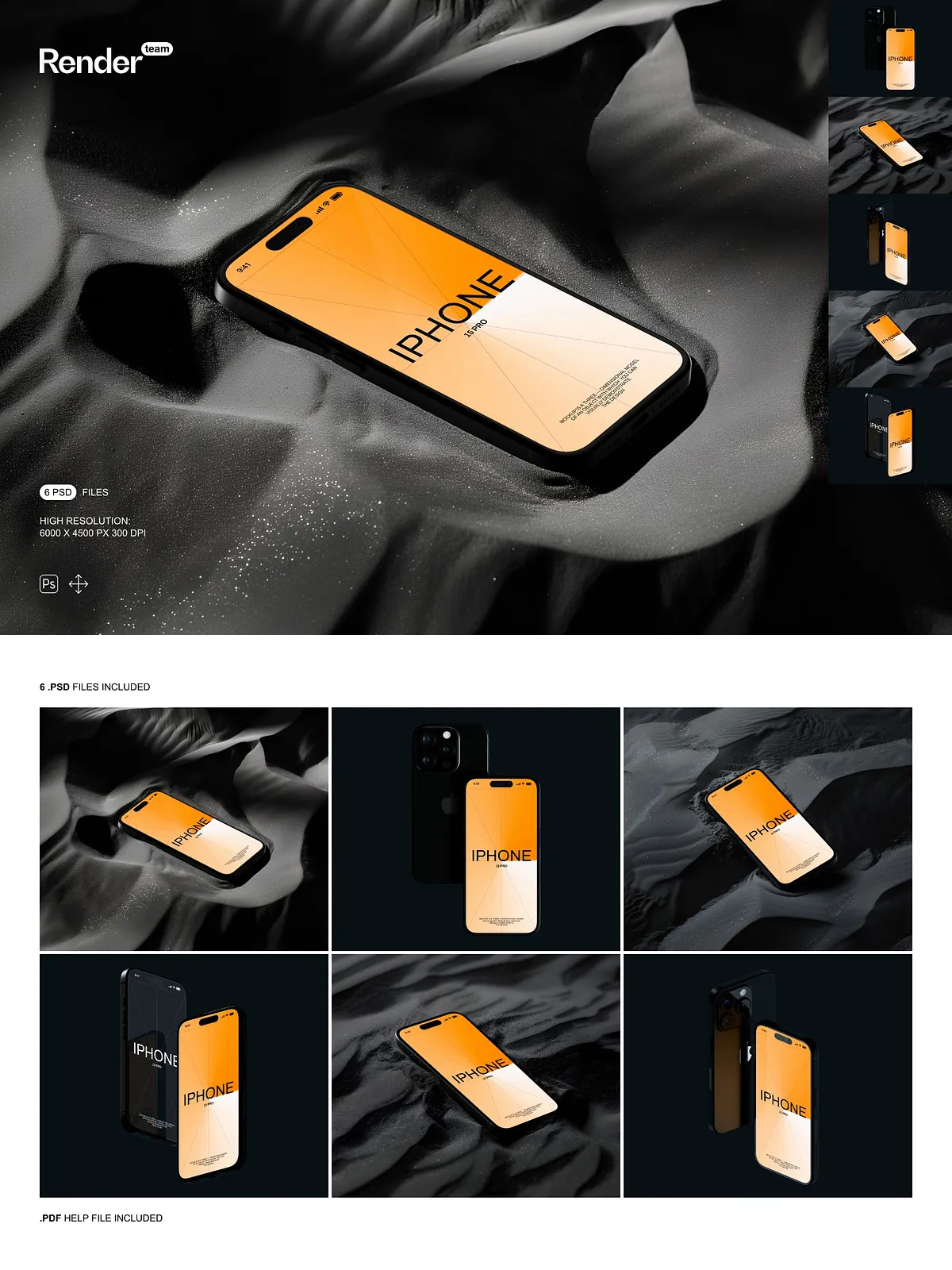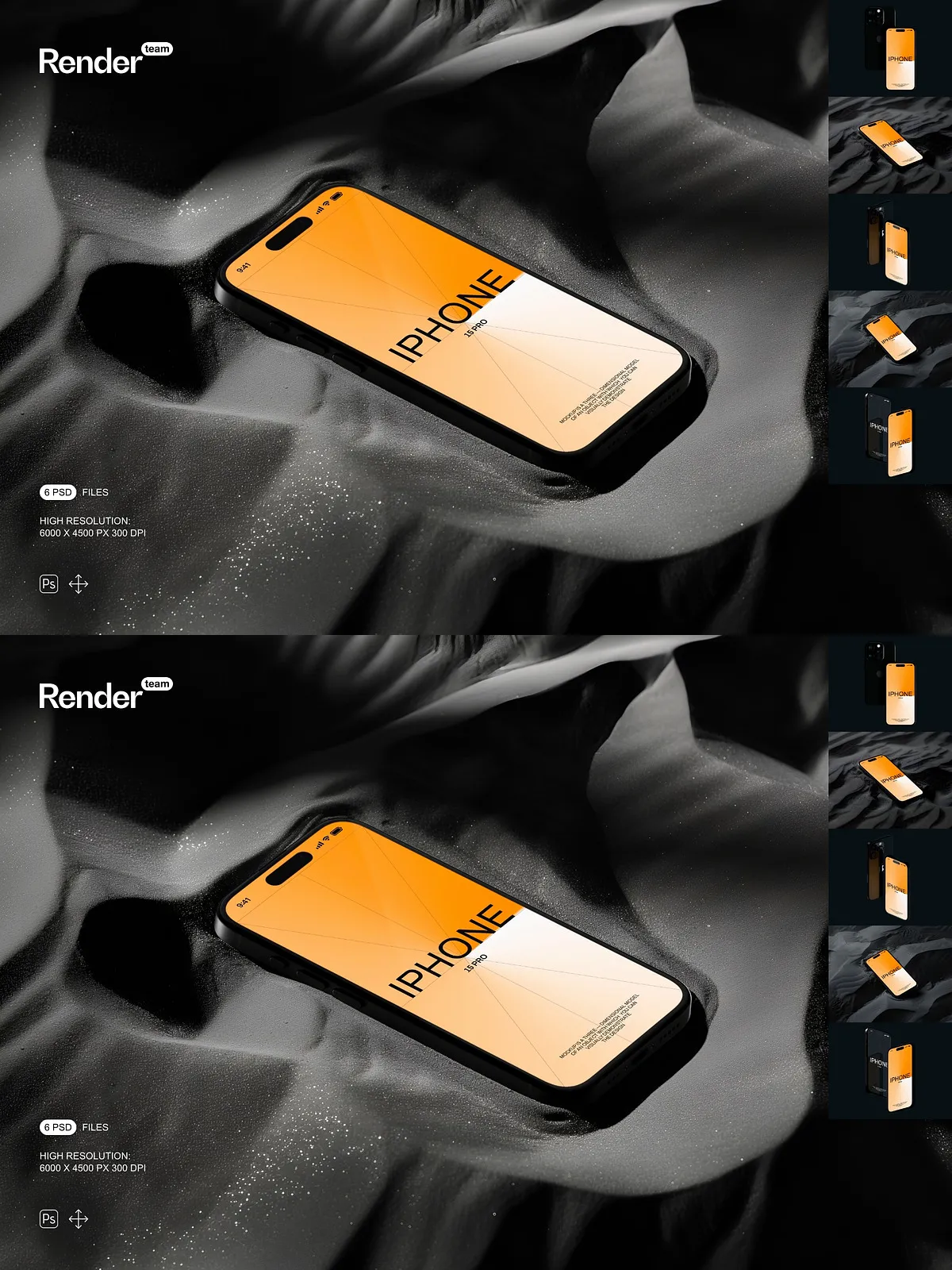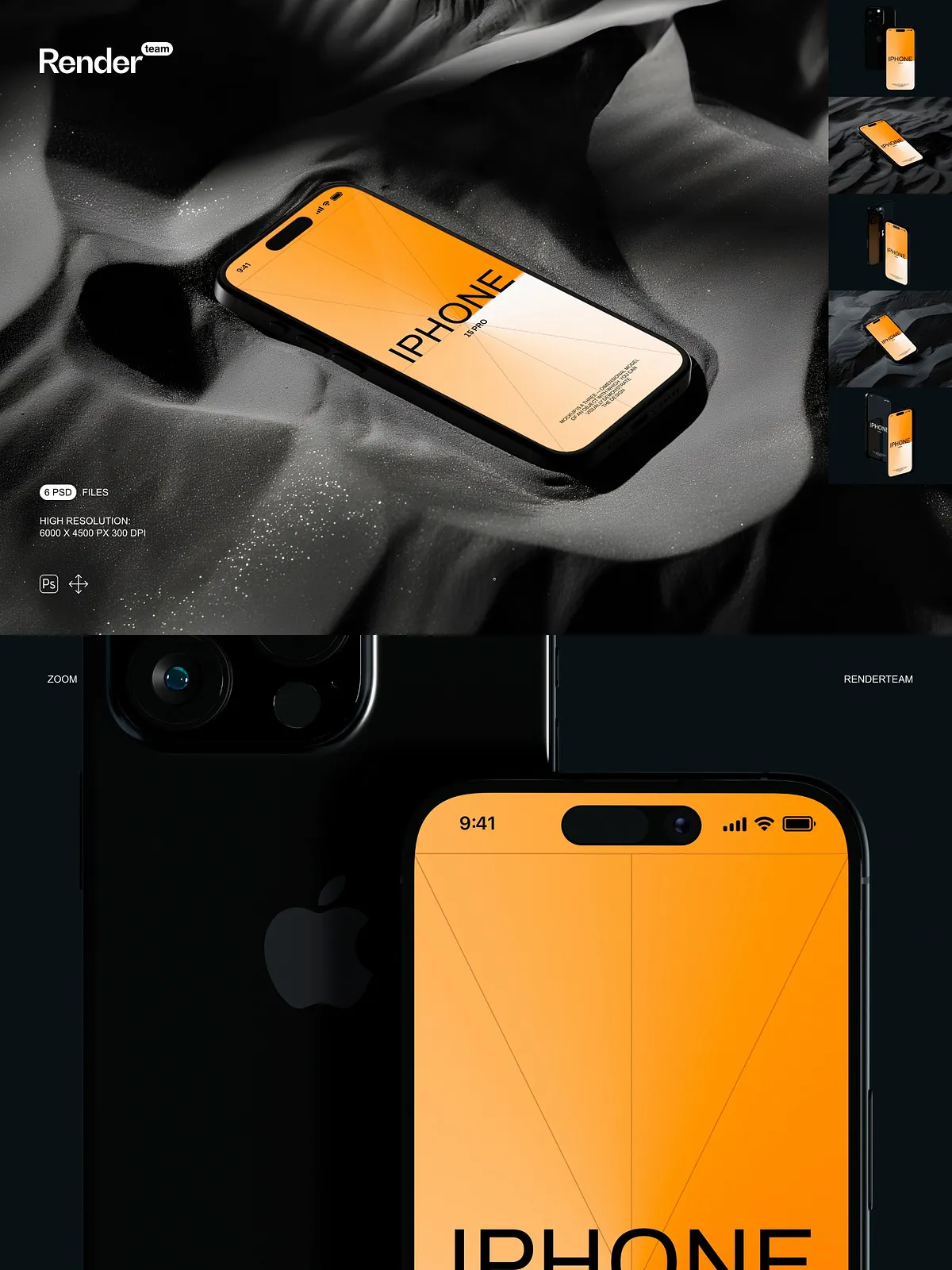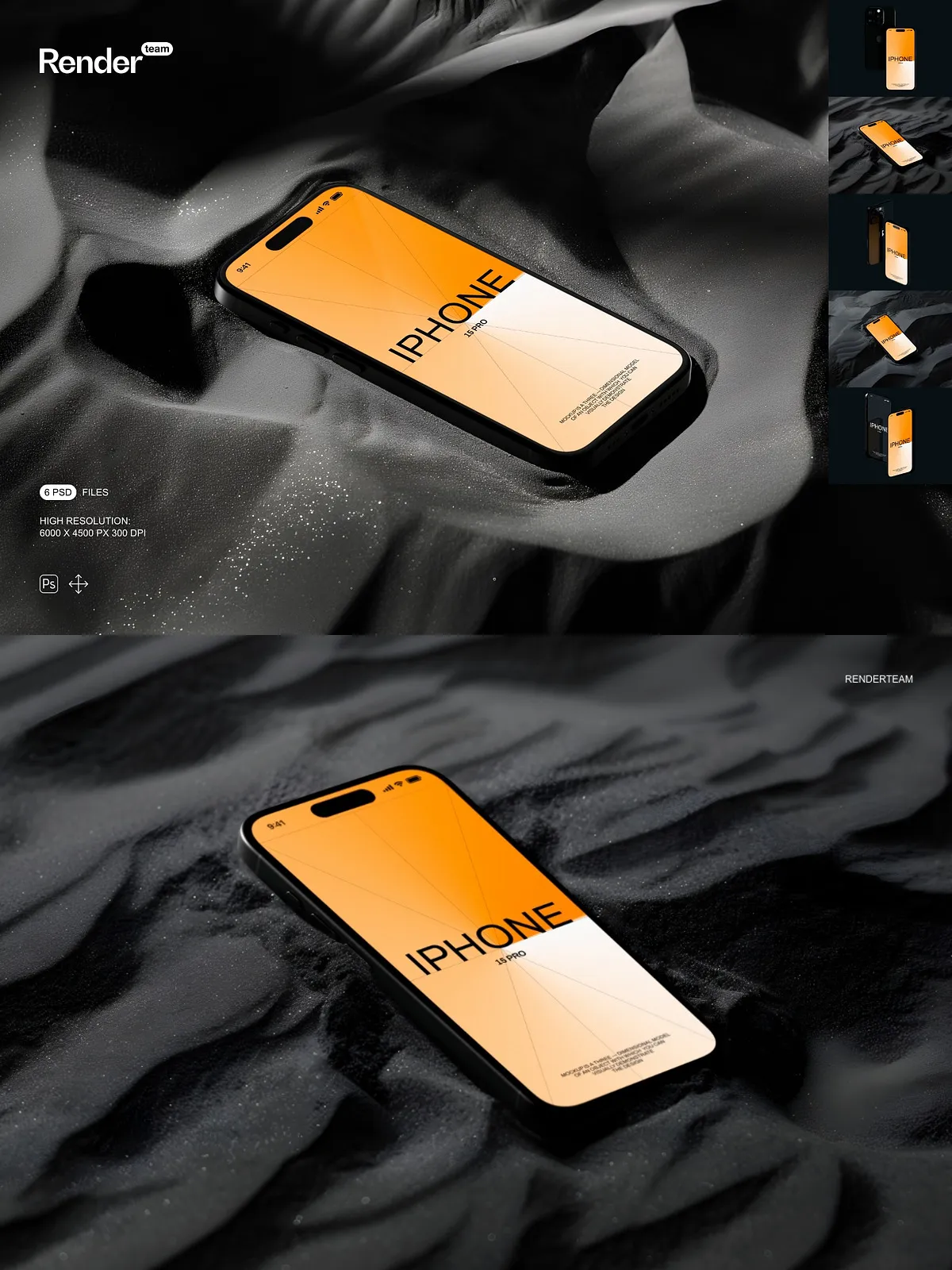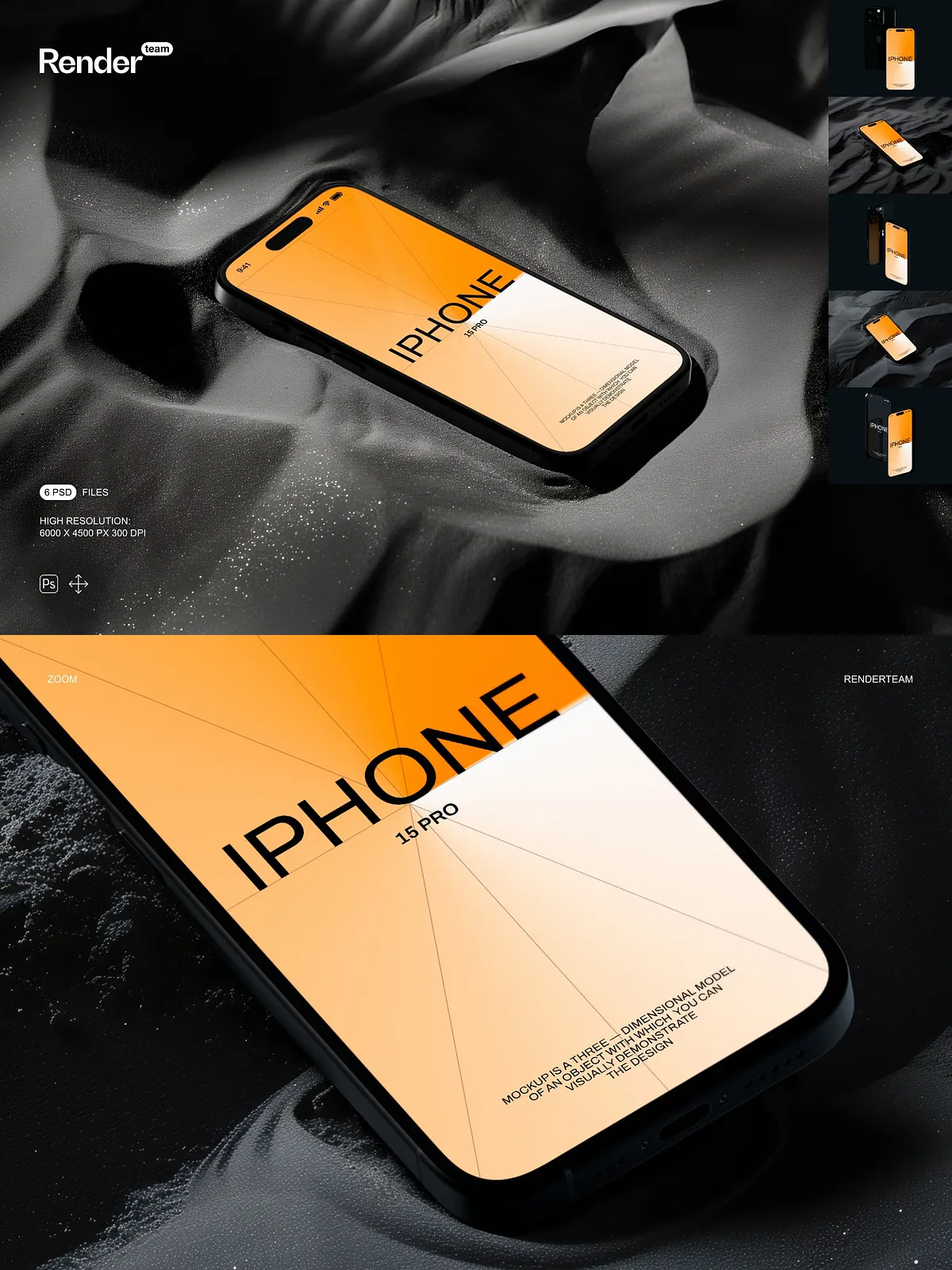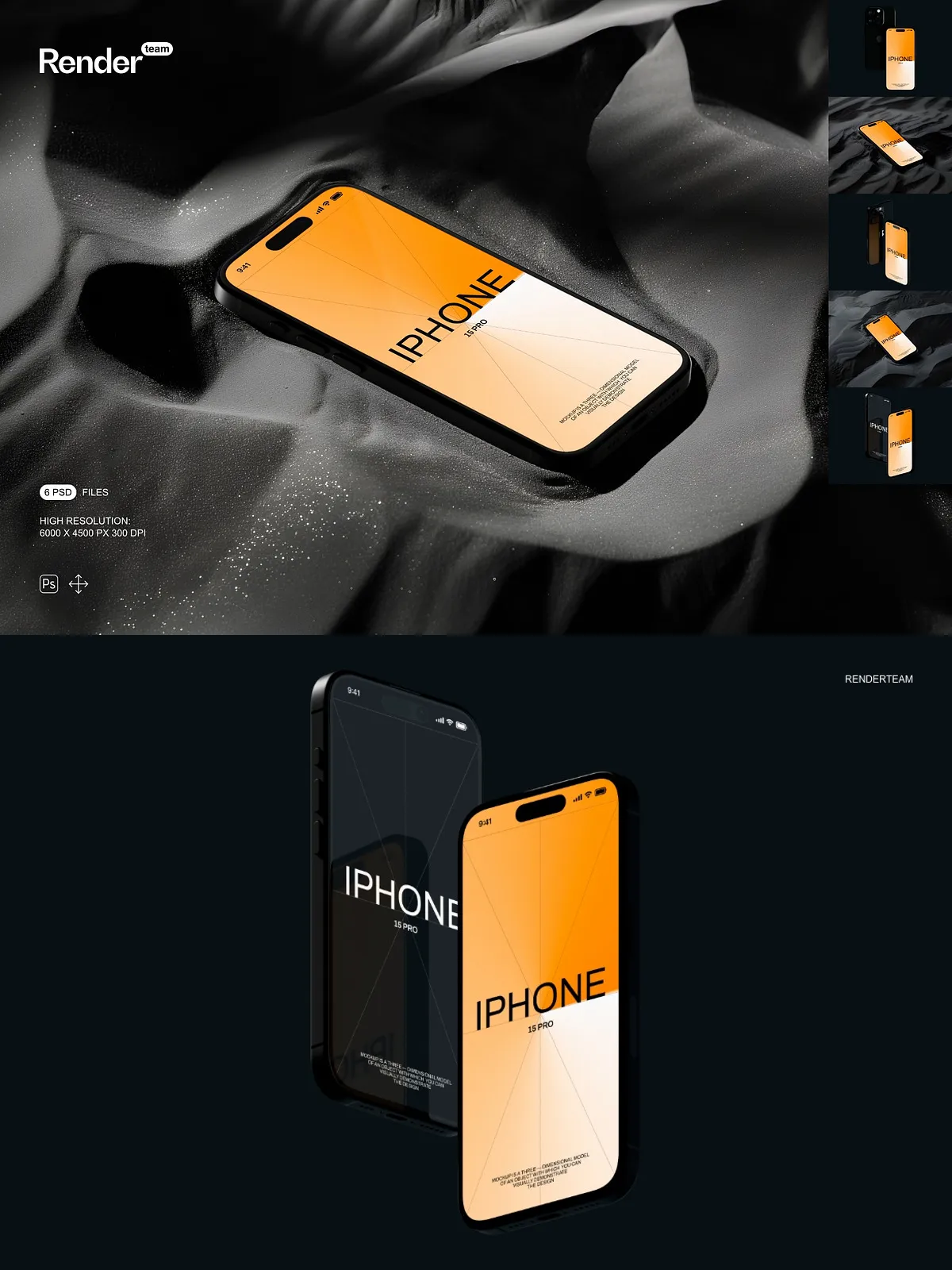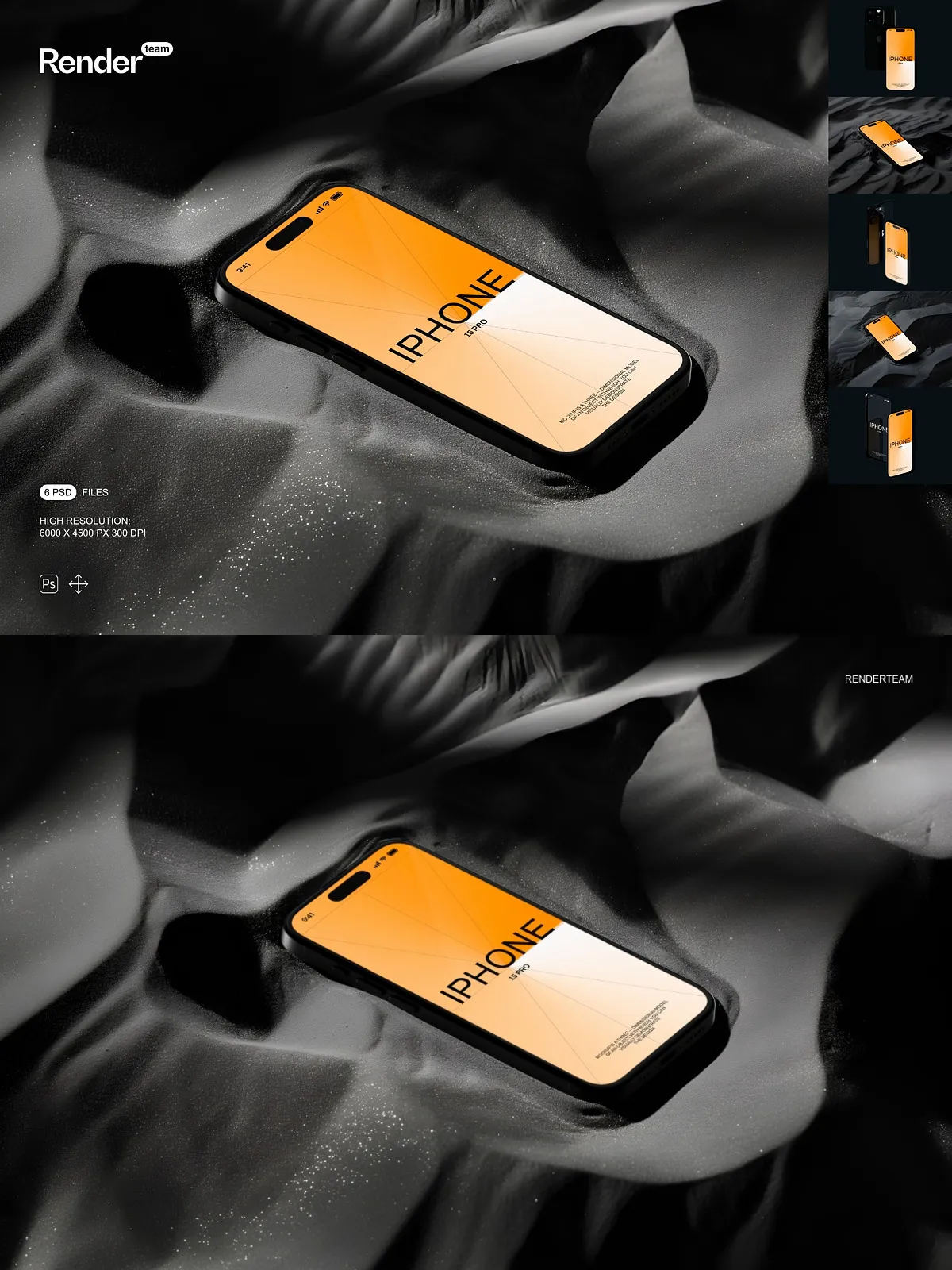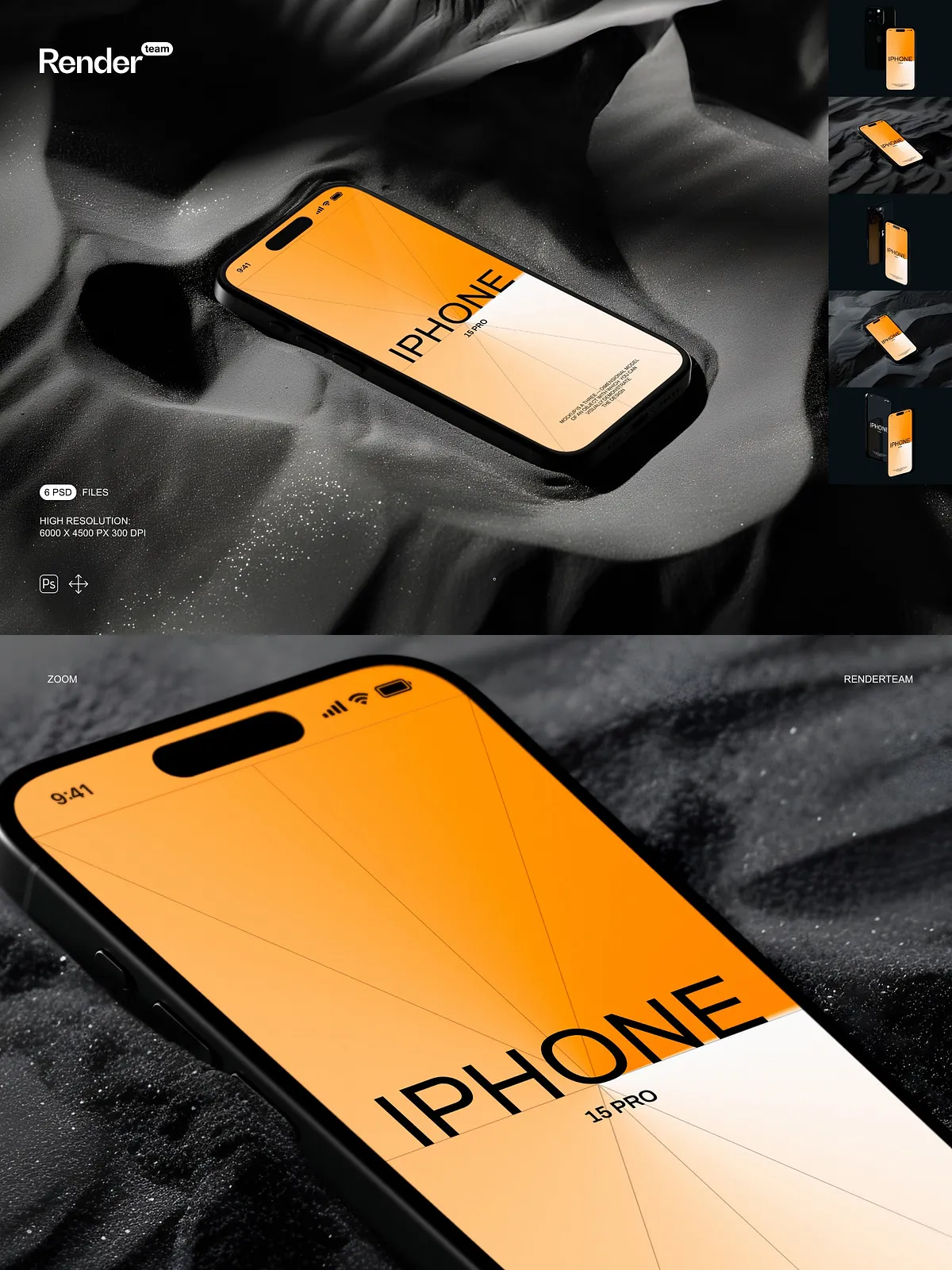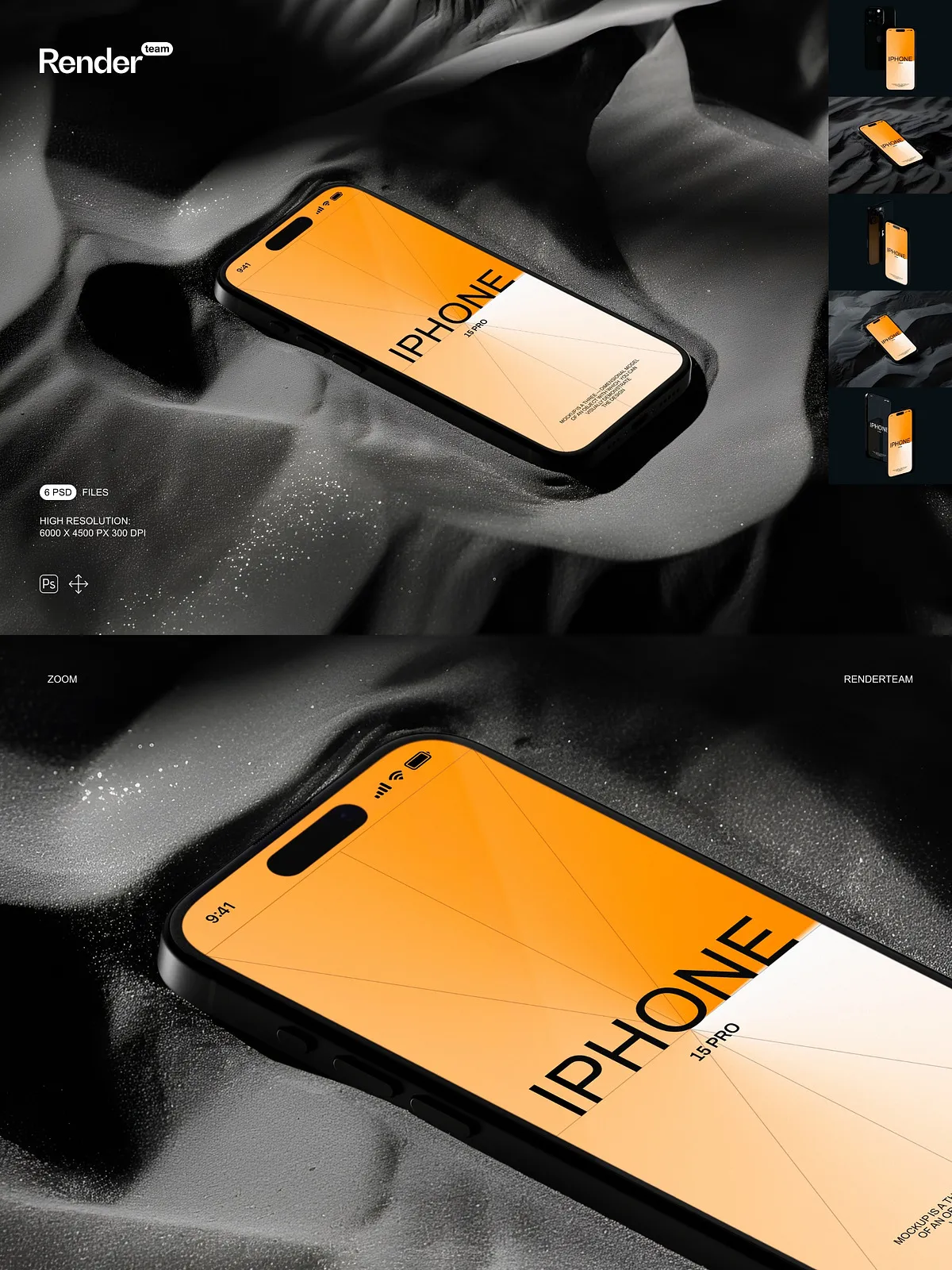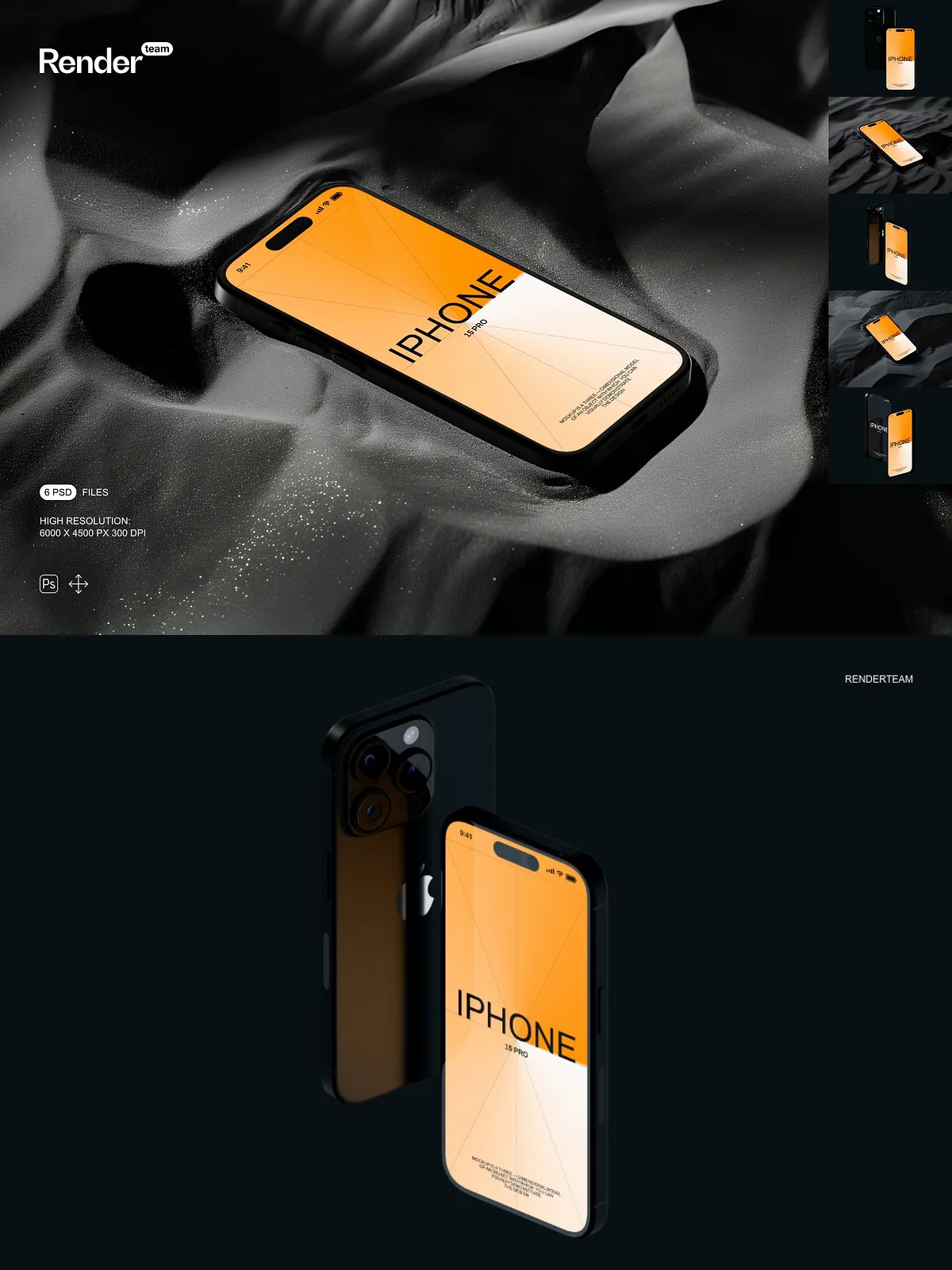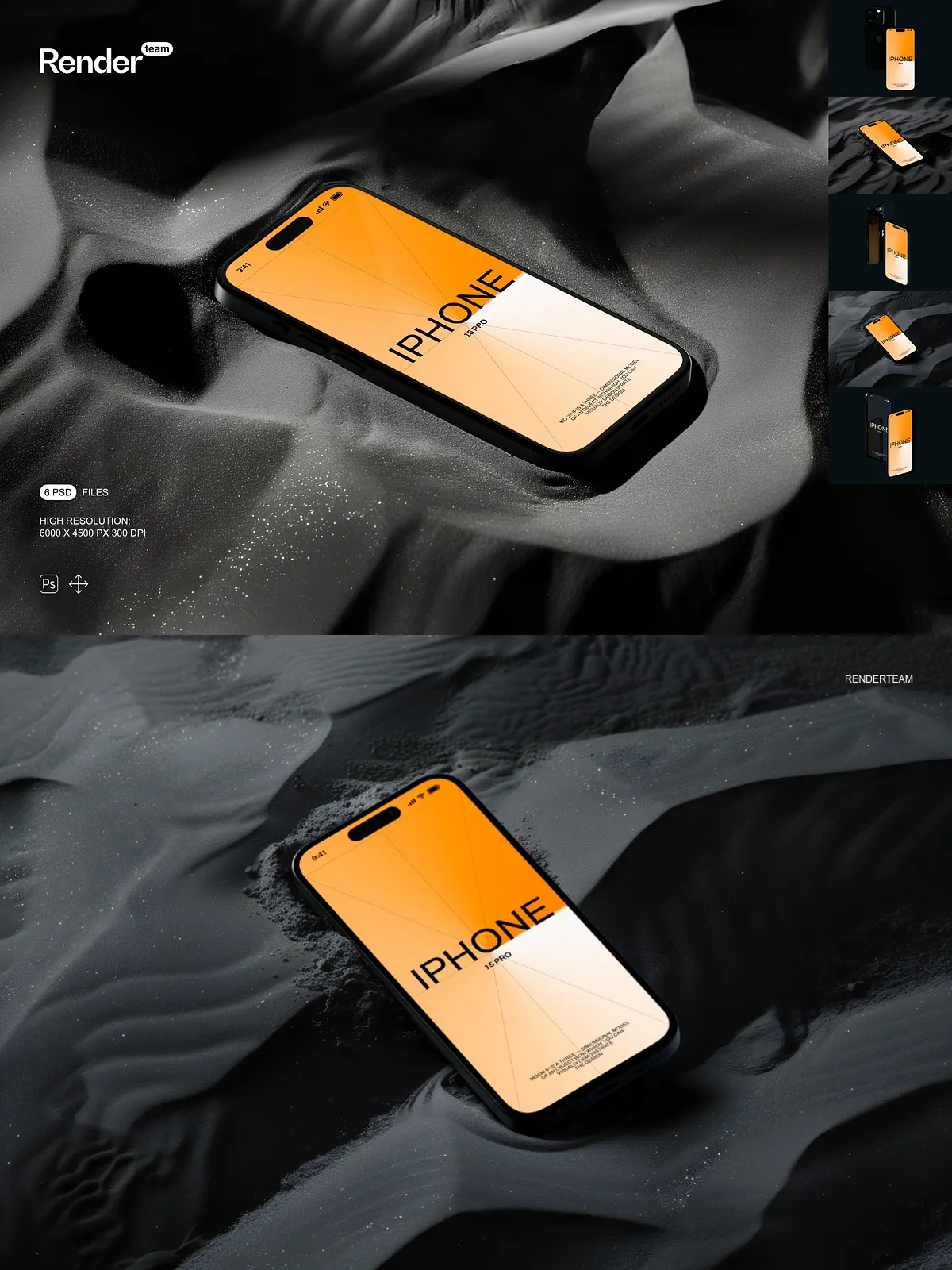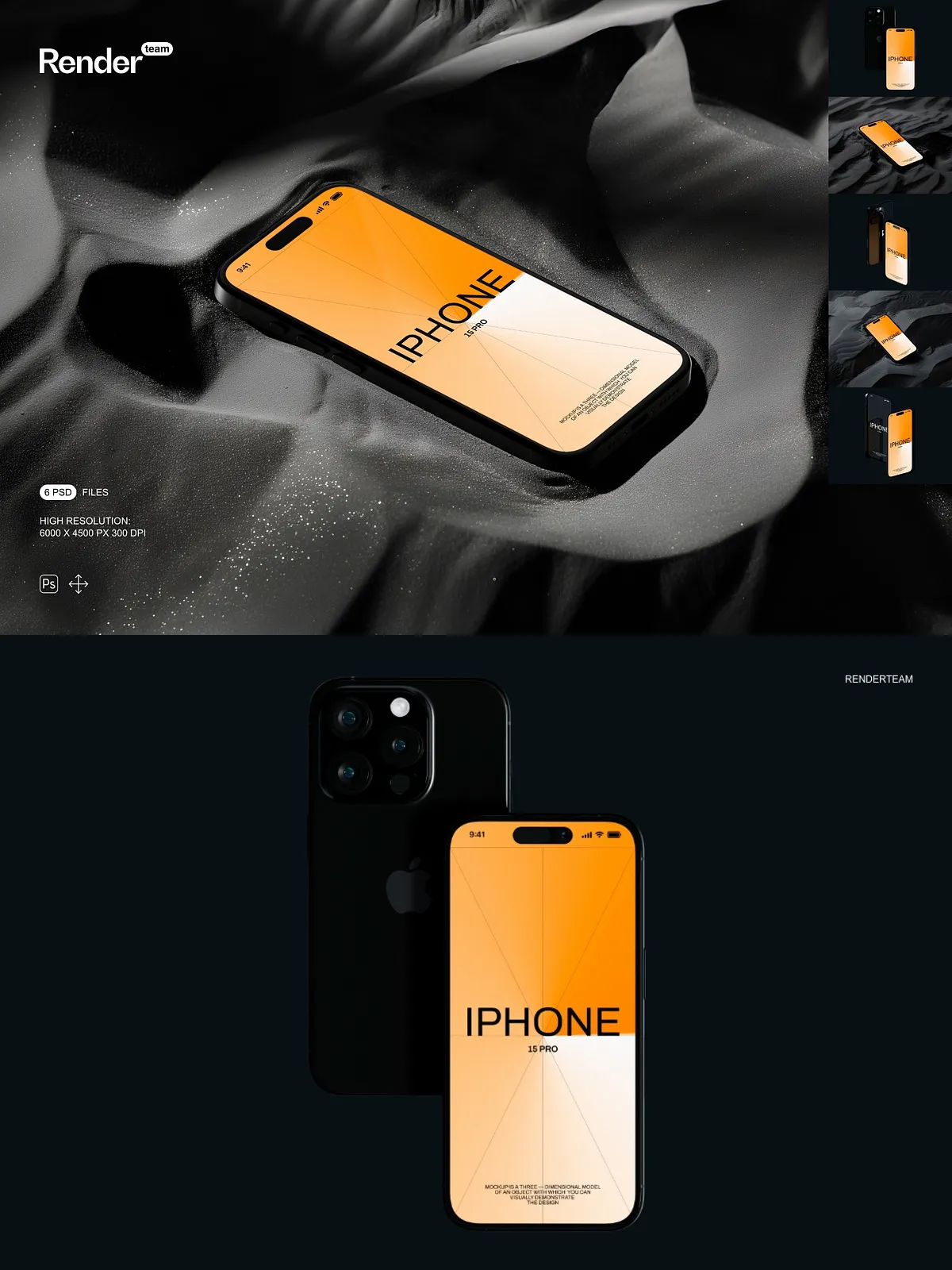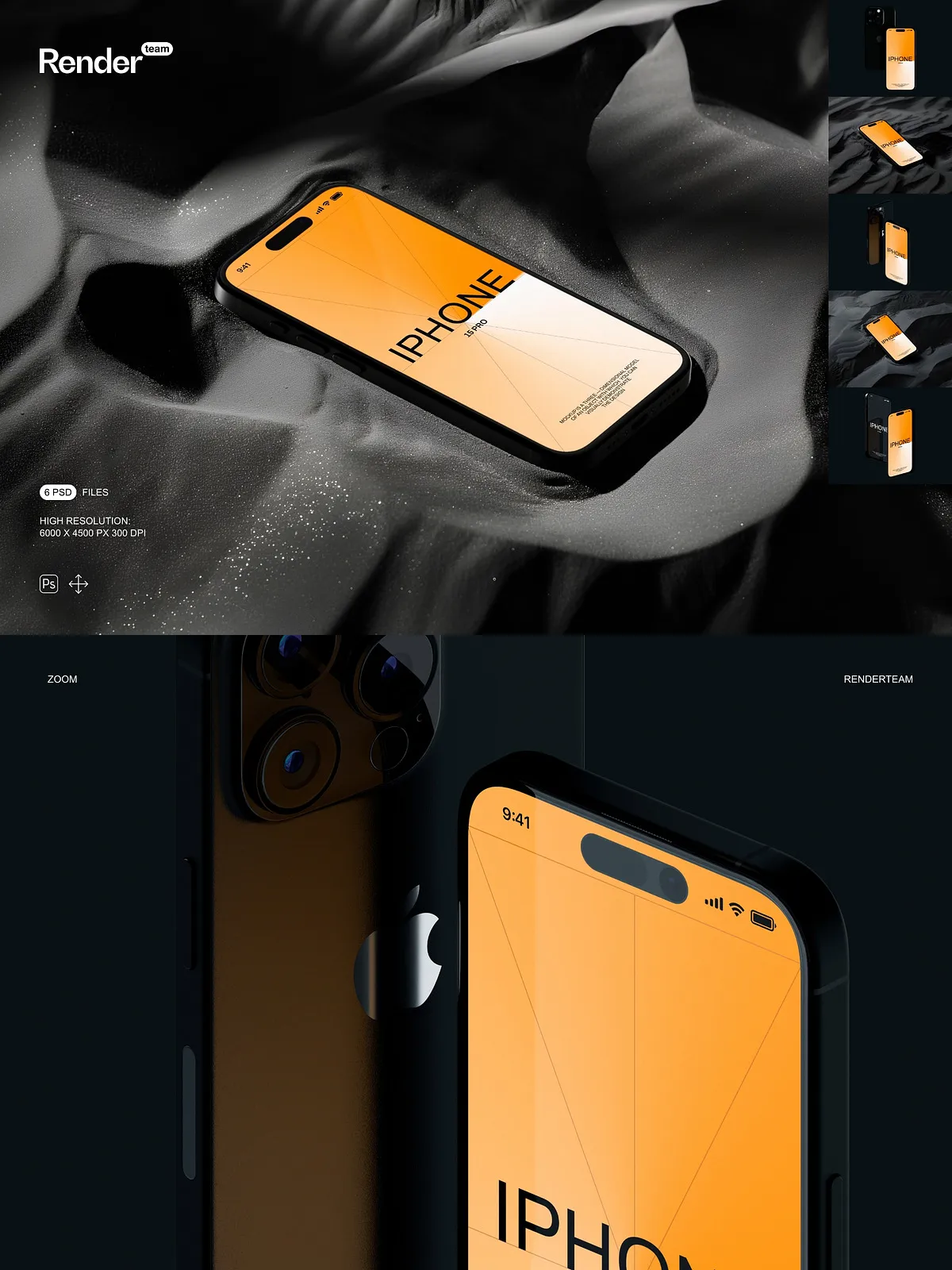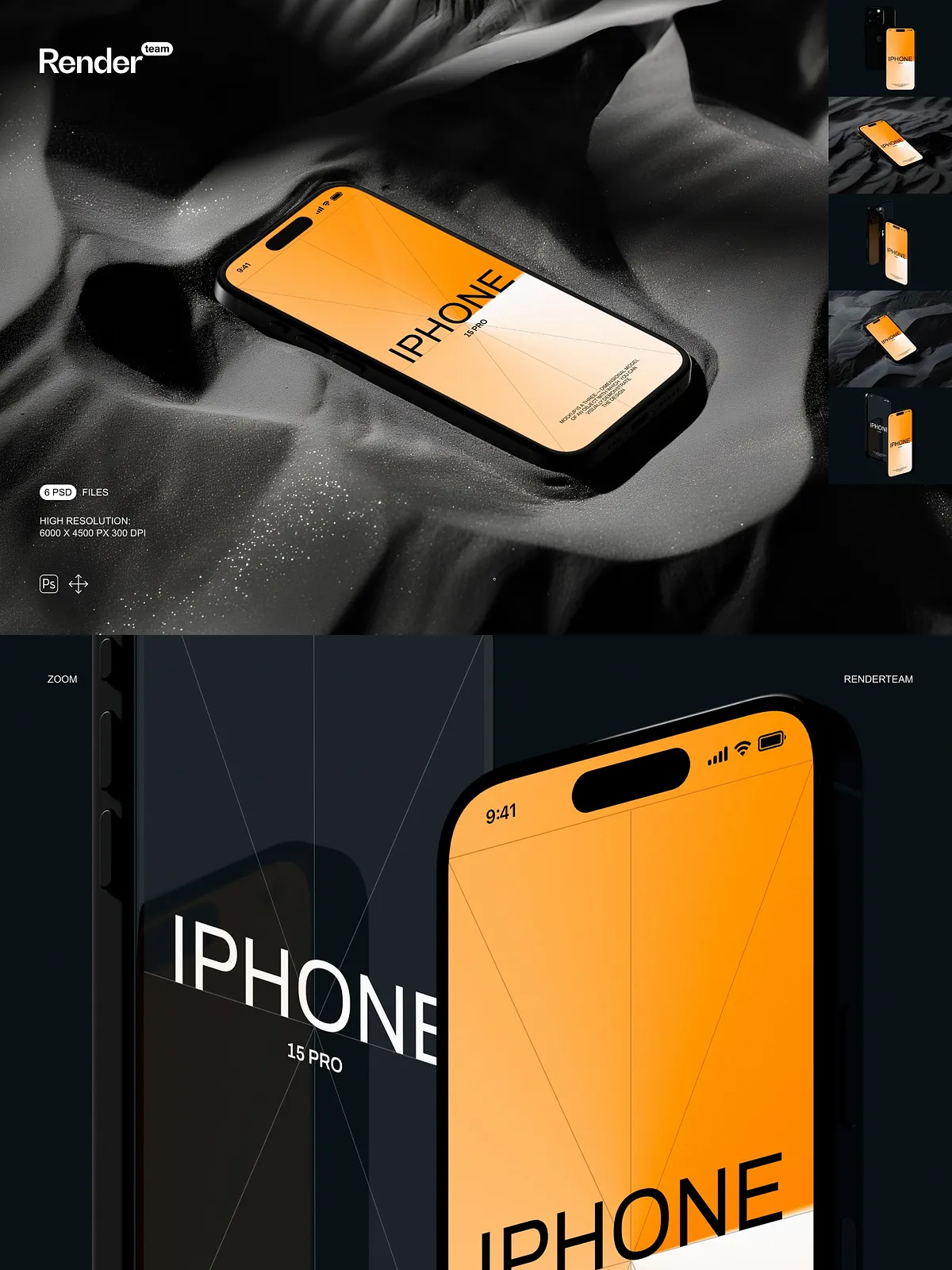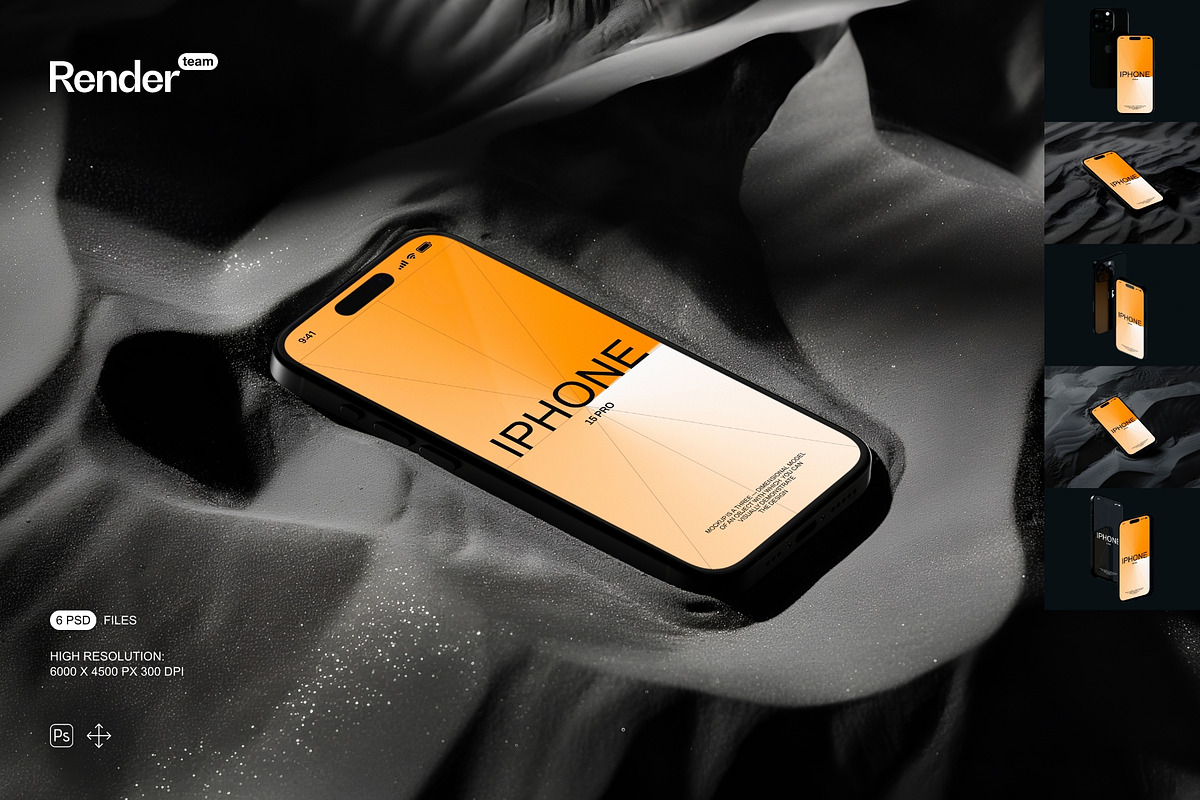
Equip your design workflow with a versatile iPhone 15 Pro Mockup Set built for fast iteration and professional results. This collection contains six layered, editable PSD files that let you apply your interface, app screens, or artwork directly through Smart Objects. Each mockup delivers high-resolution output and organized layers so you can compose, adjust, and export polished visuals quickly.
What’s Included
Files and Deliverables
- 6 fully layered PSD mockup files, each ready for Smart Object replacement
- High resolution canvases at 6000 × 4500 px, 300 dpi for crisp output
- Organized layers and folders for rapid editing and scene control
- Isolated objects and shadow layers so you can move or remove elements independently
- Fully editable color layers and device screen placeholders
- PDF help file with step-by-step instructions to get started
Editing and Workflow
Fast Smart Object Editing
Replace artwork in seconds: double-click the named Smart Object layer, place your design, save, and the mockup automatically updates with correct perspective, effects, and device reflections. This non-destructive workflow lets you test multiple concepts without altering original assets.
Organized Layers for Precision
Layers and groups use consistent naming so you can toggle backgrounds, adjust shadow intensity, swap colors, or remove props without hunting through the file. The structure supports focused edits and minimizes time spent searching for controls.
Image Quality and Customization
High-Resolution Outputs
Each PSD uses a large canvas and 300 dpi resolution so exported images remain sharp across web, print, and portfolio use. Preserve typography clarity, UI details, and subtle textures when you present mockups to clients or use them in marketing materials.
Isolated Elements and Scene Control
All major elements and shadows are isolated to give you full control over composition. Move the device, change the background, or blend multiple mockups into a single gallery image to create consistent product pages and promotional layouts.
How to Use
Step-by-Step Instructions
- Open a PSD mockup in Adobe Photoshop (Creative Cloud is recommended).
- Locate the Smart Object layer labeled for the iPhone screen and double-click it.
- Paste or place your artwork inside the Smart Object canvas and adjust it to fit the device frame.
- Save the Smart Object file and return to the main PSD to see your design applied automatically.
- Adjust background, color layers, and shadow opacity to refine the final composition.
- Export at the desired size and file format for web, social, or print use.
Compatibility and Requirements
This mockup set requires Adobe Photoshop with Smart Object support and is created specifically for the Photoshop environment. It is not compatible with editors that do not support PSD Smart Objects such as Canva or Procreate. For details about Smart Objects and their benefits, see the Adobe help documentation: [Smart Objects – overview and benefits](https://helpx.adobe.com/photoshop/desktop/create-manage-layers/smart-objects/smart-objects-overview-and-benefits.html).
Licensing and Included Assets
Important: the product package does NOT include fonts, stock photos, or example artwork shown in preview images. The mockups provide templates only. You are responsible for securing any licenses for third-party assets you use in your compositions and for confirming usage rights for commercial projects.
Use Cases and Recommendations
Use these mockups to showcase app UI, responsive layouts, marketing images, or product listings. Combine several mockups into a single scene for a portfolio hero shot, produce consistent product images for an online store, or export high-resolution frames for print and presentation decks. The editable structure encourages rapid iteration so you can test variations and present options to clients with confidence.
Support and Best Practices
If you are new to Smart Objects, follow the included PDF guide for step-by-step help. For best results, use the latest Adobe Creative Cloud version of Photoshop and work with high-resolution source files. When exporting for web, optimize file formats and sizes while maintaining visual fidelity.