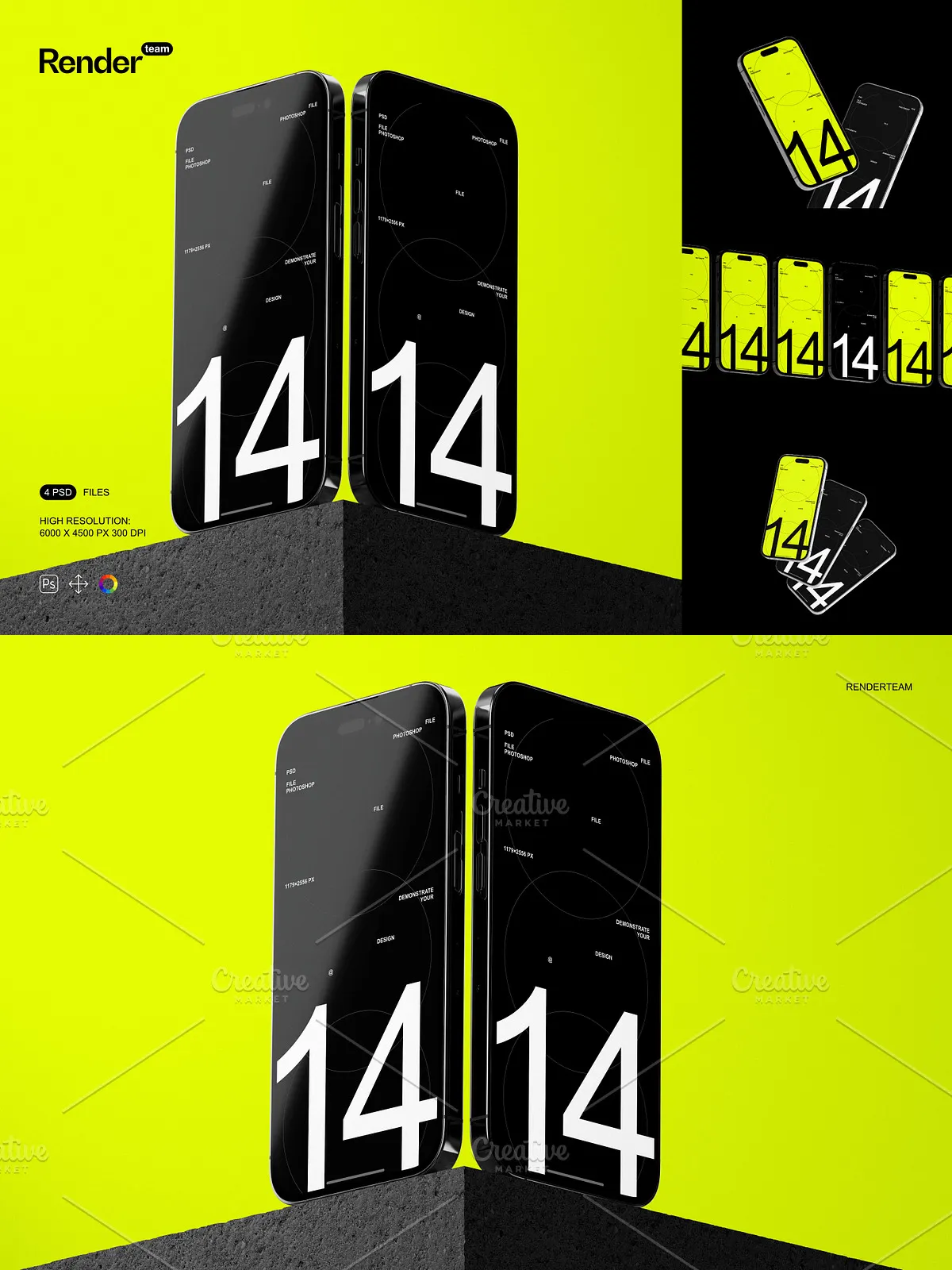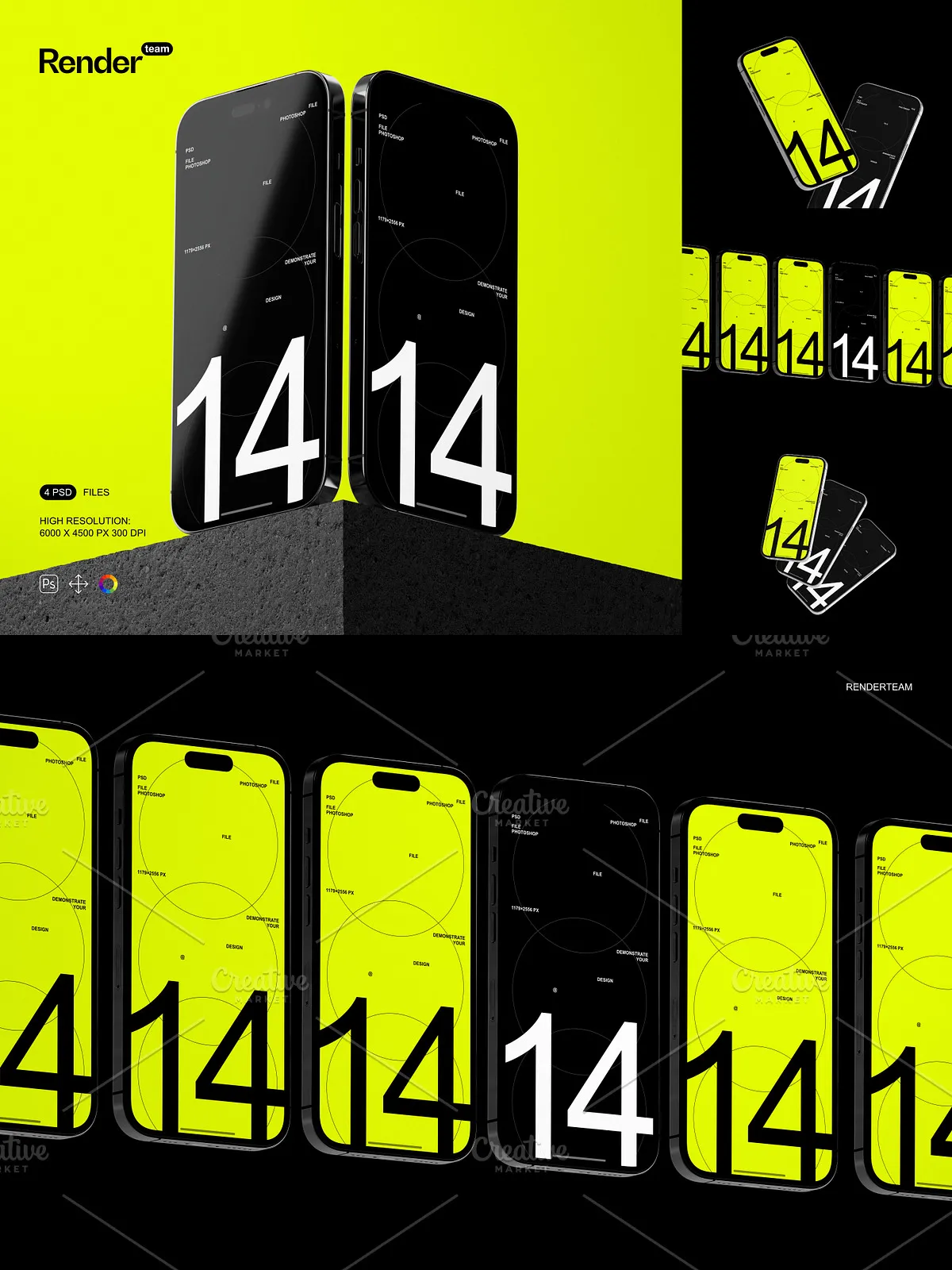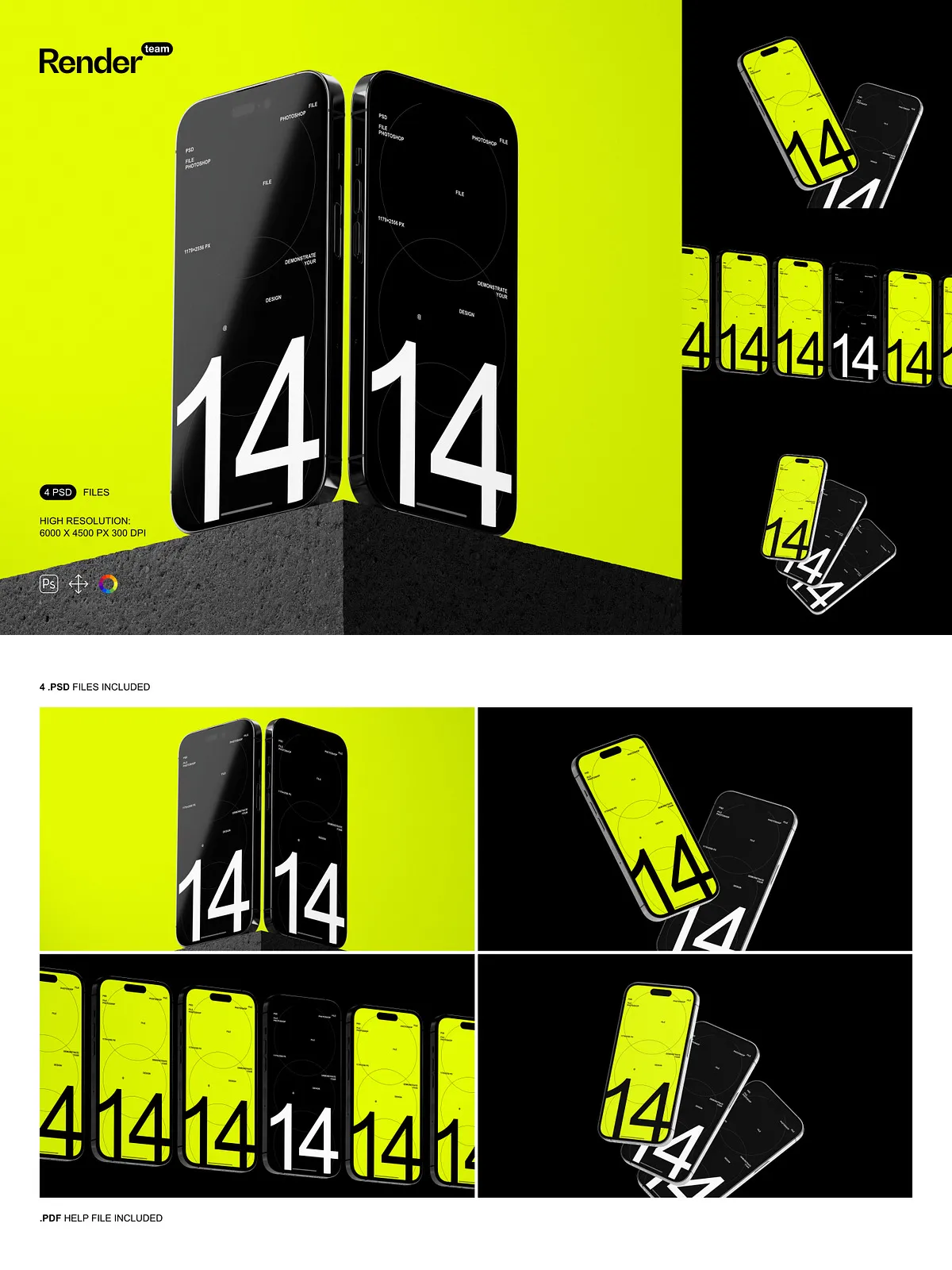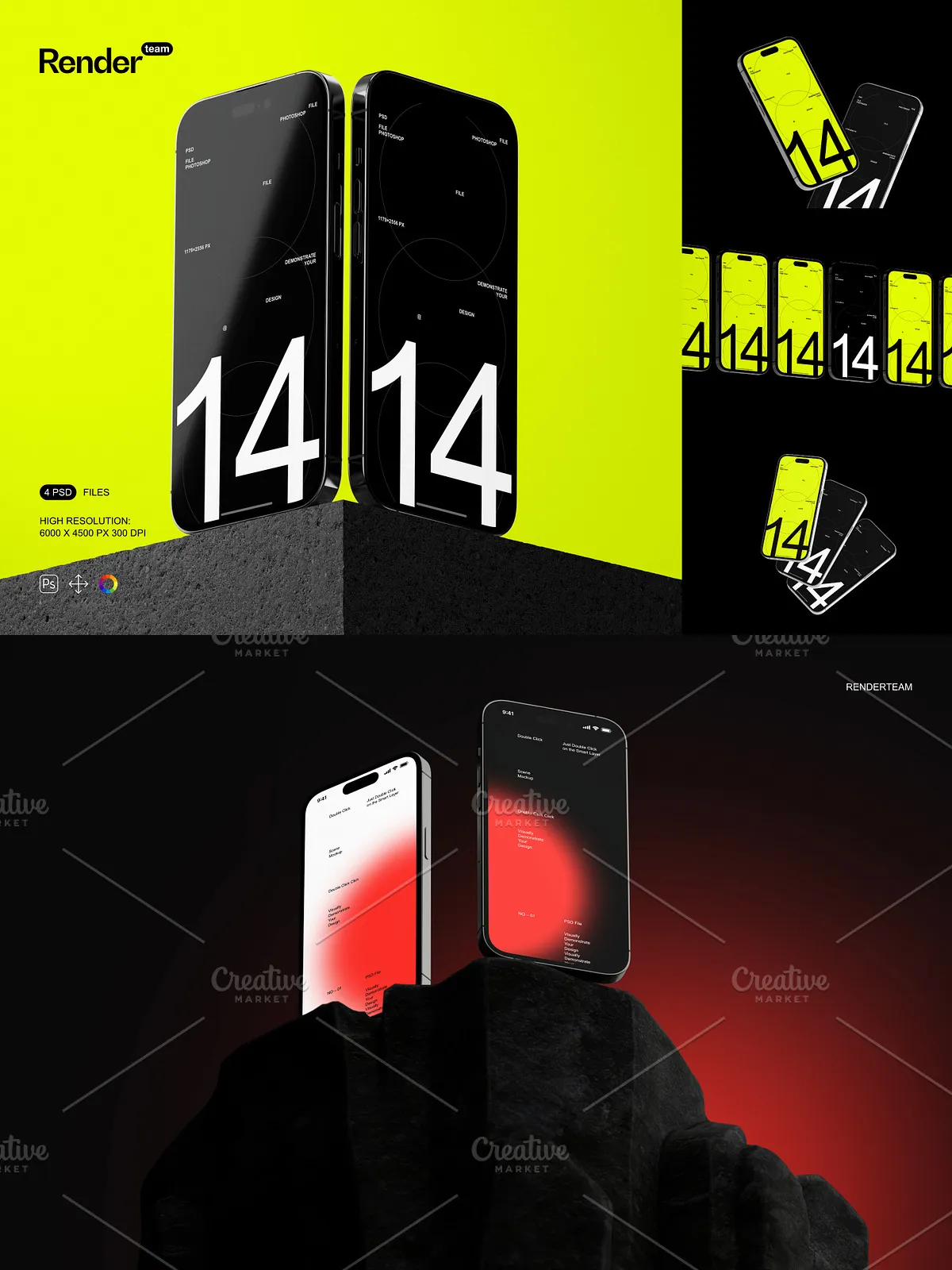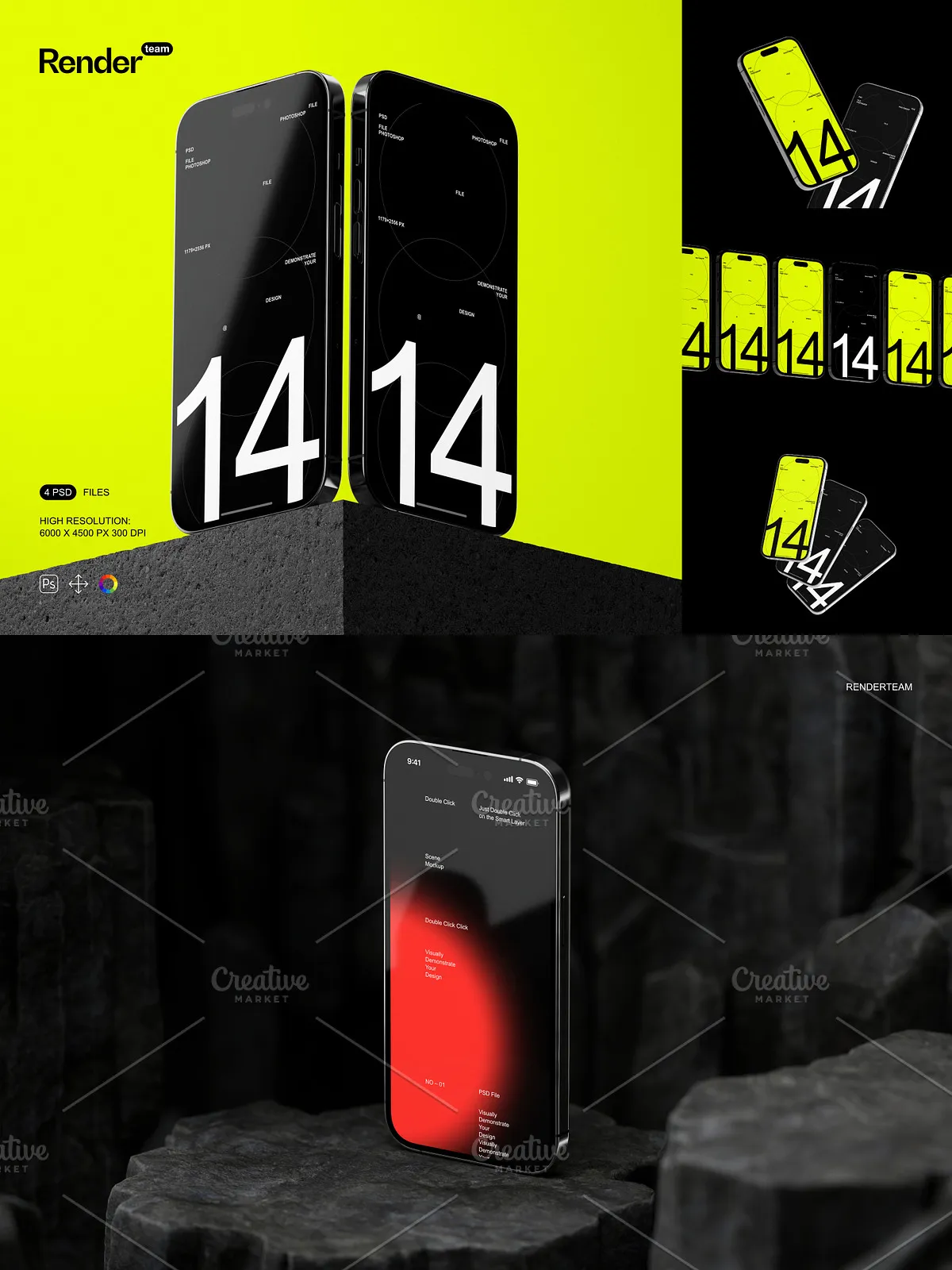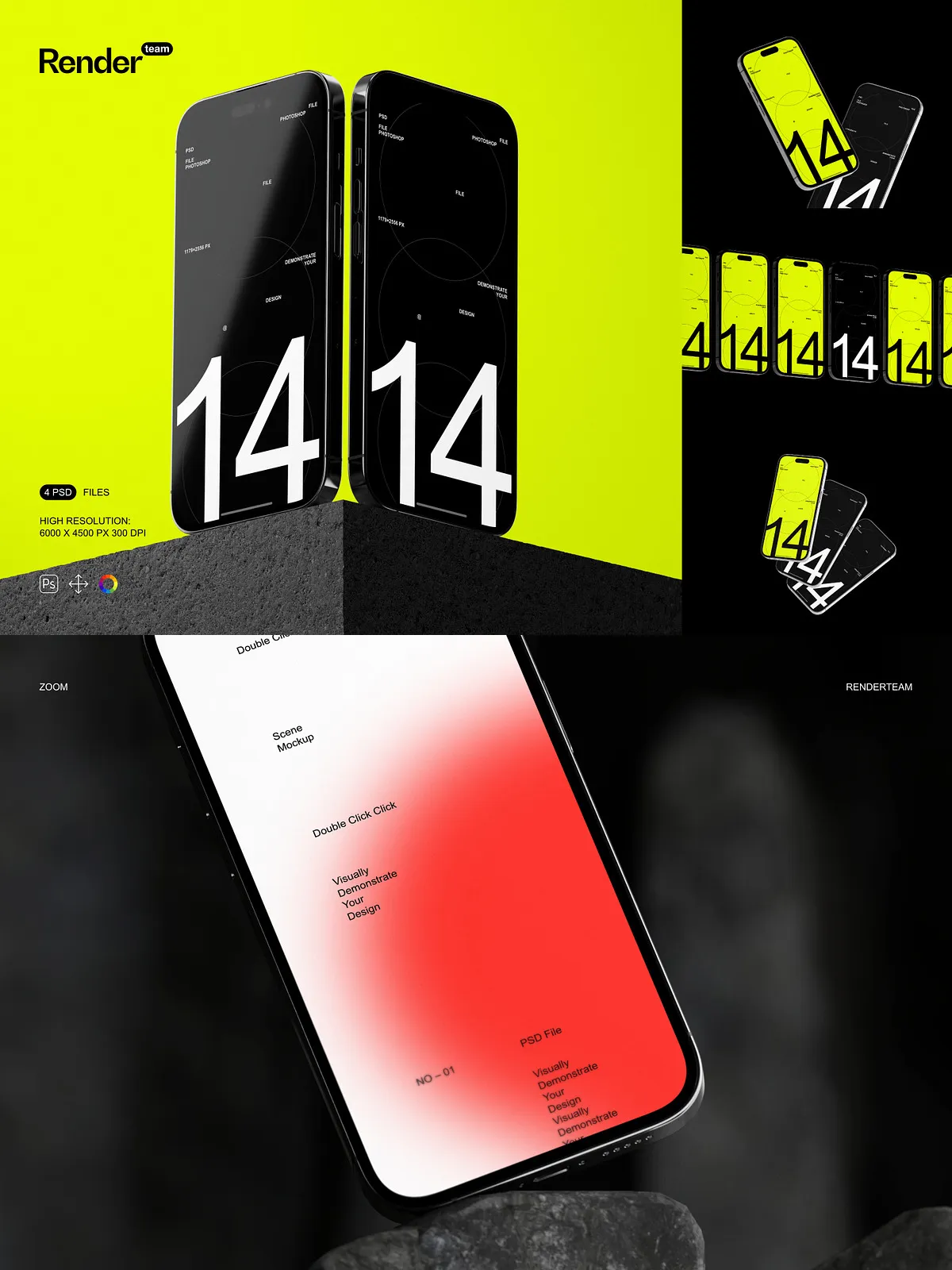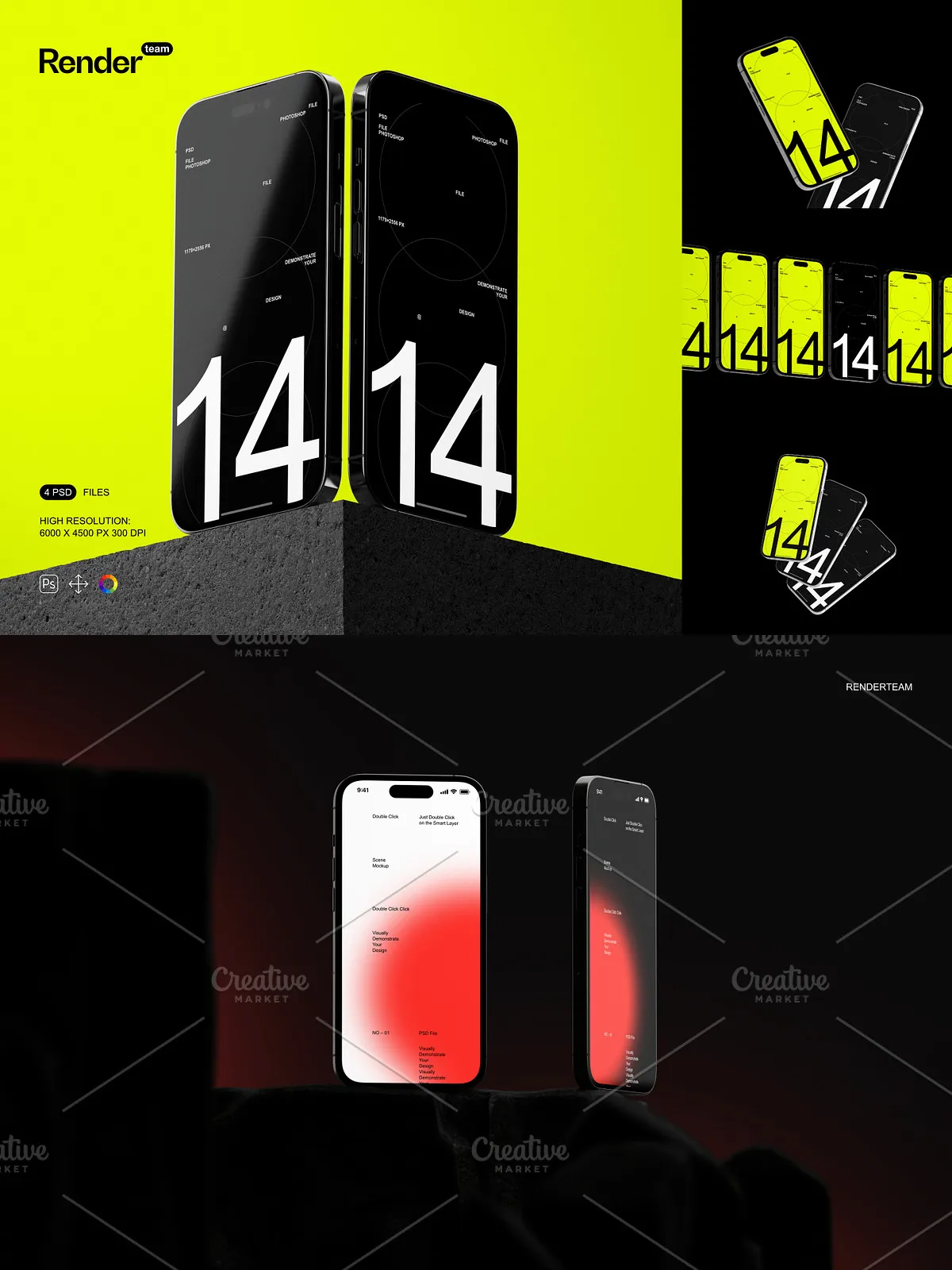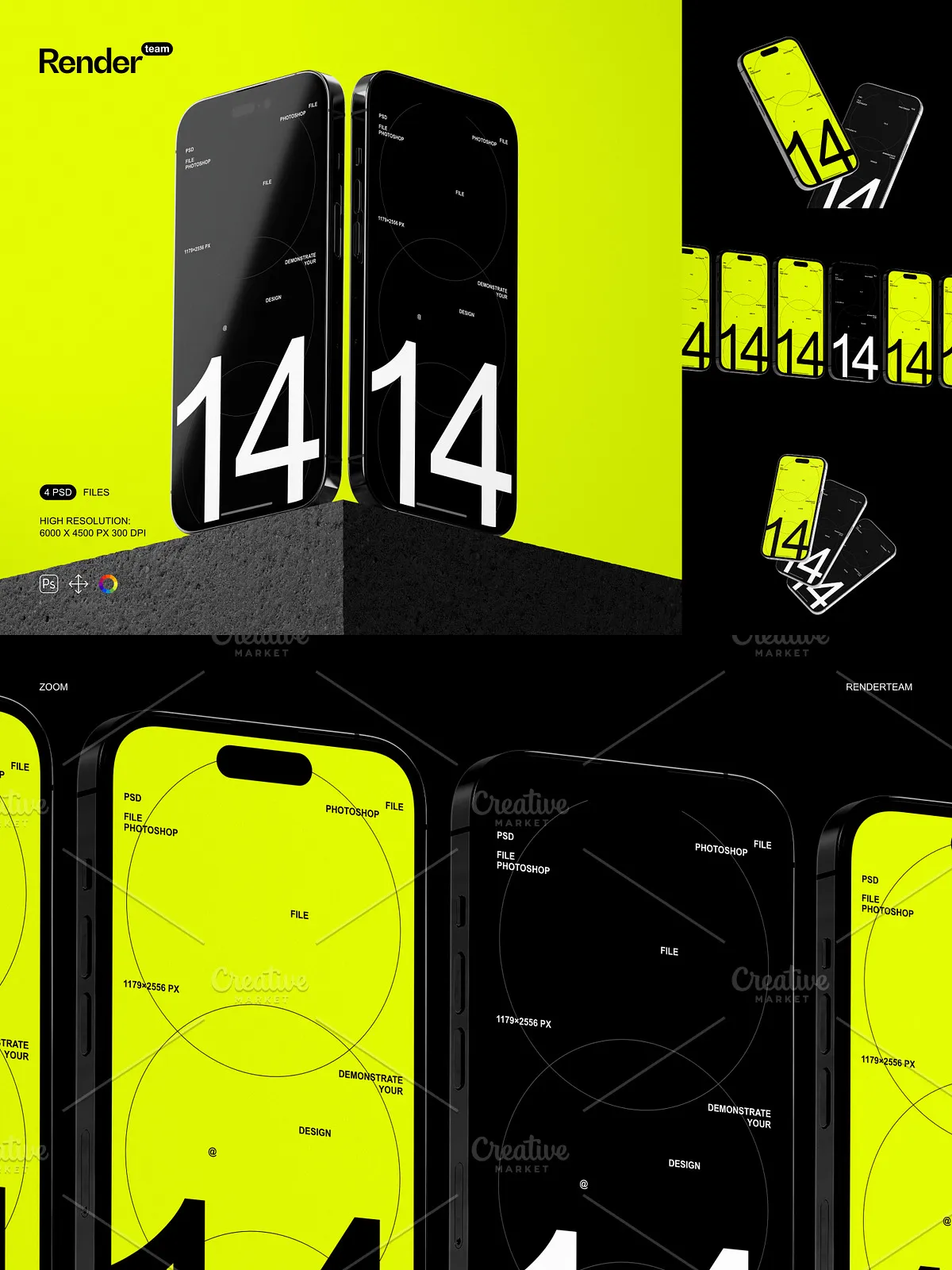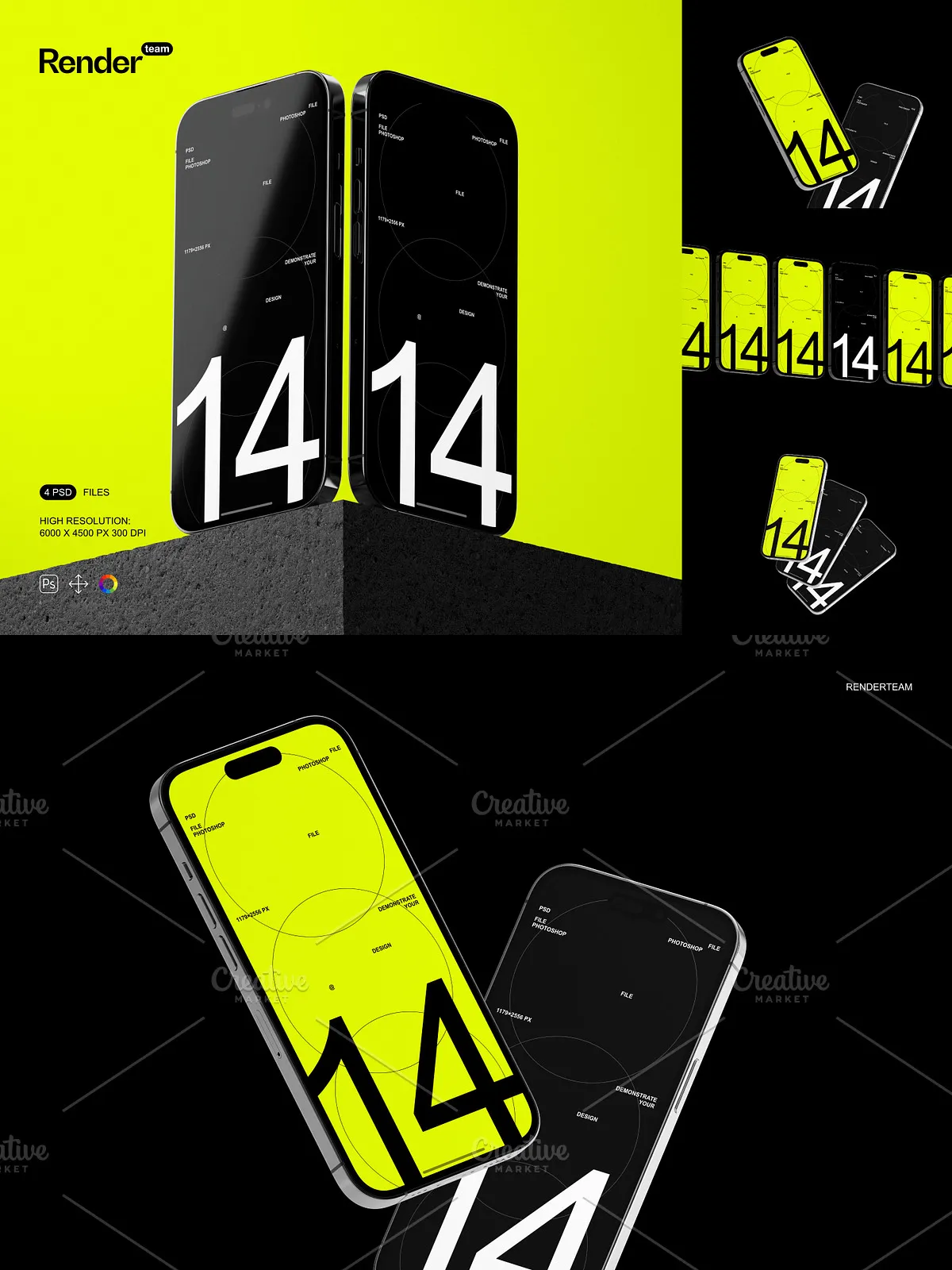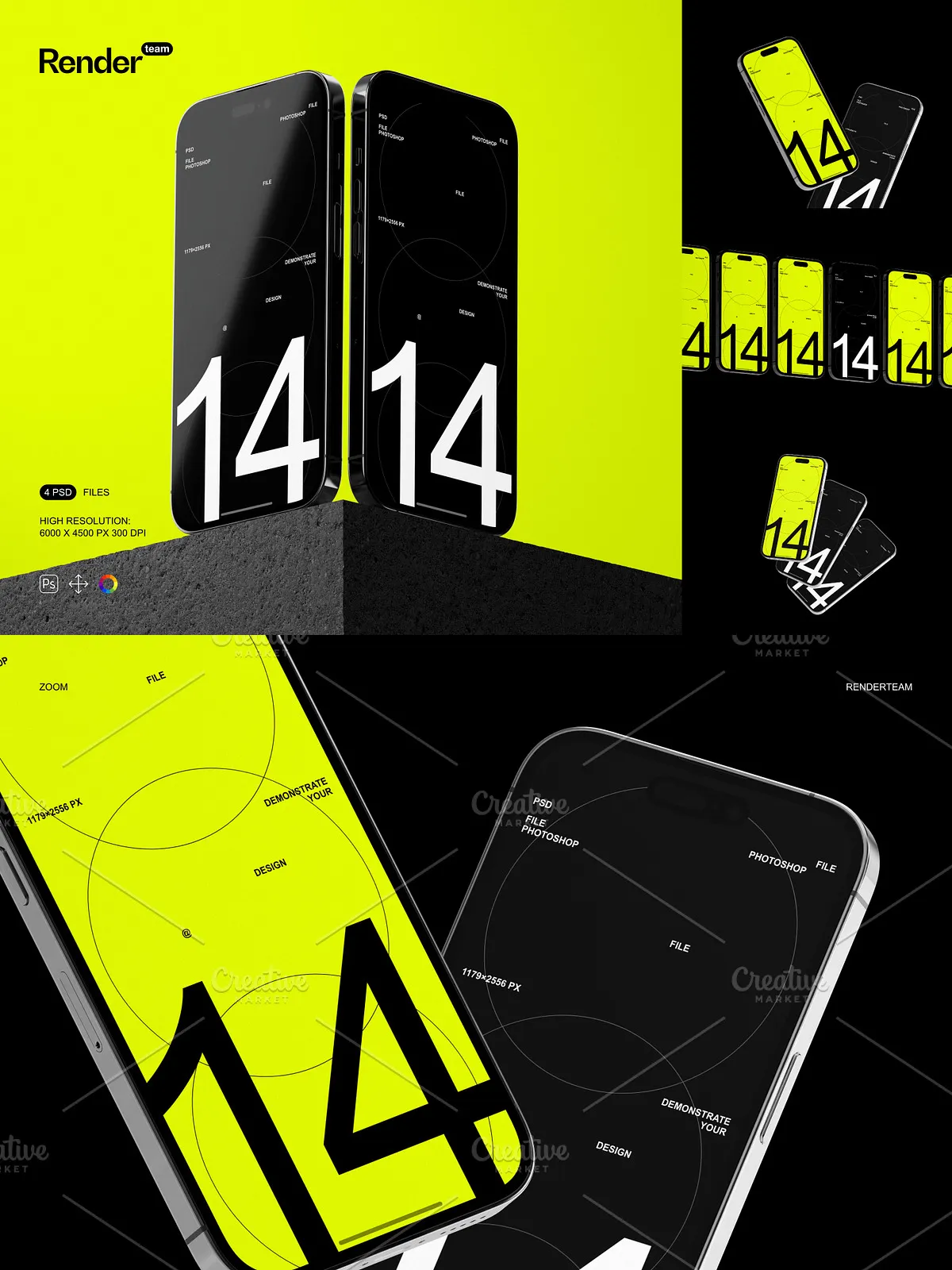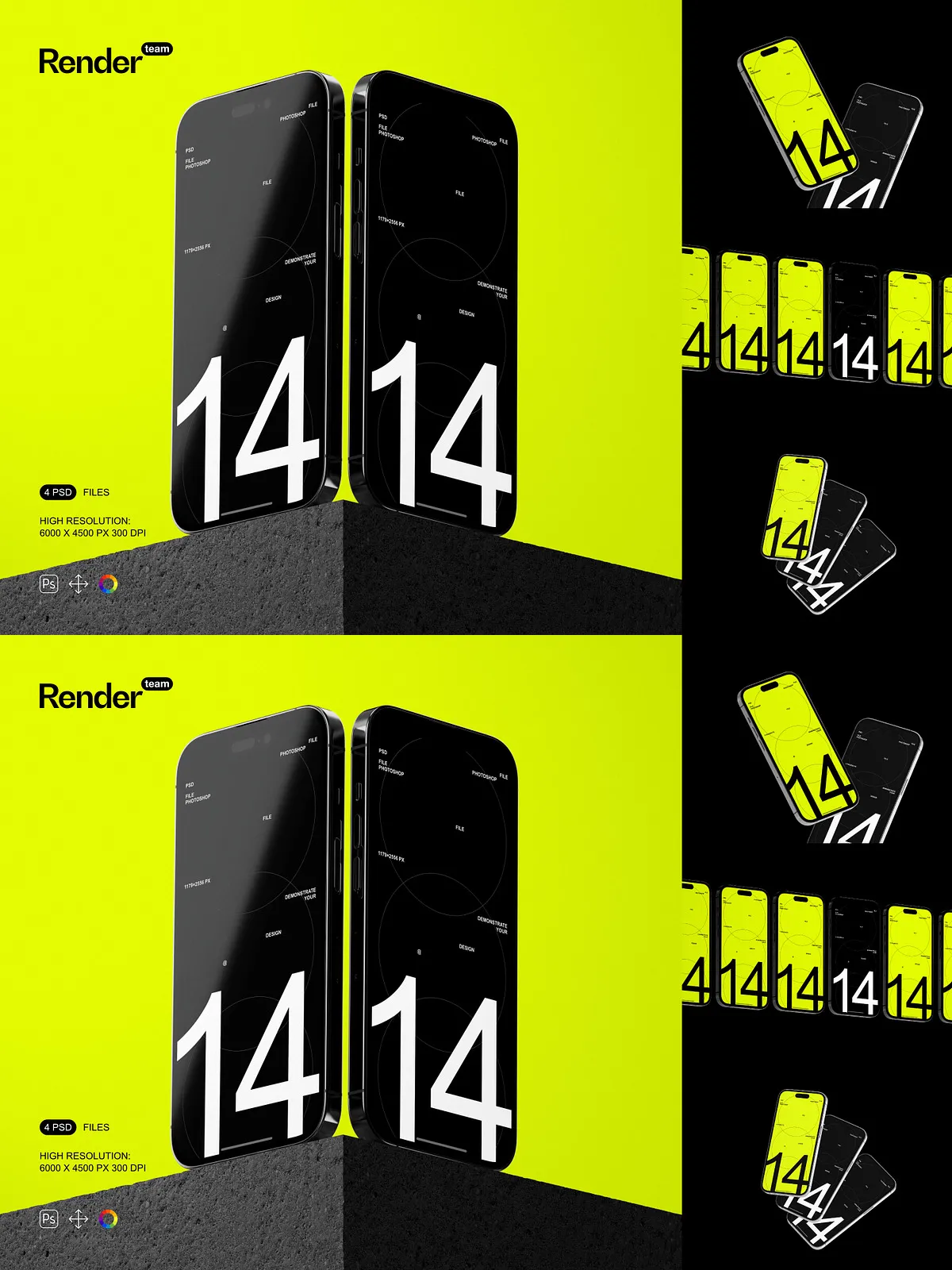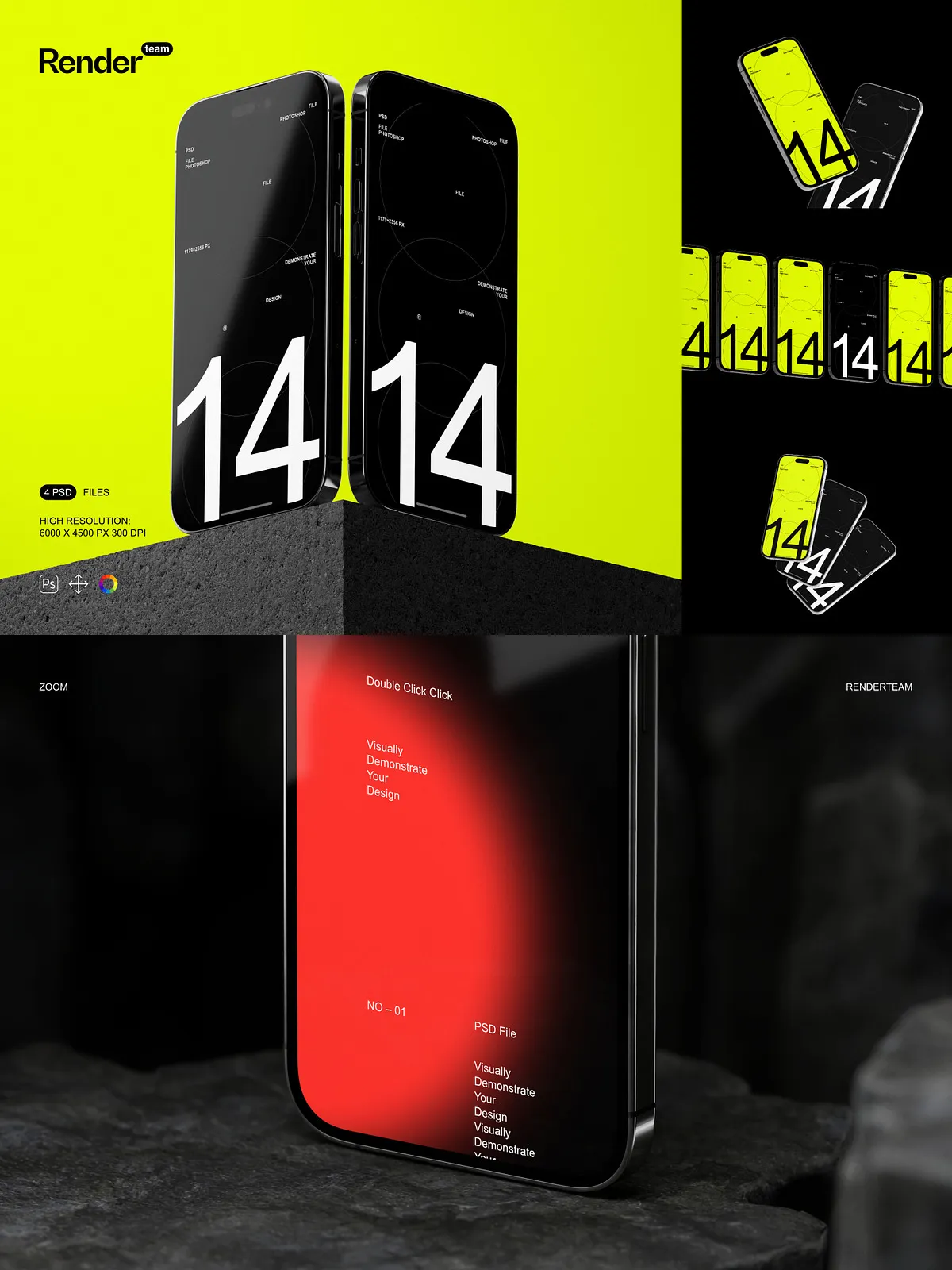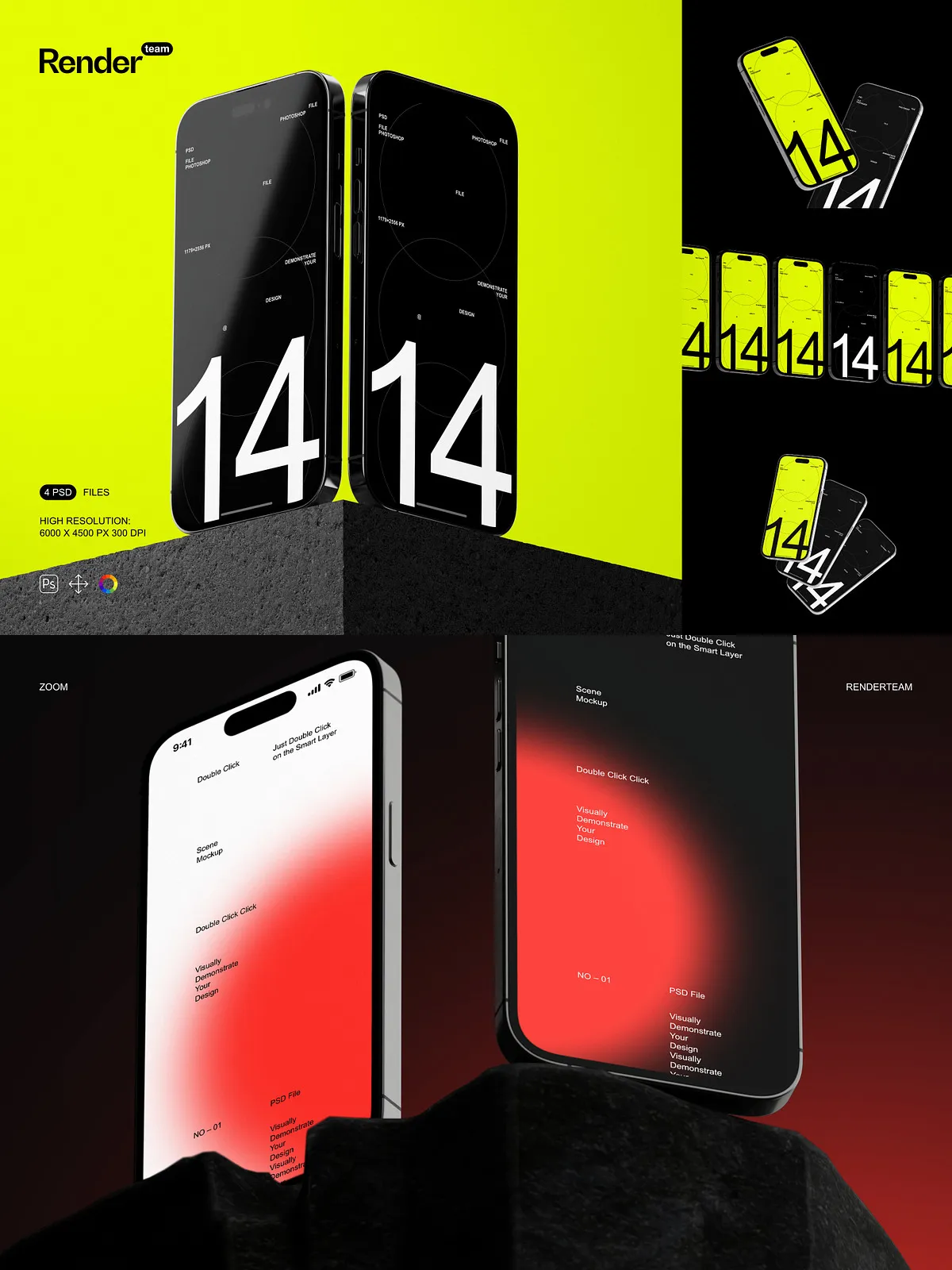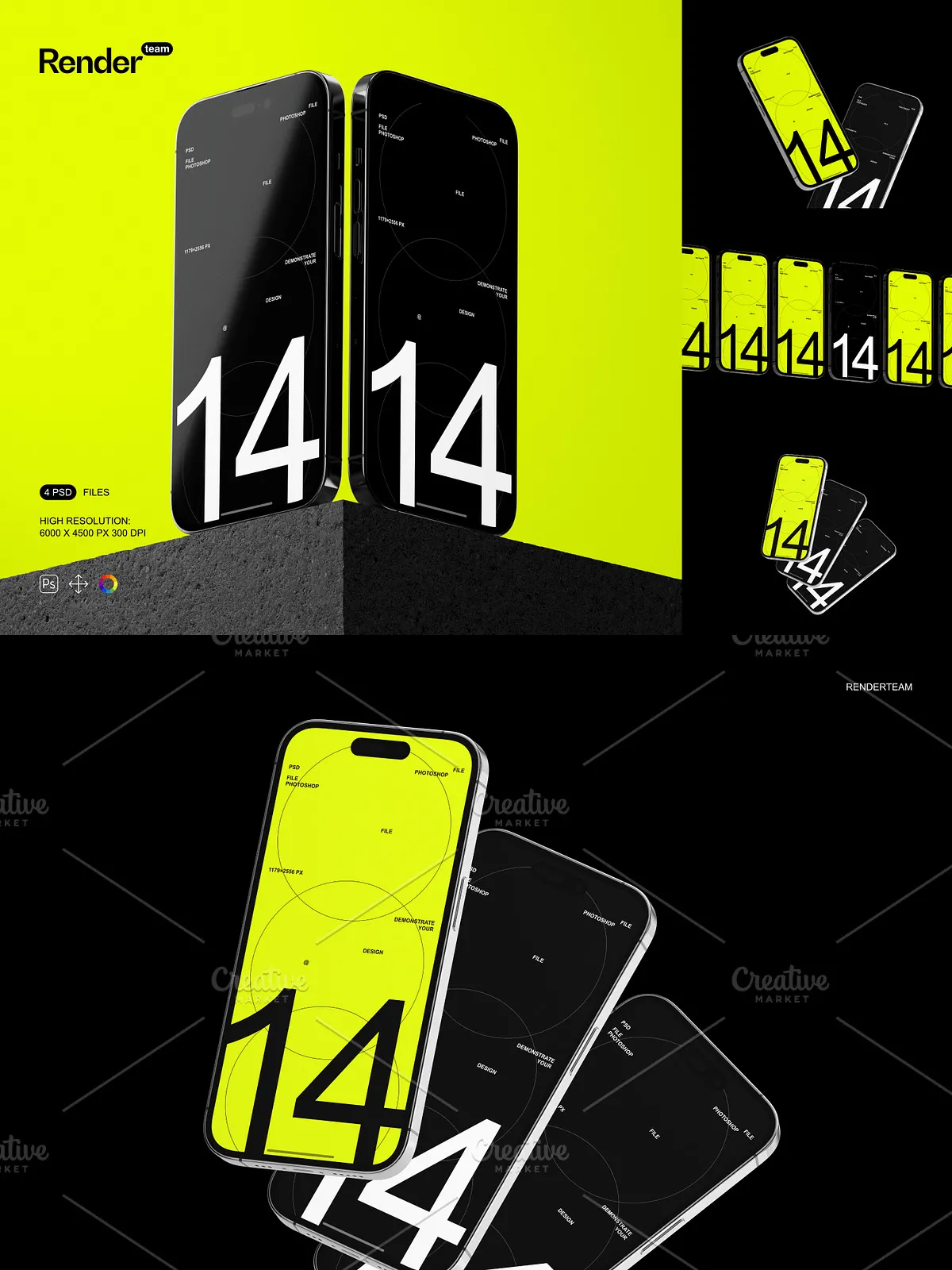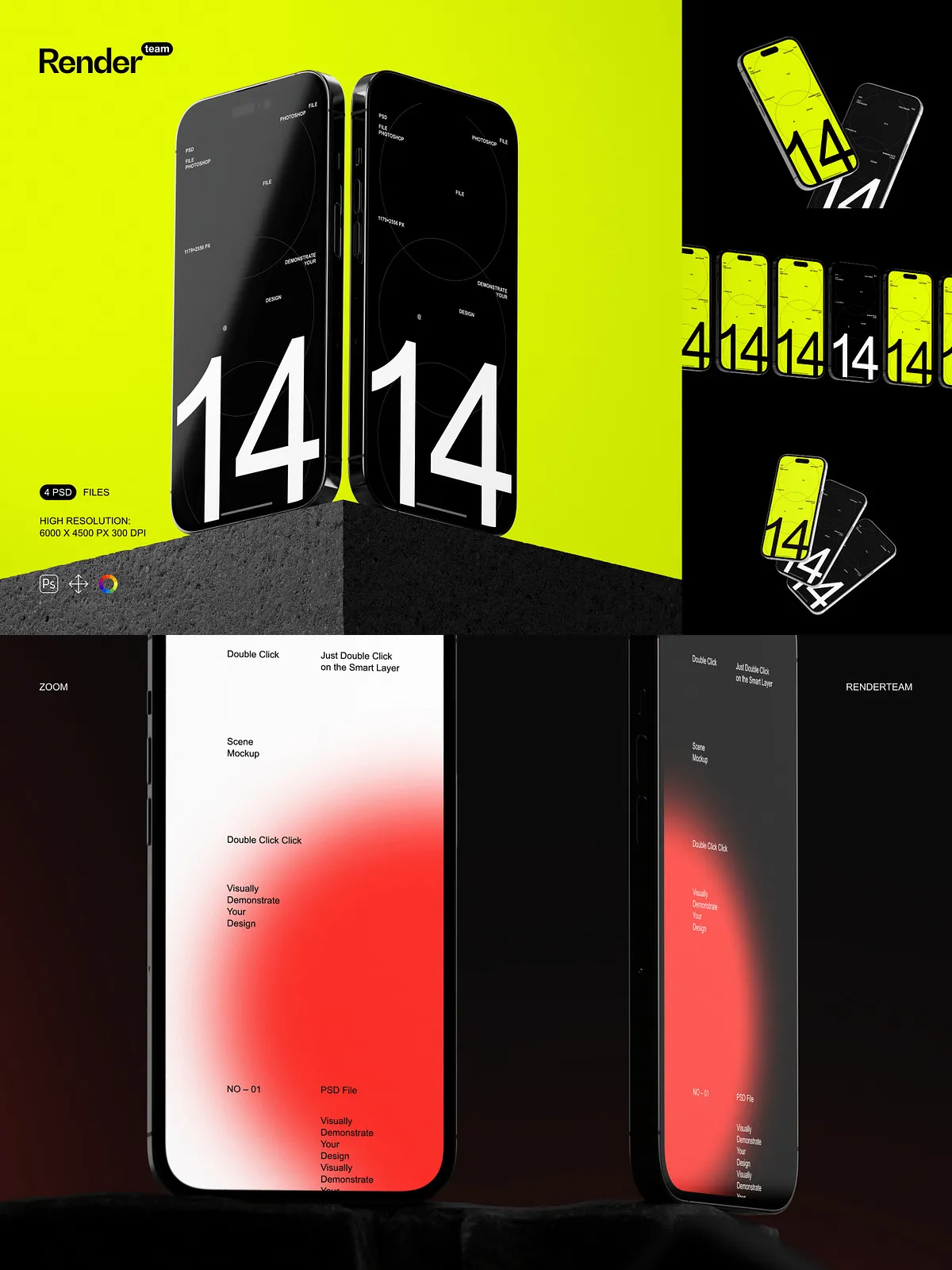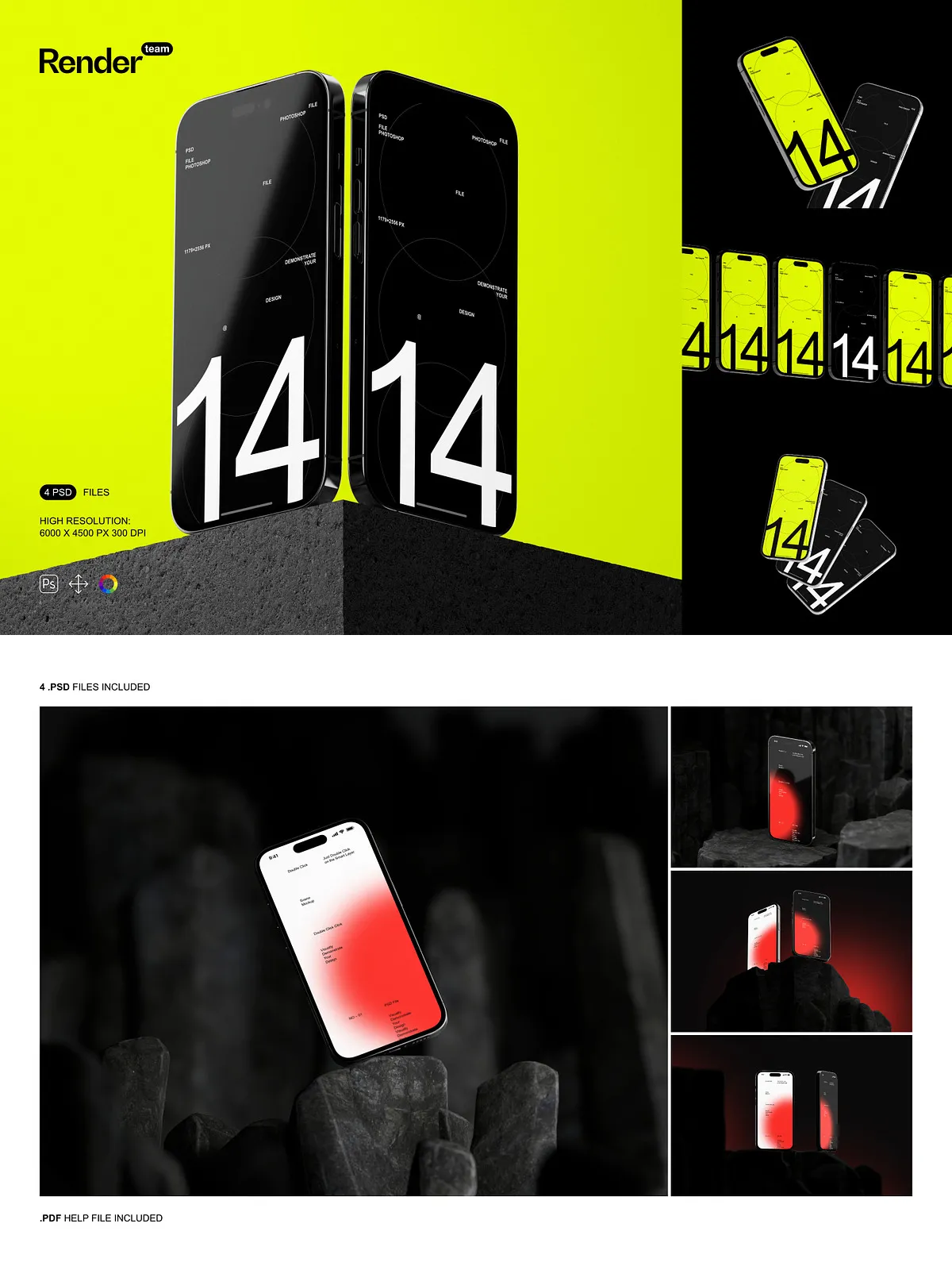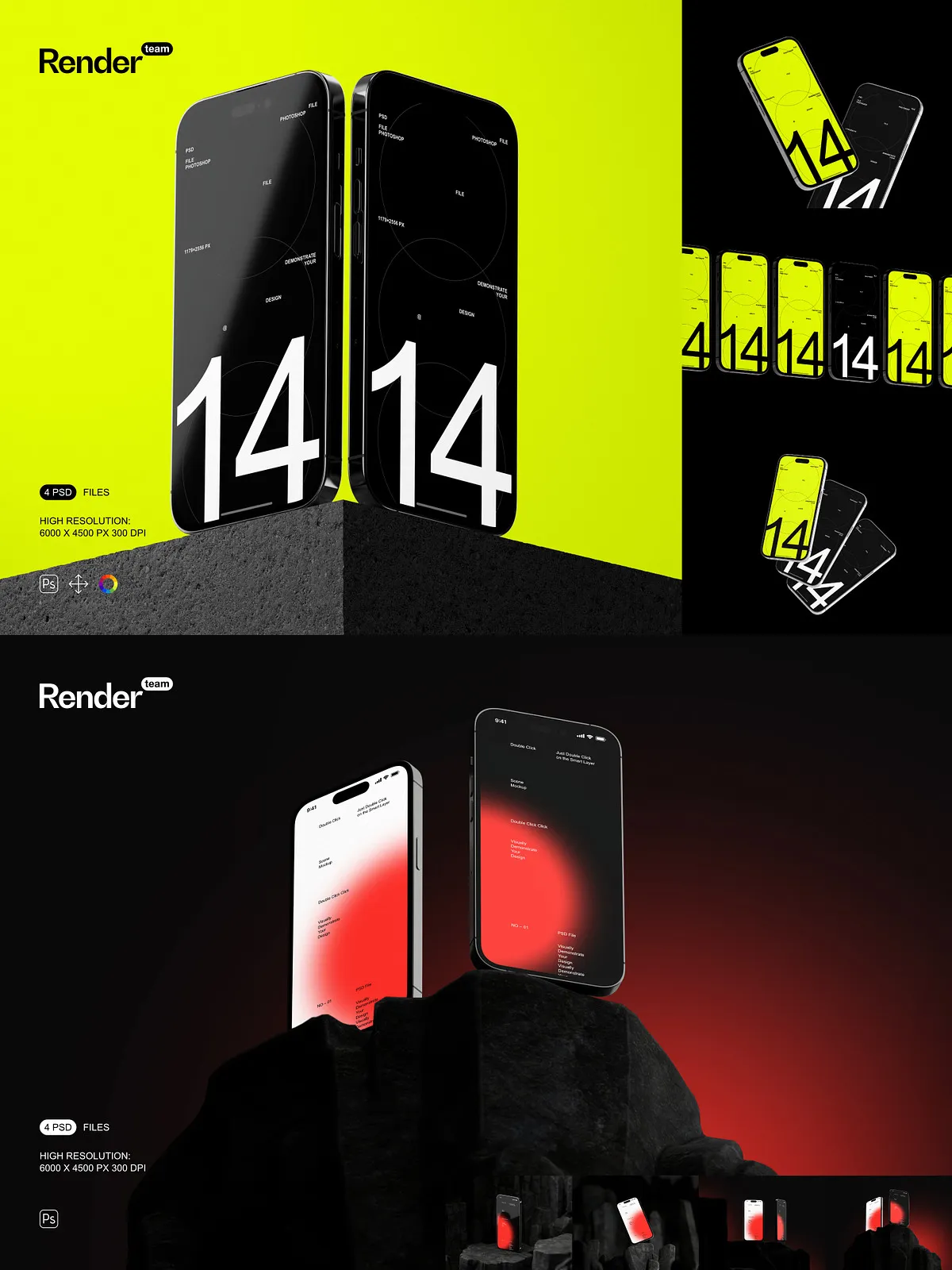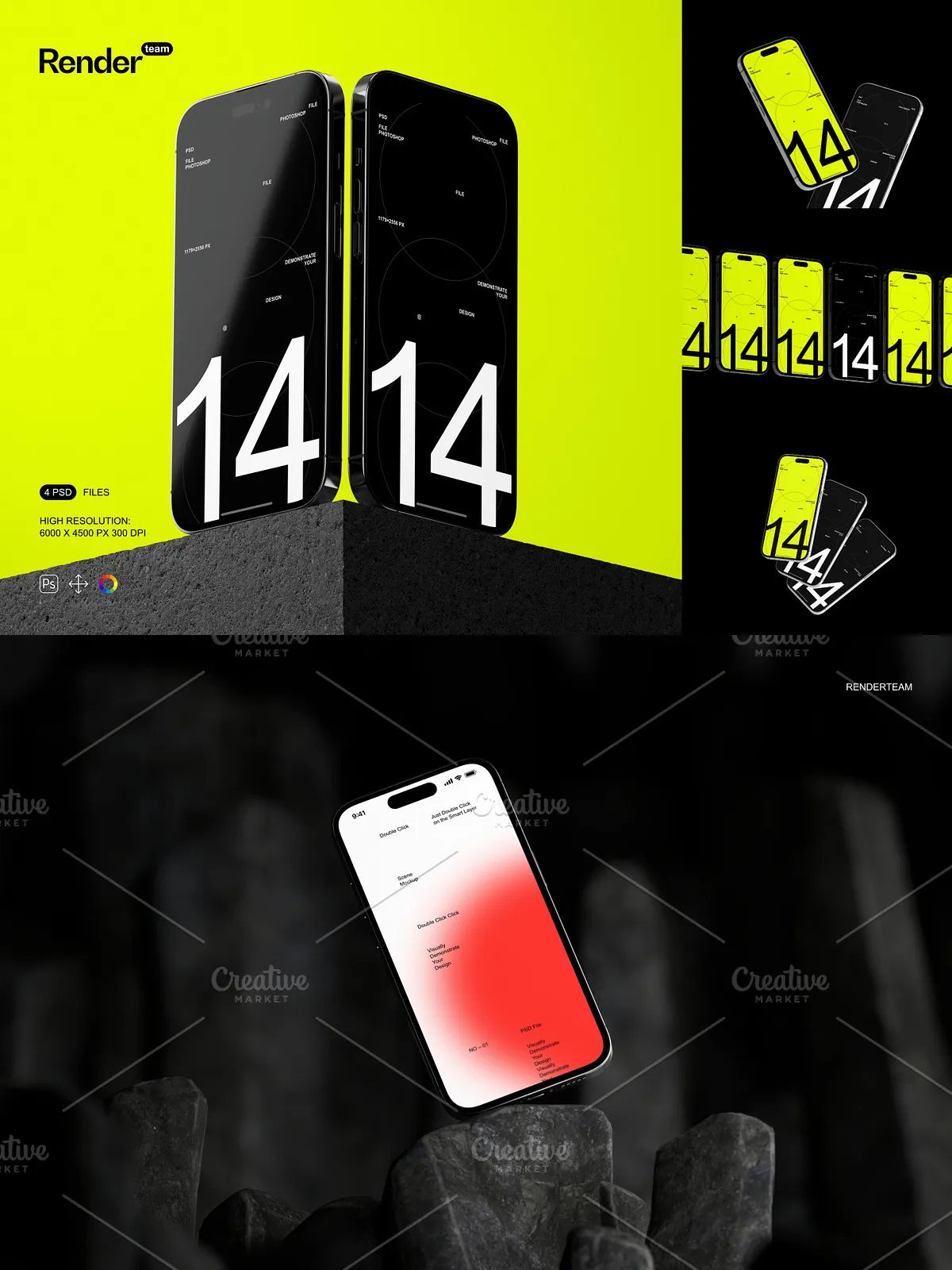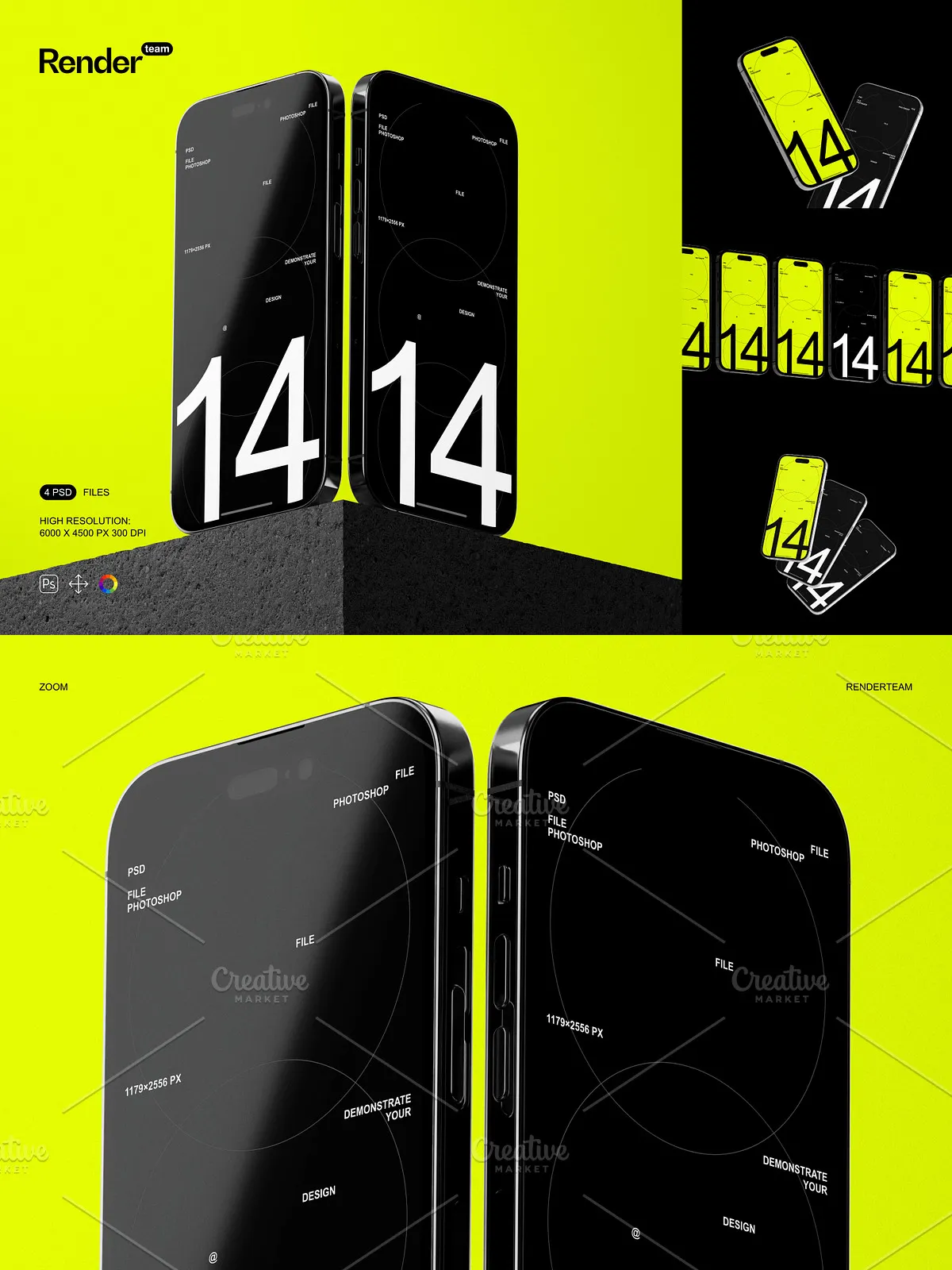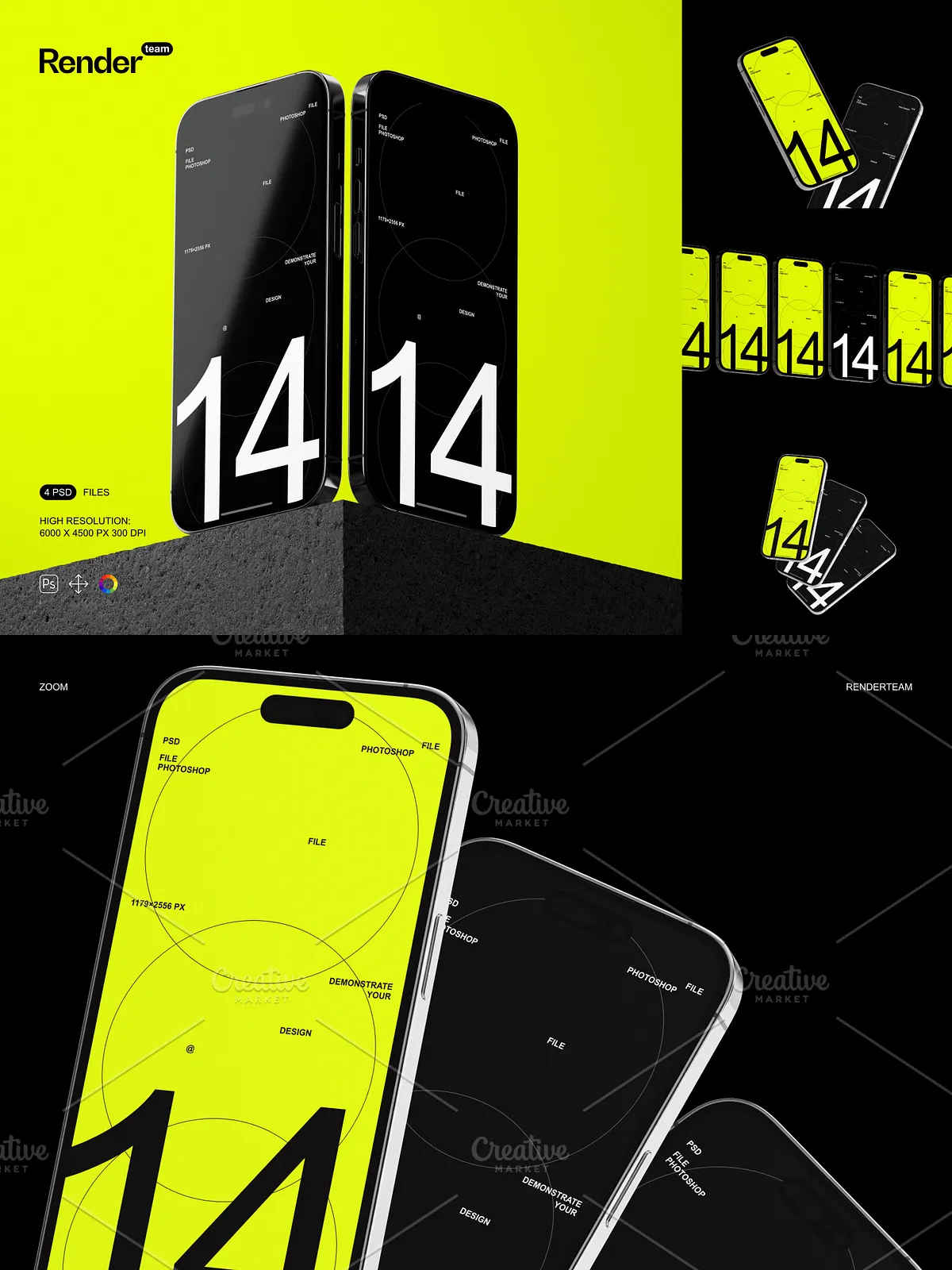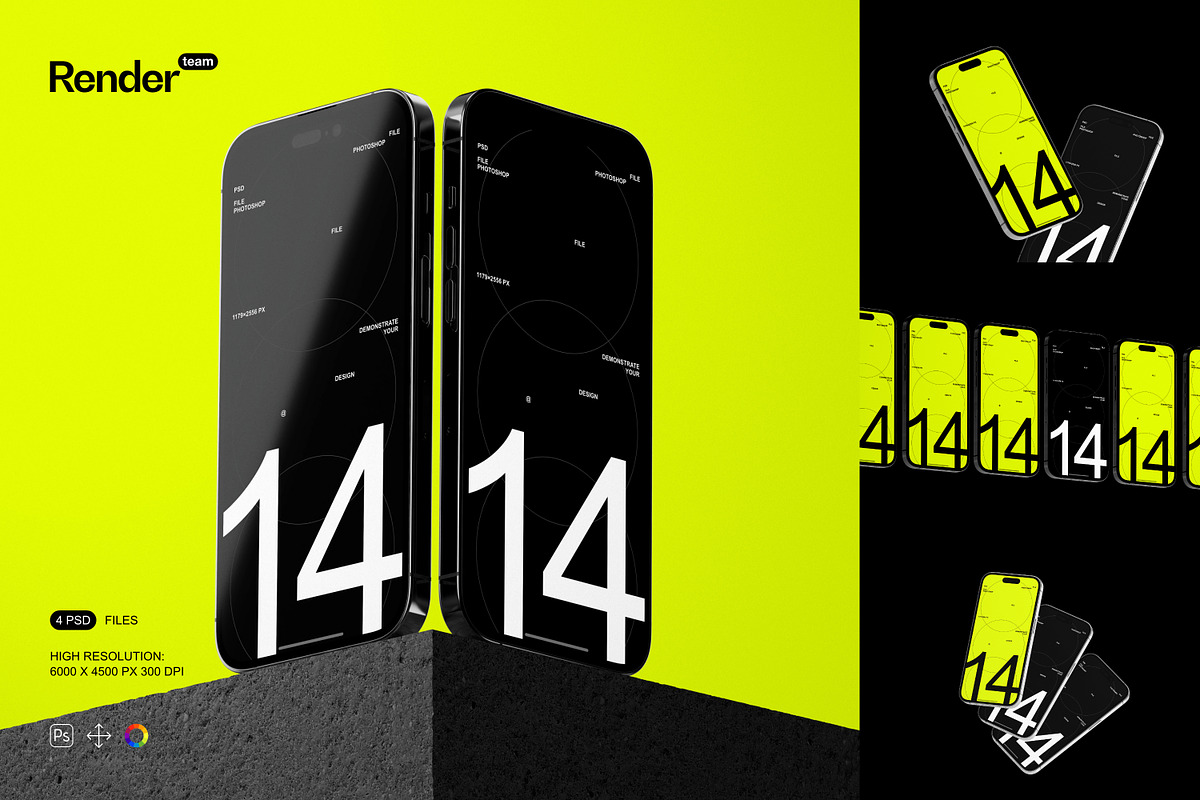
Bring your mobile app designs, UI mockups, and brand campaigns to life with this premium iPhone 14 Pro Mockup Set, a powerful collection of four professionally crafted, high-resolution PSD files engineered for maximum realism and creative flexibility. Designed for marketers, UI/UX designers, app developers, and branding teams, this set delivers true-to-life depictions of the iPhone 14 Pro in dynamic real-world contexts—on desks, in hands, during presentations, and across digital content. Showcase your app interface, promotional screens, or product dashboards with unparalleled visual credibility, eliminating the need for expensive photo shoots or complex 3D rendering.
📦 Complete Feature-Rich Package: What’s Included
High-Fidelity Files Built for Professional Use
- 4 distinct, layered PSD mockup templates: Portrait Mode in Hand, Landscape on Desk, Side View in Use, and Back-Camera Focus at a Glance
- Resolution: 6000 × 4500 px at 300 dpi—optimized for print brochures, client presentations, app store visuals, and high-end digital portfolios
- Screen size: 1179 × 2556 px—accurately scaled to the actual dimensions of the iPhone 14 Pro for pixel-perfect UI integration
- Smart Object layer embedded in the screen area—double-click to replace the interface instantly with your custom design, then save to update the mockup in real time
- All critical elements isolated: Device Body, Screen Layer (Smart Object), Front Camera Cutout, Side Buttons, Shadow Effects, and Environmental Background
- Hyper-realistic textures including surgical-grade stainless steel edge, matte glass back, and precision-laser cut camera bump—accurately mimicking Apple’s premium build quality
- Comprehensive PDF help file with step-by-step editing guides, layer structure breakdowns, export recommendations, and compatibility notes for Adobe Photoshop CC 2018 and newer
Advanced Layer Architecture for Seamless Workflow Integration
- Clear, consistent naming conventions: “iPhone 14 Pro – Screen”, “Shadow – Base”, “Lighting – Edge Glow”, “Background – Office” for immediate file navigation
- Smart folder grouping: Editable Content, Device Anatomy, Environmental Context, Non-Destructive Effects, and Export Prep
- Bleed margins set at 3mm—ensuring text, icons, and UI elements remain fully visible during print or cropping, essential for compliance with app store and marketing guidelines
- Locked master layers safeguard structural integrity while enabling full access to editable zones—ideal for team collaboration and client handovers
- Thumbnail previews embedded within group folders to identify key editing areas instantly, reducing revision cycles by up to 60%
⚙️ Intelligent Editing Tools for Rapid, Professional Results
Smart Object Integration — Replace Screens in Seconds
Accelerate your design workflow with instant interface updates. Simply locate the “iPhone 14 Pro – Screen” Smart Object layer in the Layers panel, double-click to open your design in a new window. Paste your UI, adjust spacing, reposition icons, or update colors. Save and close—you’ll see your design appear flawlessly integrated into the mockup with perfect shadow alignment, curvature, and depth. This non-destructive method preserves your original artwork intact and allows reuse across multiple projects without degradation.
Dynamic Lighting & Shadow Control — Match Any Environment
Adapt your iPhone mockup to any setting. Use adjustment layers to shift ambient lighting—simulate office fluorescents, warm indoor lamps, or natural daylight. Modify shadow intensity and blur radius to reflect surface textures: glass, wood, fabric, or metal. Apply subtle gradients or surface noise to give the device a tactile, hand-held feel. Control gloss levels using blending modes like “Overlay” or “Soft Light” for a modern, high-end aesthetic—ideal for brand identity, premium product showcases, and investor presentations.
Contextual Customization — Tell a Story With Your Design
Expand beyond the device itself. Replace the background with a modern workspace, a coffee shop counter, a tech conference stage, or a home office setup. Layer in accessories: a charging cable, a screen protector, or a premium case. Add contextual UI elements like a notification banner, battery icon, or active app in the status bar—great for demonstrating app functionality or illustrating how your product fits into daily digital life. Use this to create narrative-driven marketing content, social media posts, or campaign visuals that resonate with users on an emotional level.
🚀 Step-by-Step Workflow for Maximum Productivity
1. Open the PSD File in Adobe Photoshop
Launch Adobe Photoshop CC (2018 or later) and open one of the four available templates.
2. Identify the Smart Object Layer
In the Layers panel, locate the “iPhone 14 Pro – Screen” Smart Object. It’s clearly marked and ready for instant editing.
3. Insert Your Custom UI Design
Double-click the layer to open your design in a new window. Paste your app screen, adjust layout, scale graphics, or reposition text. Ensure your content fits within the 3mm bleed zone for safe visibility and print compliance.
4. Save and Close
Press Ctrl + S (Windows) or Cmd + S (Mac) to save and close. Your updated interface instantly appears in the mockup with accurate shadows, reflections, and curvature.
5. Refine Visual Presentation
Use adjustment layers to enhance depth: add subtle brightness boosts, contrast shifts, or color temperature changes. Apply “Inner Shadow” and “Bevel & Emboss” effects to emphasize the screen’s edge and add a 3D effect.
6. Export for Any Use Case
Follow the export instructions in the PDF help file: use RGB for digital platforms (websites, social media), CMYK for official print materials, and PNG-24 for transparent PNGs. All files are production-ready for app store listings, marketing campaigns, investor decks, and digital portfolios.
💡 Pro Design Tips for Standout Results
- Always maintain a 3mm safe zone around navigation bars, buttons, and critical UI elements to prevent content cutoff in real devices.
- Use layer effects such as “Gradient Overlay” and “Outer Glow” to simulate reflective screen surfaces—enhancing perceived realism and modernity.
- Create multiple versions: “App Launch”, “In-Hand Use”, “Presentation Mode”, “Social Media Post” to expand your content strategy without reworking designs.
- Duplicate templates to compare UI variants side by side—perfect for A/B testing color schemes, fonts, or icon styles before finalizing a product launch.
🎯 Perfect For These High-Impact Use Cases
Mobile App Marketing & Product Launches
Launch your app with confidence. Visualize the user interface in authentic contexts—on a user’s hand, during a meeting demo, or on a desk. Showcase how your app’s features appear in real time, increasing credibility and user trust before release.
UI/UX Portfolio & Client Presentations
Stand out in competitive portfolios. Demonstrate your design thinking with high-fidelity mockups that reflect professional standards and attention to detail—ideal for attracting clients, recruiters, and collaborators.
Brand Storytelling & Digital Campaigns
Build immersive narratives: show your app in a user’s morning routine, at a business meeting, or on a travel itinerary. Create visually compelling content that speaks directly to lifestyle and purpose—boosting engagement and brand recall.
Investor Pitches & Tech Conferences
Present your product with precision and impact. Use photorealistic mockups in slide decks, pitch decks, or keynote visuals to demonstrate functionality, design quality, and market readiness—winning stakeholder confidence and funding.