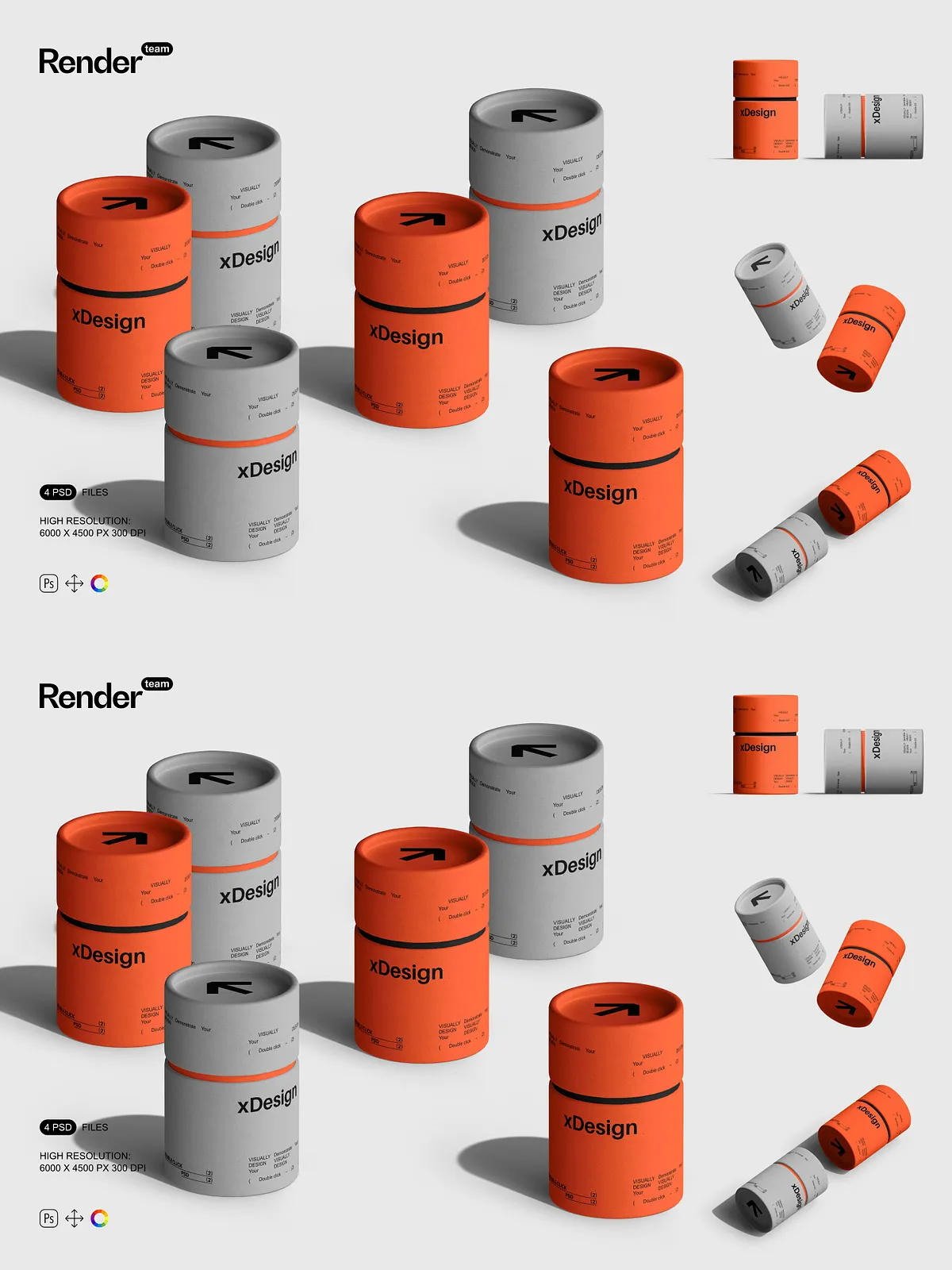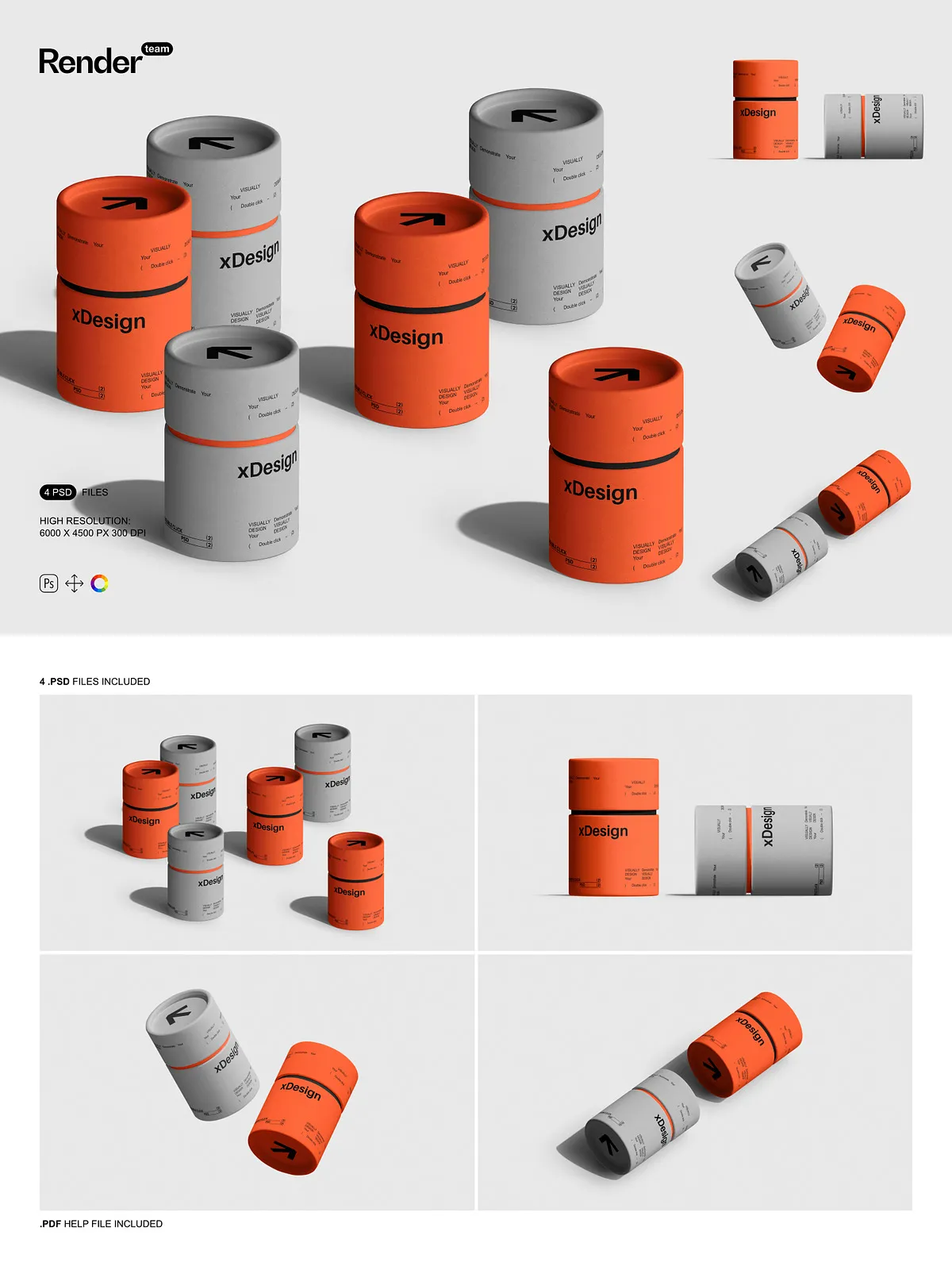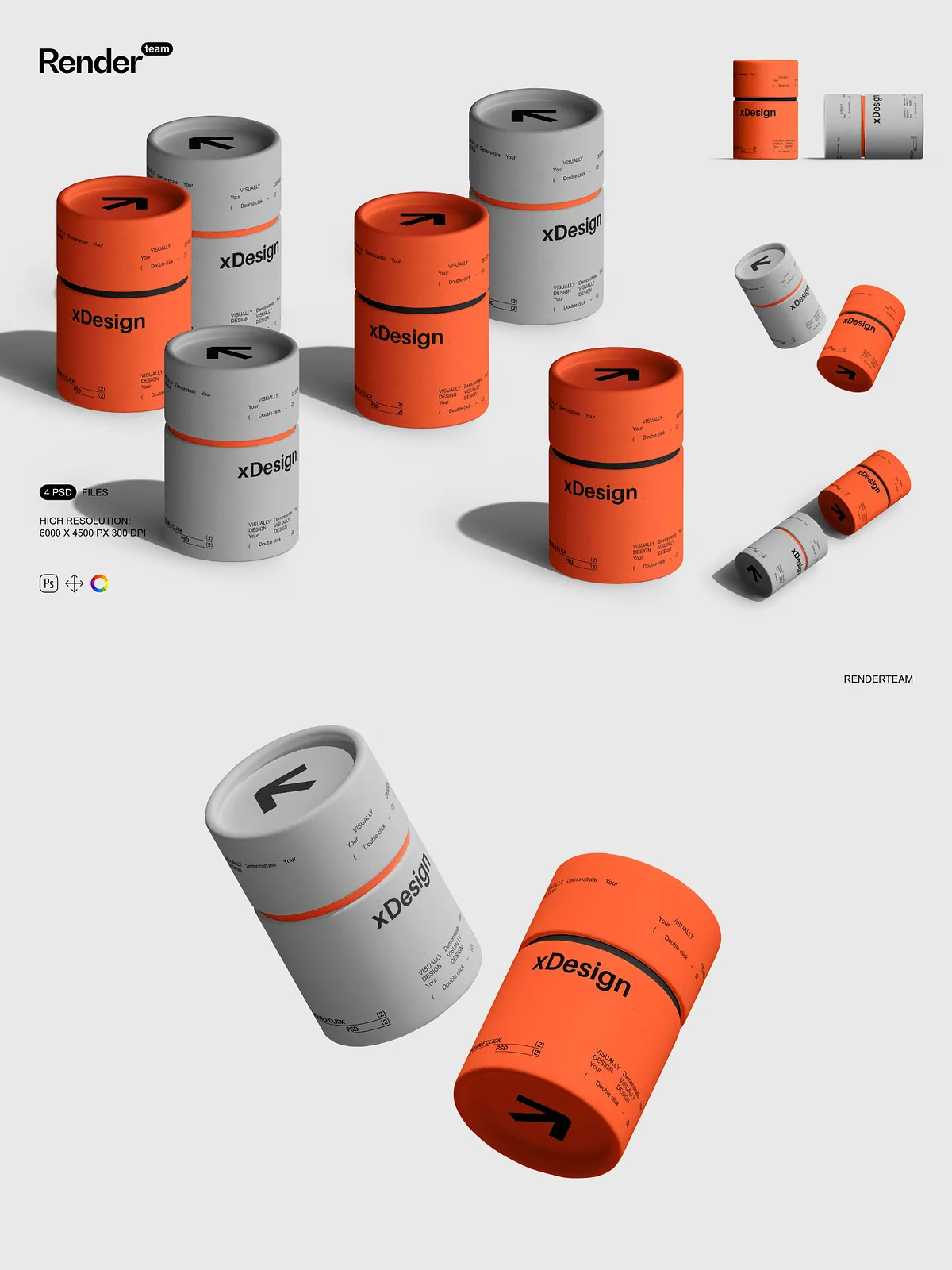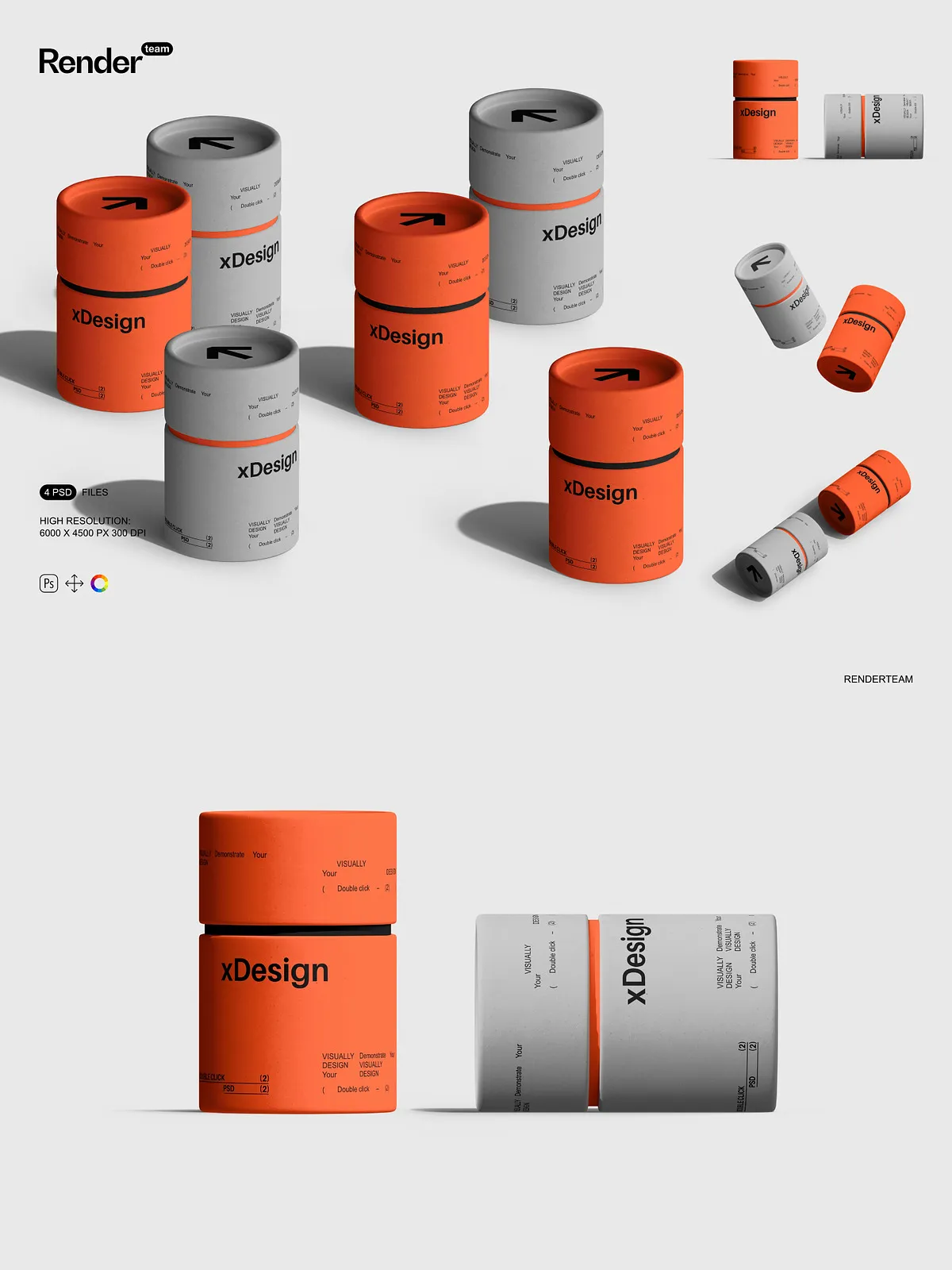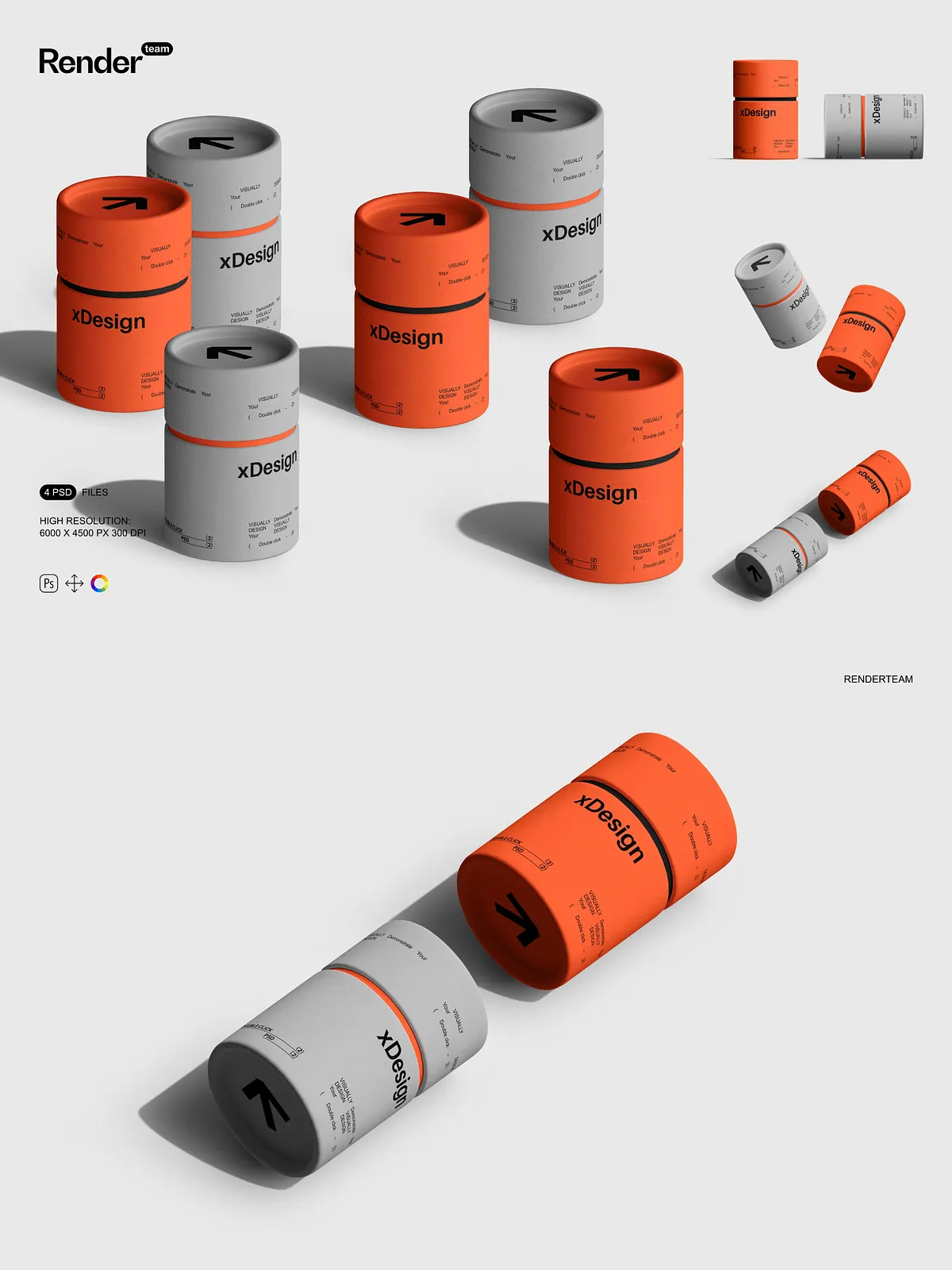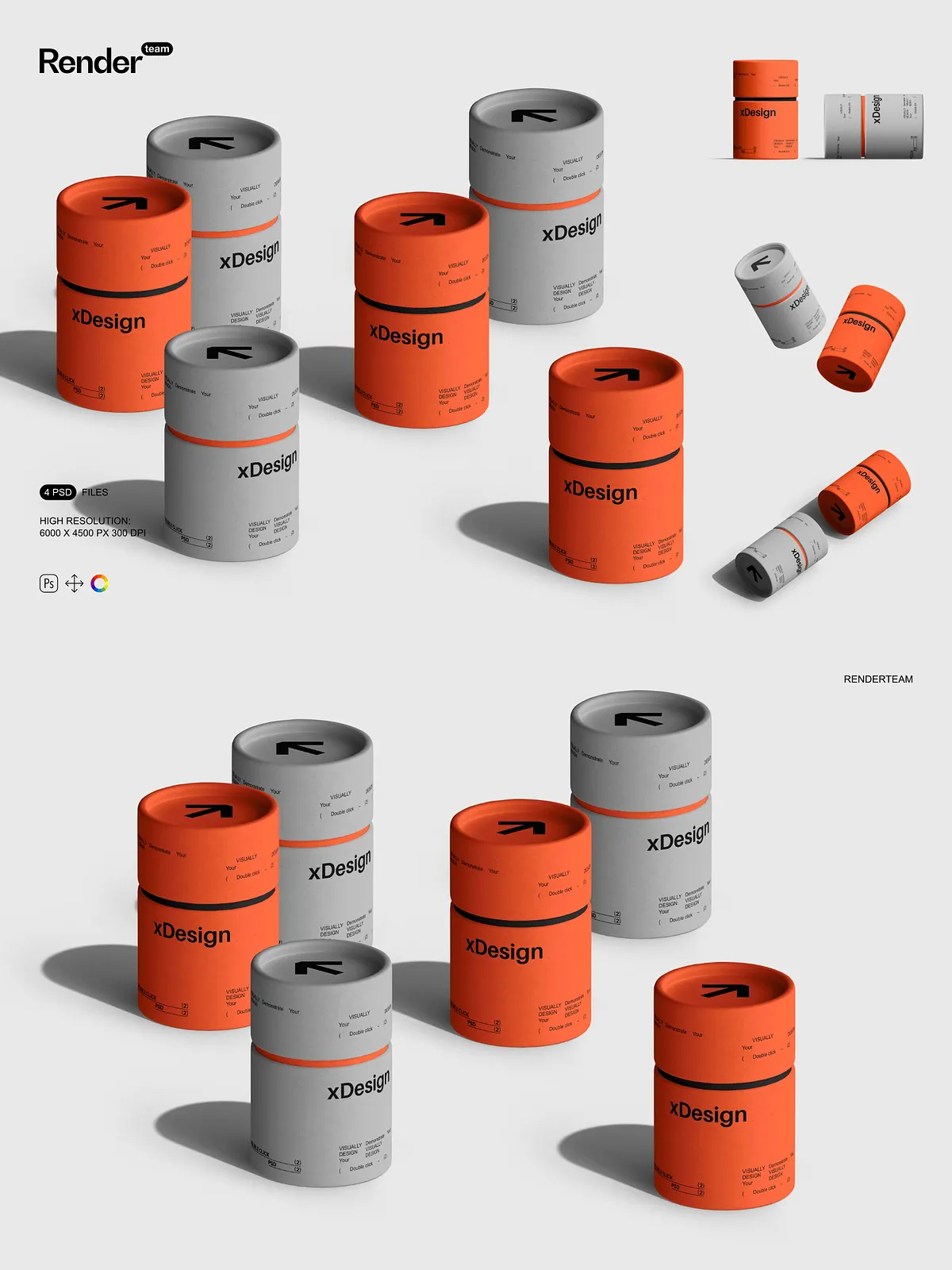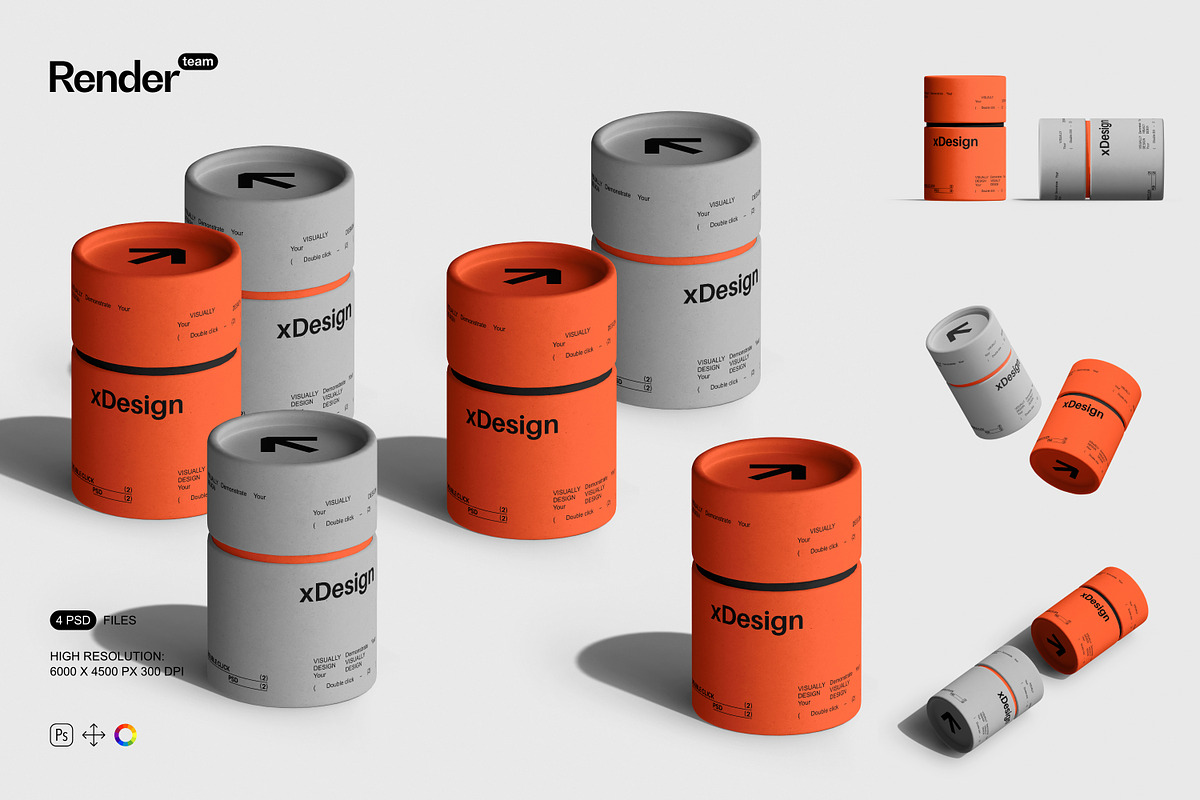
Present your tube packaging designs with speed and polish using this Paper Tubes Mockups collection. Designed for designers, brand teams, and e-commerce managers, this set delivers four fully layered, editable PSD mockups that showcase labels, patterns, and artwork in realistic photographic contexts. Each mockup uses Smart Objects and isolated shadow and reflection layers so you can apply artwork, change colors, and export final images without altering the original composition.
What the Pack Contains
Included Files
The package includes 4 layered PSD mockup files prepared at high resolution (6000 × 4500 px, 300 dpi). Each PSD contains clearly labeled groups and Smart Object layers for label artwork, cap or lid details, background, and lighting. You also receive a PDF help file with step-by-step instructions to get you from raw artwork to a polished export quickly.
Technical Specifications
- Resolution: 6000 × 4500 px
- Color mode: RGB, 300 dpi
- Number of PSD files: 4
- All objects and shadows isolated on separate layers
- Compatible with Adobe Photoshop versions that support Smart Objects and adjustment layers
Key Features
Smart Object Editing for Fast Results
Replace artwork in seconds using Smart Objects. Double-click the Smart Object layer, paste or place your artwork into the provided canvas, align to the guides, save, and return to the main document. The mockup automatically maps your design to the correct perspective and mask so you avoid manual warping or distortion.
Organized Layers and Non-Destructive Workflow
The layers and folders follow a consistent naming convention so you can locate label, body, cap, shadow, and lighting layers immediately. The organized structure encourages non-destructive editing: hide or duplicate groups, toggle visibility to test variations, and lock layers you do not want to change.
Isolated Shadows and Reflections
All shadows and reflections sit on separate layers so you can adjust intensity, color, and placement independently. Remove a shadow to composite the tube over a new background, or lower shadow opacity to match a different ambient setting without repainting or rebuilding the scene.
Customizable Colors and Lighting
Use grouped color layers and adjustment layers to change base material colors, tweak ambient lighting, and refine highlights. You can create multiple colorways quickly and compare them side-by-side to determine the strongest visual direction for branding or product listings.
How to Edit
Step-by-Step Quick Start
- Open the chosen PSD in Adobe Photoshop.
- Locate the Smart Object layer for the tube body or label in the Layers panel.
- Double-click the Smart Object thumbnail to open the internal canvas.
- Place or paste your label or artwork, align to the guides, then save and close the Smart Object window.
- Return to the main document to review the applied artwork. Adjust color and lighting groups as needed.
- Export using sRGB for web or convert to a print profile for proofs; follow the included PDF help file for recommended export settings.
Tips for Best Results
- Prepare artwork at high resolution with bleed margins to avoid edge artifacts when placed into Smart Objects.
- Use adjustment layers rather than direct pixel edits to preserve flexibility.
- Toggle isolated shadow layers to test different environmental compositions.
- Save presets of color adjustments to streamline batch exports of multiple SKUs or colorways.
Use Cases and Applications
Marketing and E-commerce
Produce professional product images for online stores, social ads, and email campaigns. The high-resolution PSDs let you crop and resize without losing sharpness, and the isolated elements allow you to adapt images for product grids, banners, and hero shots.
Presentations and Portfolios
Create client-ready presentations and portfolio pieces that demonstrate how label concepts perform on physical packaging. Quickly produce variant mockups to show alternative finishes, textures, or colorways.
Why Choose These Mockups
Choose this Paper Tubes Mockups set to accelerate your design-to-delivery process and maintain consistent visual output across channels. The combination of Smart Objects, organized layers, isolated shadows, and high-resolution canvases lets you iterate rapidly, produce multiple variants, and deliver polished, print-ready assets without rebuilding scenes from scratch. The included PDF help file ensures you or your team can reproduce the workflow reliably and export assets with consistent quality.
Support and Compatibility
If you run into issues, consult the PDF help file included with the download for troubleshooting steps and recommended Photoshop settings. These files work best with recent versions of Adobe Photoshop that support Smart Objects, masks, and adjustment layers.