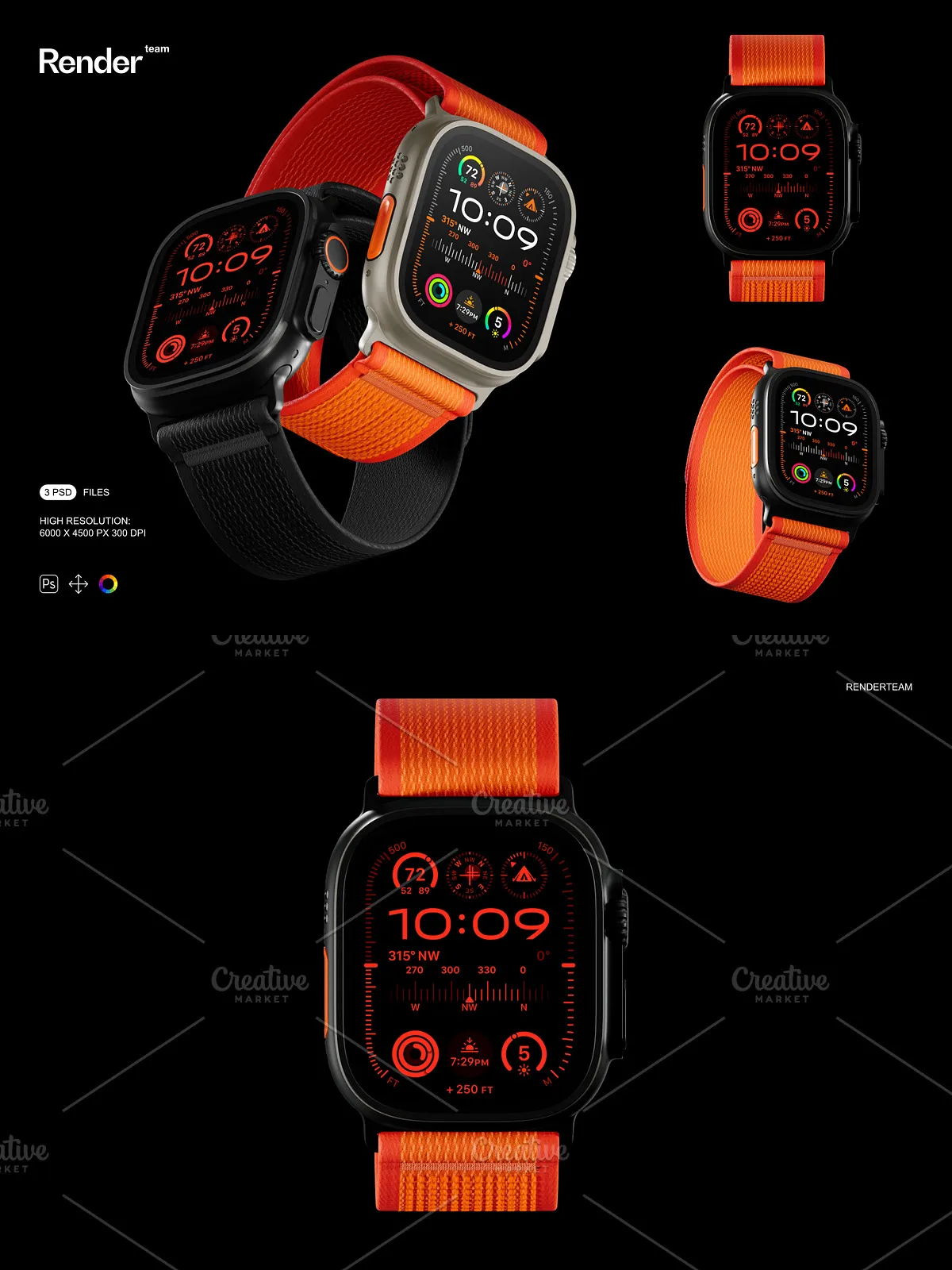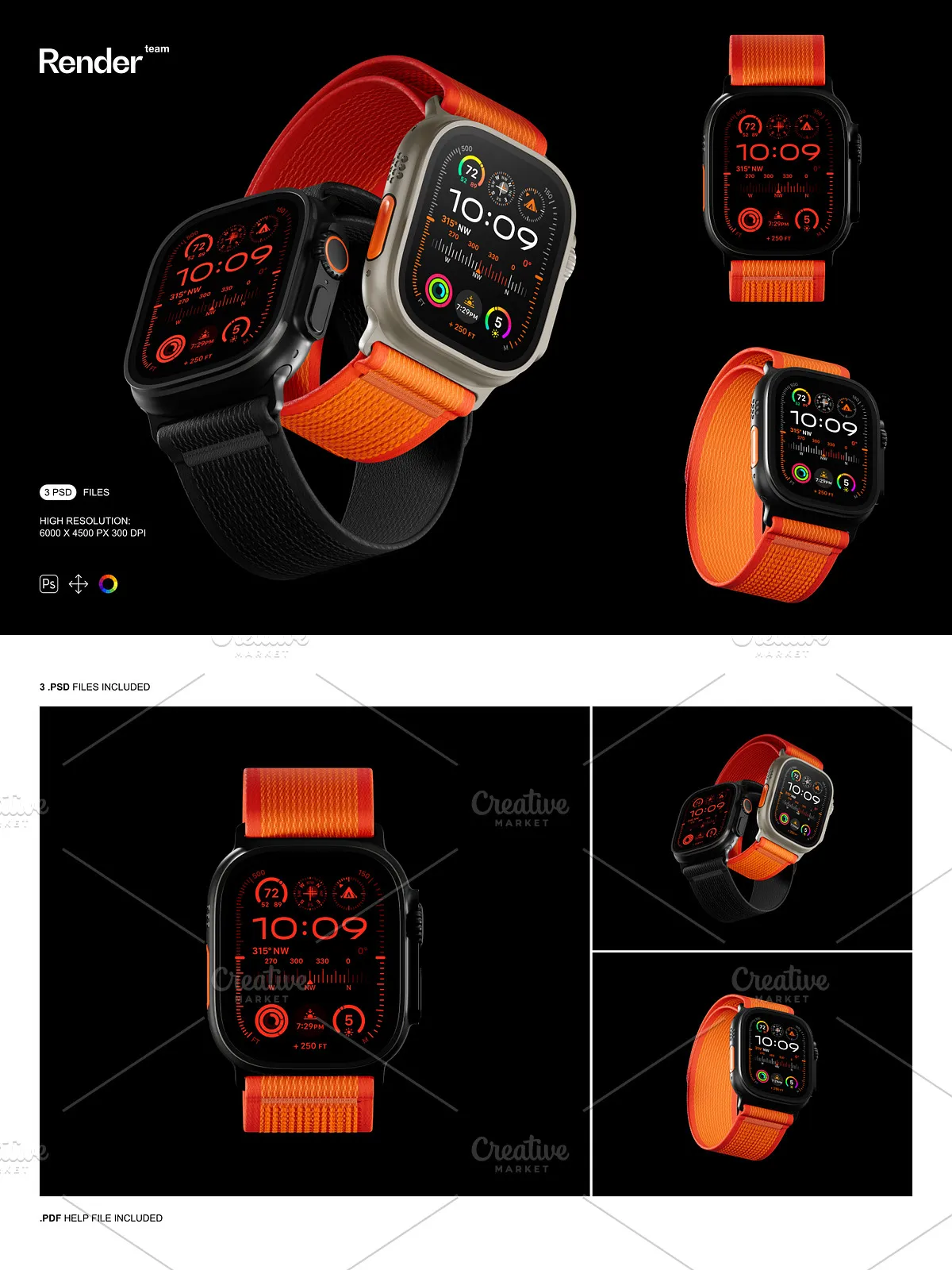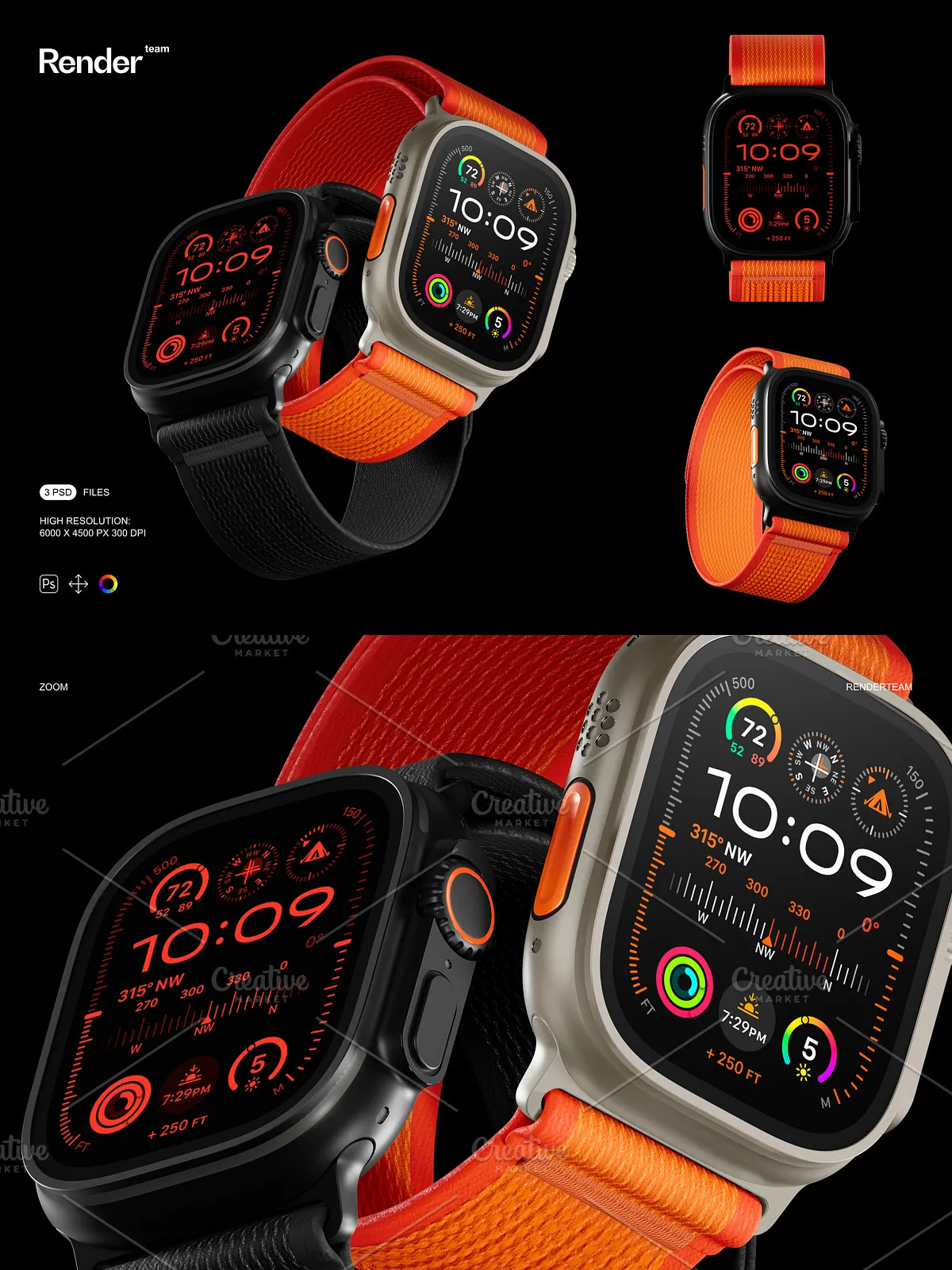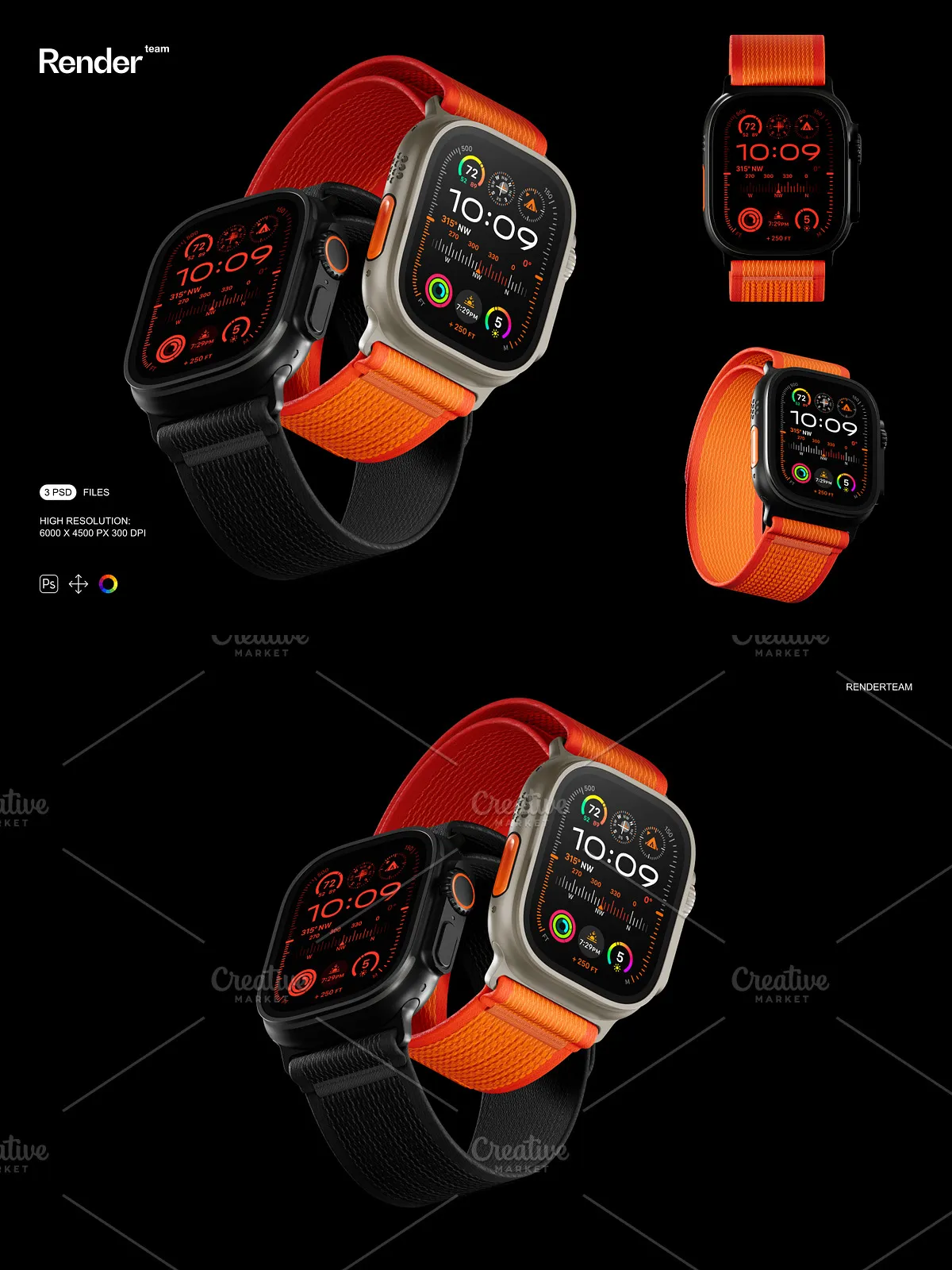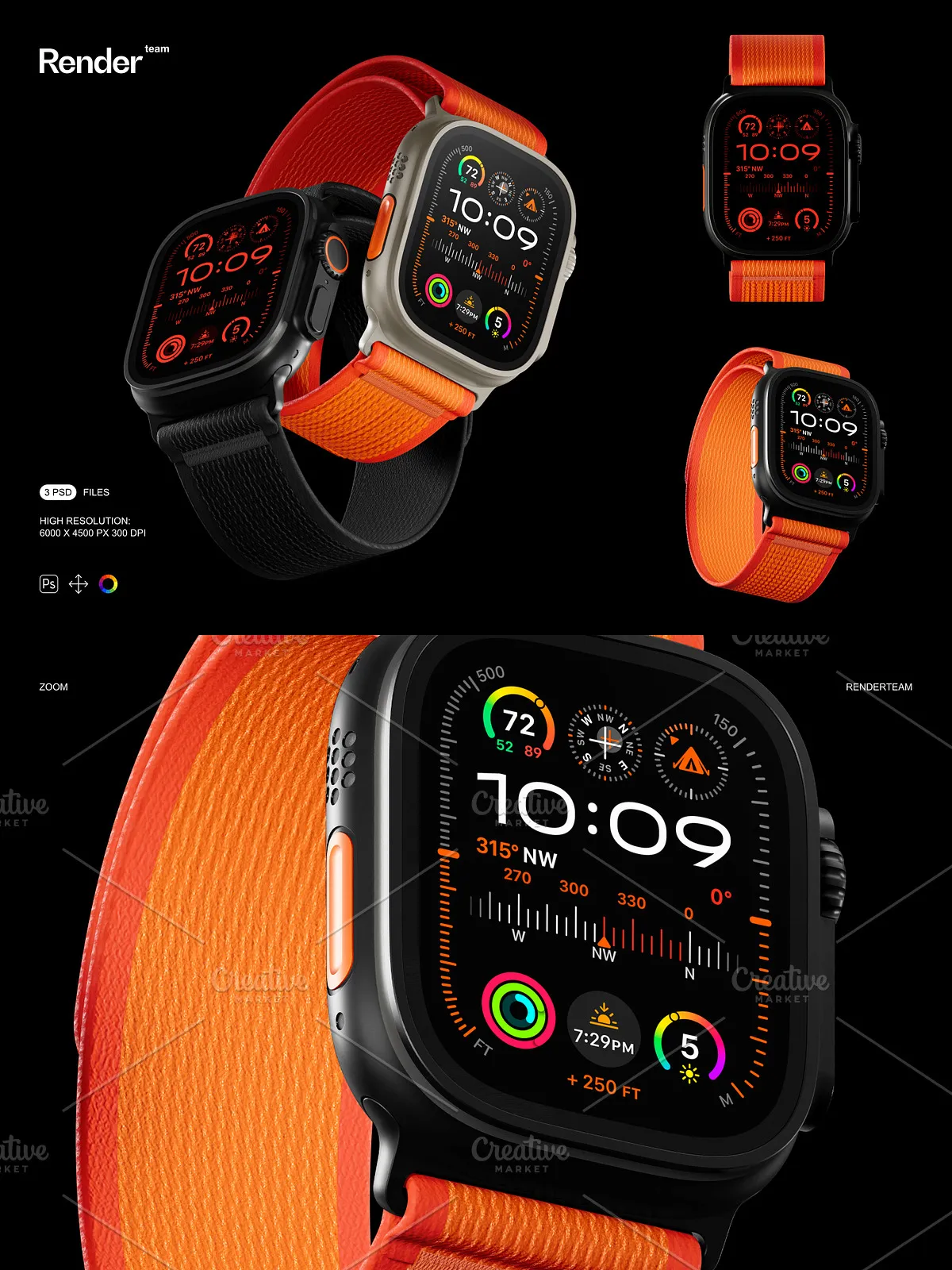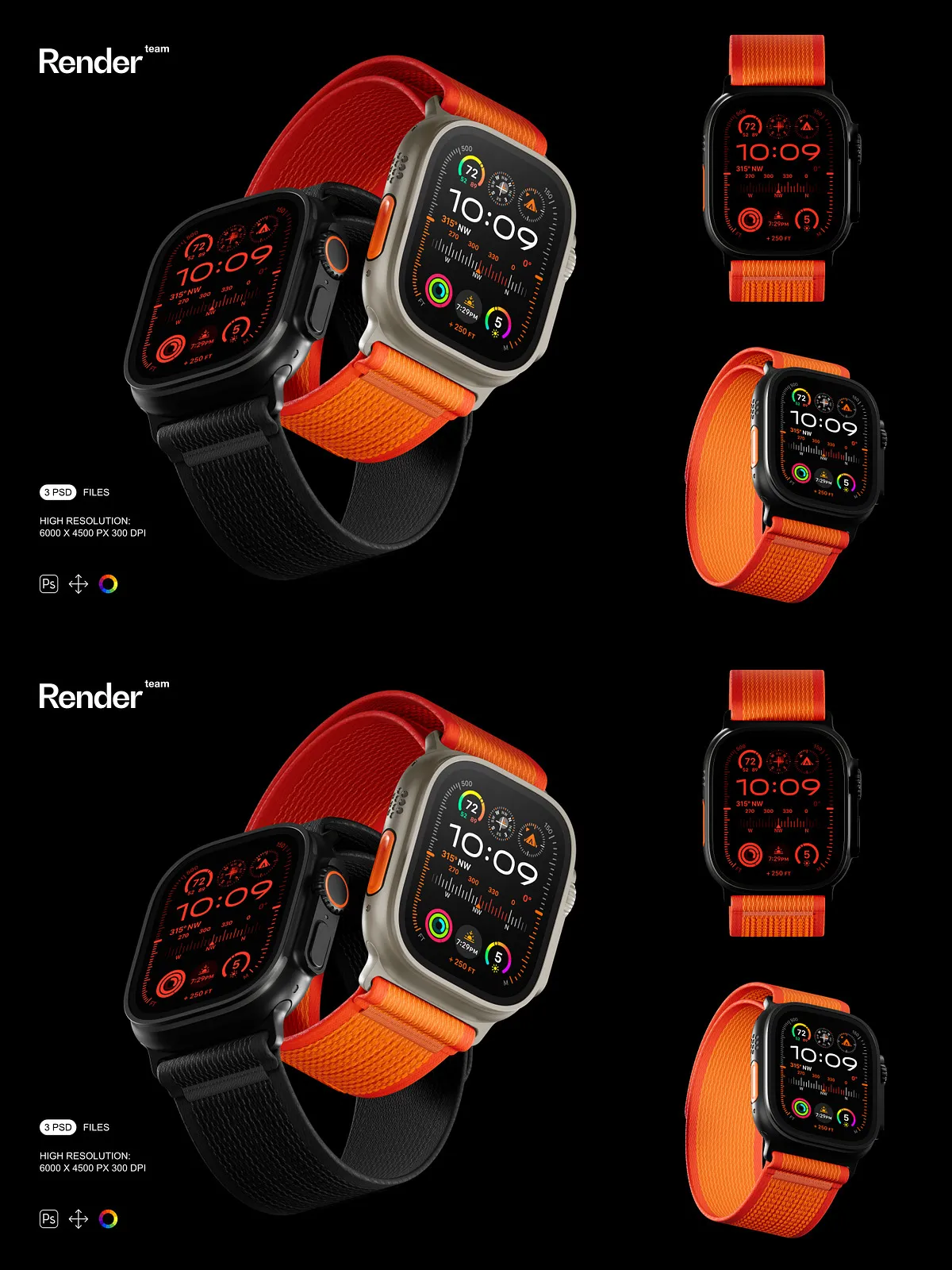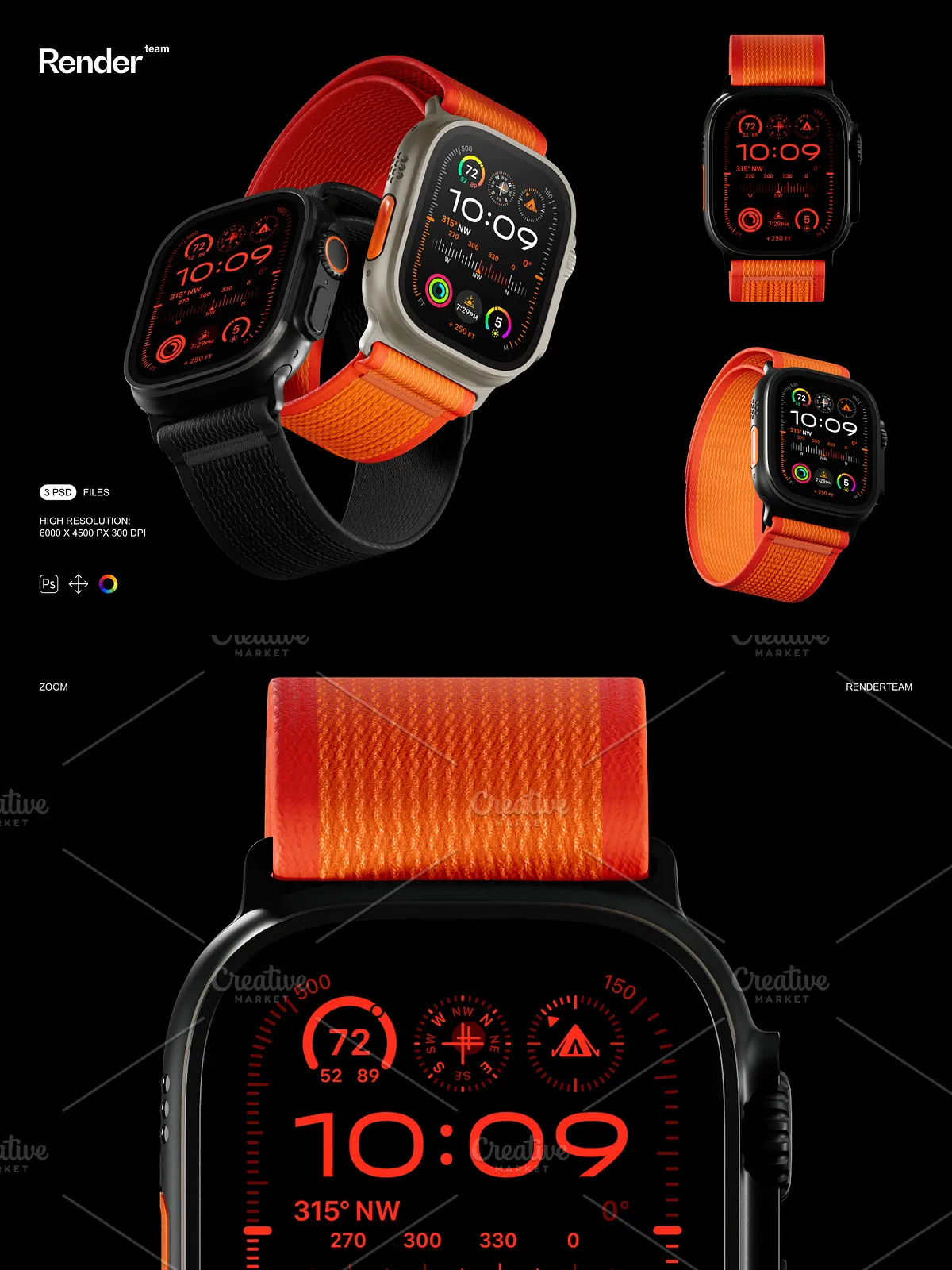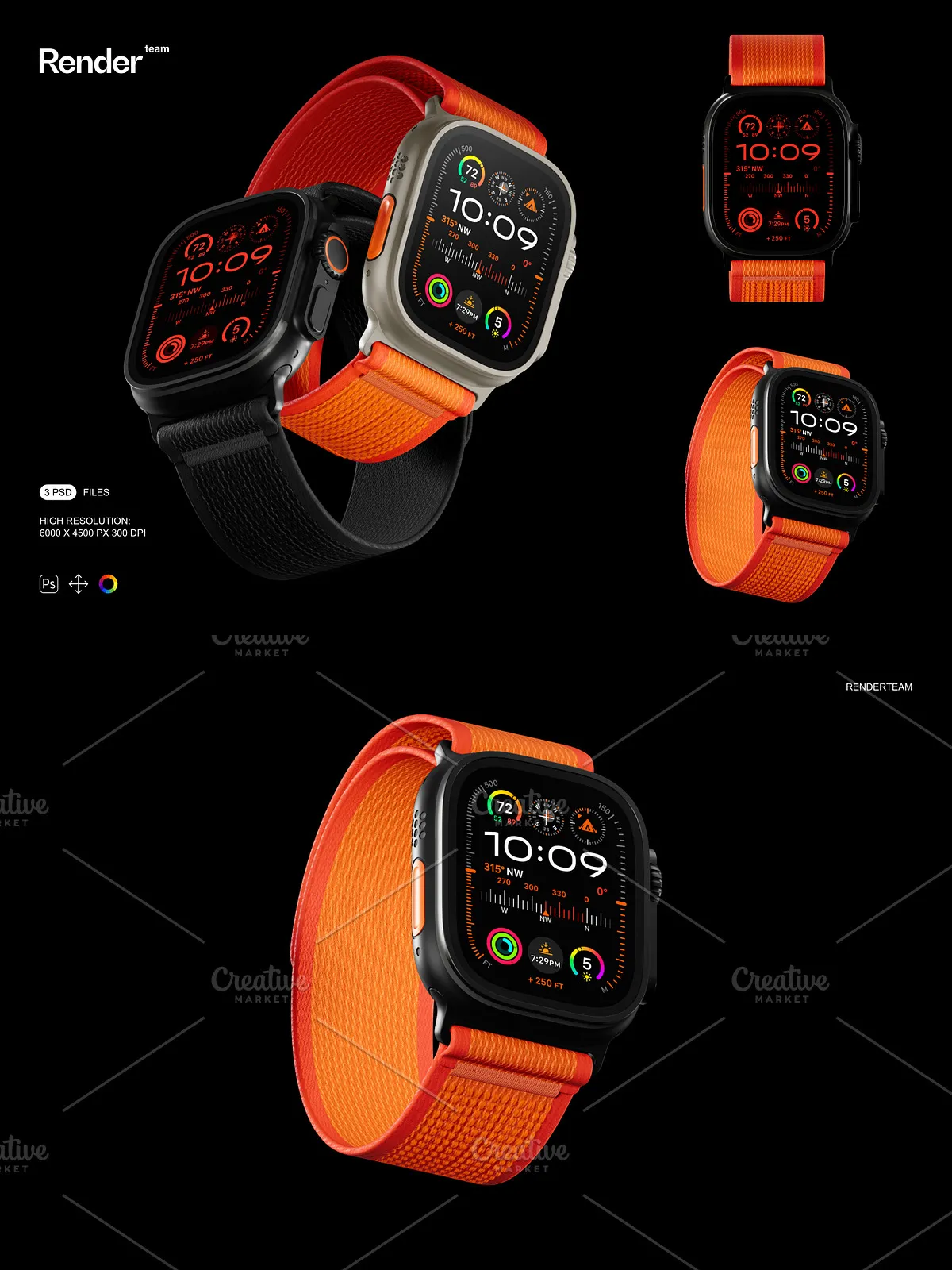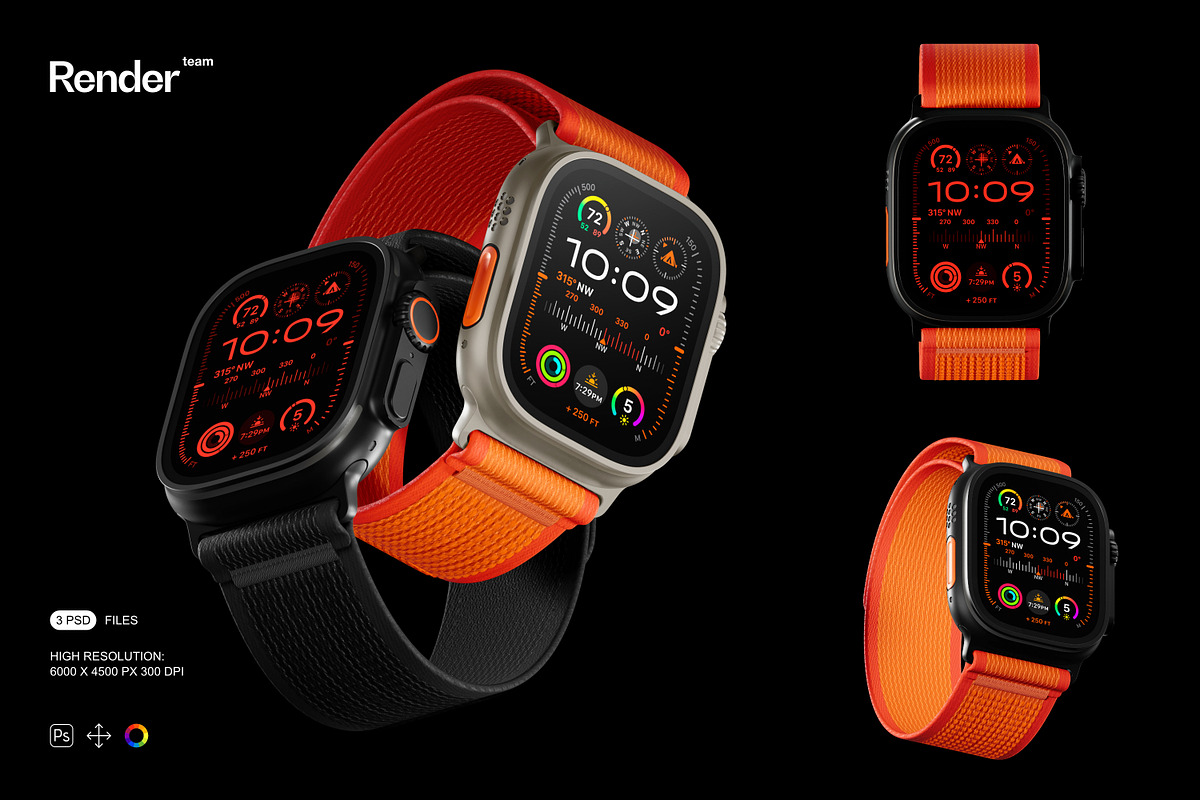
The Watch Ultra Mockup pack delivers three meticulously prepared, layered PSD files designed to showcase smartwatch designs, branding, and packaging in realistic, studio-style scenes. Each file uses Smart Object layers and organized color controls so you can replace artwork, adjust materials, and compose varied product shots quickly and confidently. The mockups provide high-resolution output at 6000 × 4500 px and 300 dpi to preserve crisp detail for web portfolios, promotional assets, and print proofs.
Key Features
Smart Object Workflow for Fast, Non-Destructive Editing
Edit your designs with speed: simply double-click the Smart Object layer, paste or place your artwork, align to guides, save, and return to the main PSD to see your composition update instantly. This non-destructive workflow preserves original assets while letting you iterate on dial faces, straps, logos, and UI screens without altering the master mockup.
Organized Layers and Flexible Scene Composition
Each PSD includes clearly named folders and layers that separate foreground objects, strap components, reflections, and background elements. Designers can quickly toggle, move, or hide individual parts to create custom arrangements and multiple angle presentations. The cleaned layer structure speeds up asset preparation and reduces the time needed for final exports.
High Resolution and Print‑Ready Quality
Files are delivered at 6000 × 4500 px, 300 dpi to maintain texture fidelity and detail in close-up renders. This high resolution ensures your type, engraving, and material finishes reproduce accurately when exported for online use or printed proofs. You can crop, zoom, or scale images without losing critical visual information.
Isolated Objects and Complete Control
All major elements in each mockup are isolated on separate layers, including the watch body, strap, screen, and cast shadows. Isolated layers let you change background colors, reposition elements, and adjust shadow density independently to blend the watch into composite scenes or simulate different lighting conditions. These controls enable realistic presentations for glossy, matte, or textured finishes.
What You Receive
- 3 layered PSD mockup files showing different angles and configurations
- Smart Object layers for rapid artwork placement and non-destructive edits
- Isolated object layers and separate shadow layers for precise compositing
- High-resolution files (6000×4500 px, 300 dpi) suitable for web and print
- Organized folders and labeled layers for fast workflow
- PDF help file including step-by-step guidance and export recommendations
How to Use
Open and Prepare the PSD
Open the PSD in Adobe Photoshop (Creative Cloud recommended). Inspect the layer panel to locate the Smart Object labeled for the screen, dial, or strap you want to customize. Familiarize yourself with the adjustment layers provided for background and color control.
Replace Artwork via Smart Object
Double-click the desired Smart Object to open it in a separate window. Insert your design, align to guides or safe zones, and make any necessary adjustments. Save the Smart Object (File > Save) and return to the main document; the mockup will automatically update with your design applied in context.
Refine Scene and Export
Adjust background color, shadow opacity, and reflection strength using the provided layers and blending modes. When your scene looks balanced, export your final image using sRGB for web assets or convert to the appropriate color profile for print. Refer to the PDF help file for recommended export settings and tips to preserve color accuracy.
Compatibility, Requirements, and Important Notes
These mockups require Adobe Photoshop with Smart Object support and access to layer styles and blending modes. For best results, use a recent Creative Cloud release to ensure full compatibility with advanced layer effects. IMPORTANT: The product does NOT include the designs, fonts, or photographs used in the preview images. Preview assets require separate licensing. These PSD mockups cannot be edited in programs such as Canva or Procreate—they require Photoshop.